
Your store knows the products, the supplier knows the stock. Instead of copying numbers by hand, connect both and let a rule join them product by product.
- Add the supplier file as its own data source (XML, CSV, FTP or Google Sheets) - see Connect an XML, CSV, FTP or JSON feed.
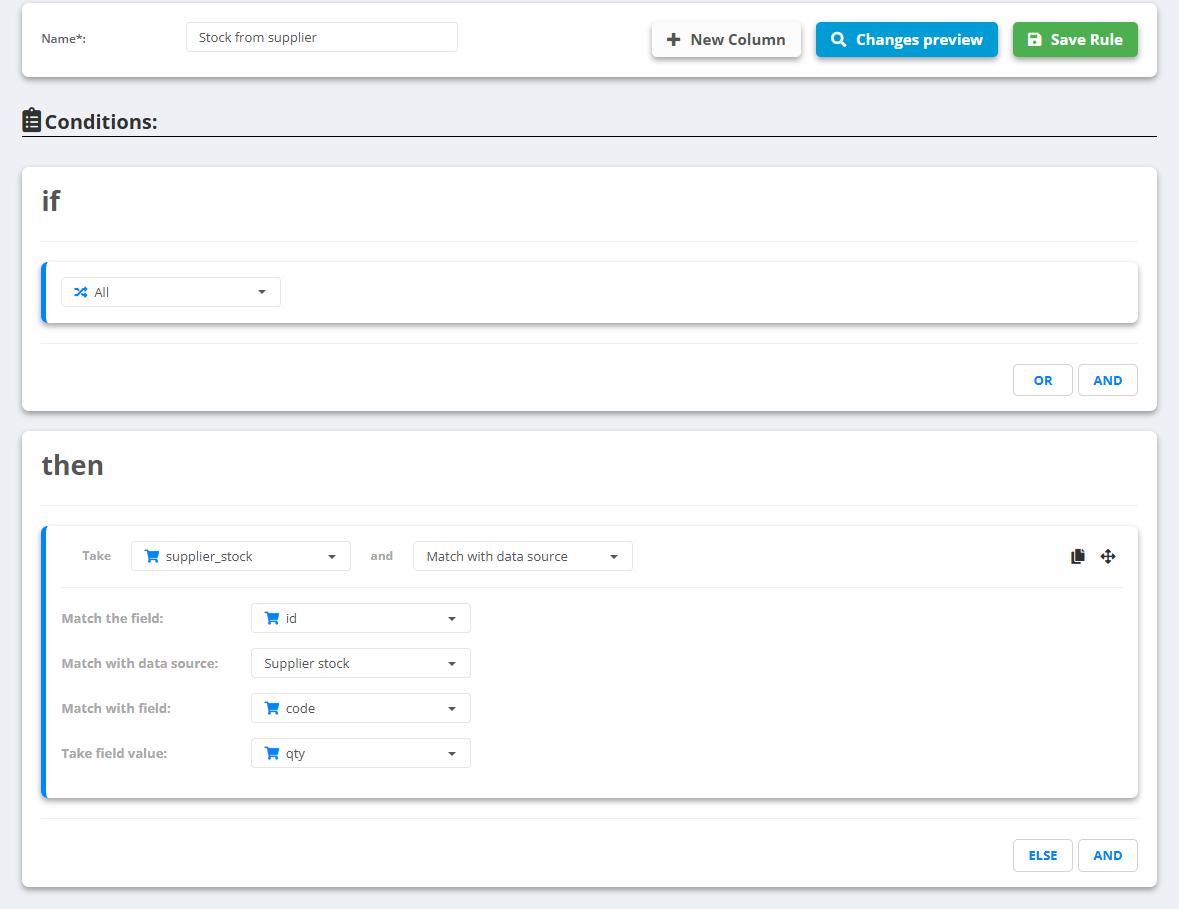
- Open your main data source, go to Rules and create a new rule - for example “Stock from supplier”.
- Under then pick a new column - for example
supplier_stock(New Column), not availability itself - and choose Match with data source. - Set Match the field to your key (for example id or sku), Match with data source to the supplier file, Match with field to the same key in that file, and Take field value to its stock or price column.
- Check Changes preview, then Save Rule.
Example
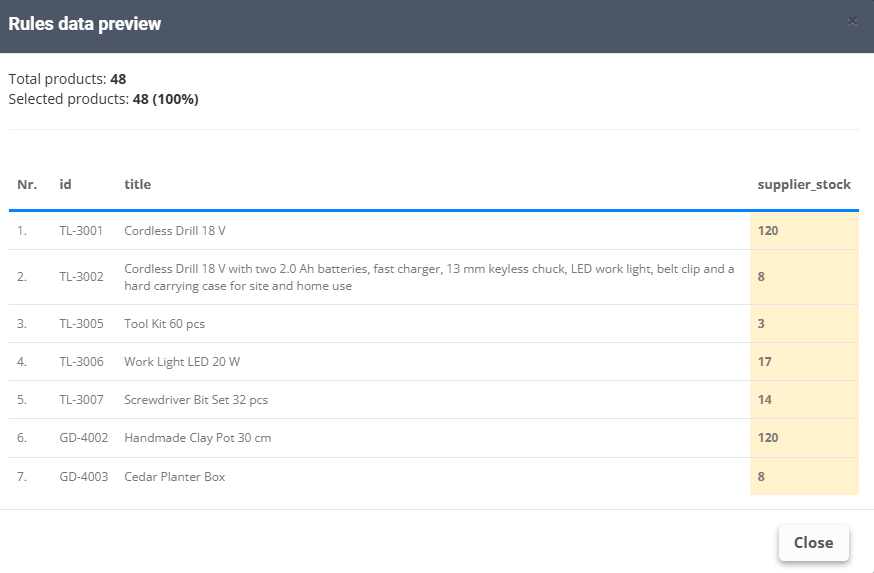
- Your product:
idTL-3007,supplier_stockempty - Supplier file:
codeTL-3007,qty14 - After the rule:
supplier_stock14 - and a second rule can turn 0 intoout of stock.
Products that are not in the supplier file get the field emptied. That is why the rule writes into a new column such as supplier_stock and not straight into availability - otherwise their availability would be wiped. To join two catalogs into one instead, see Combine several data sources.