
Google Shopping and most marketplaces in the EU want the price a shopper pays, VAT included. If your store exports prices without VAT, fix it in the feed.
- Open the data source, go to Rules and create a new rule - for example “Price with VAT”.
- Leave Conditions empty to change every product (or limit it, for example to one country's products).
- Under then pick the field price, choose Calculate and set it to take price, multiply by
1.21. - Check the result in Changes preview, then Save Rule. Do the same for sale_price if you use it.
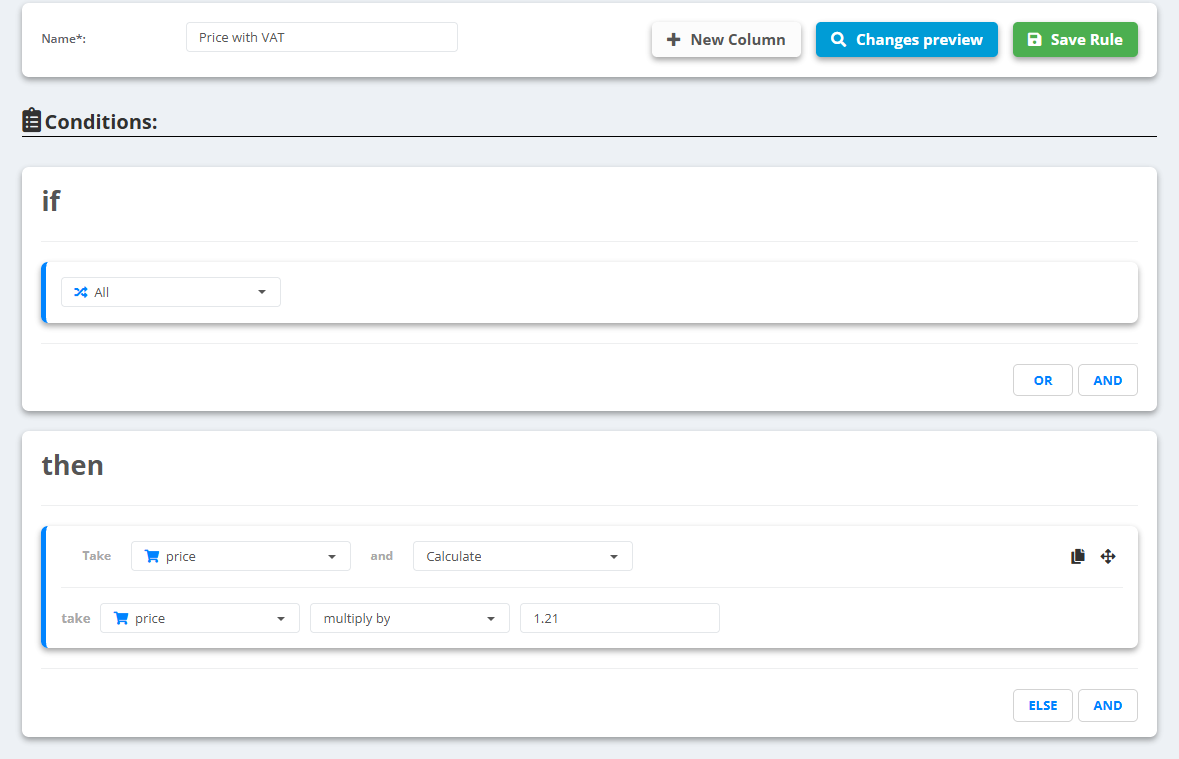
Example
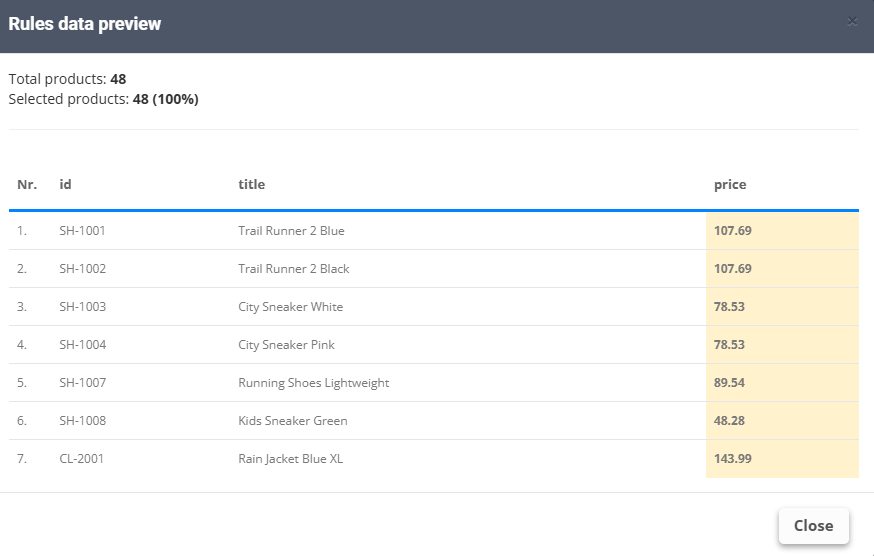
price89.00 → 107.69price64.90 → 78.53 - the result is already rounded to 2 decimalssale_pricestays as it is until you add the same rule for it
Other rates: 1.19 for 19%, 1.20 for 20%, 1.25 for 25%. Need a different number of decimals? Add a rule with Round number after this one.