
Cheap and expensive products need different bids. A custom label with the price band lets you split them into separate campaigns or listing groups - and the label follows every price change on the next update.
- Open the data source, go to Rules and create a new rule - for example “Custom label 1 - price 1 to 25”.
- Under Conditions pick price Greater or equal
1, add “and” price Less25. - Under then pick custom_label_1, choose Combine or set value and type the band name, for example
02 from 1 to 25. - Check Changes preview, then Save Rule. Repeat for the other bands: 25-50, 50-100, 100 and more.
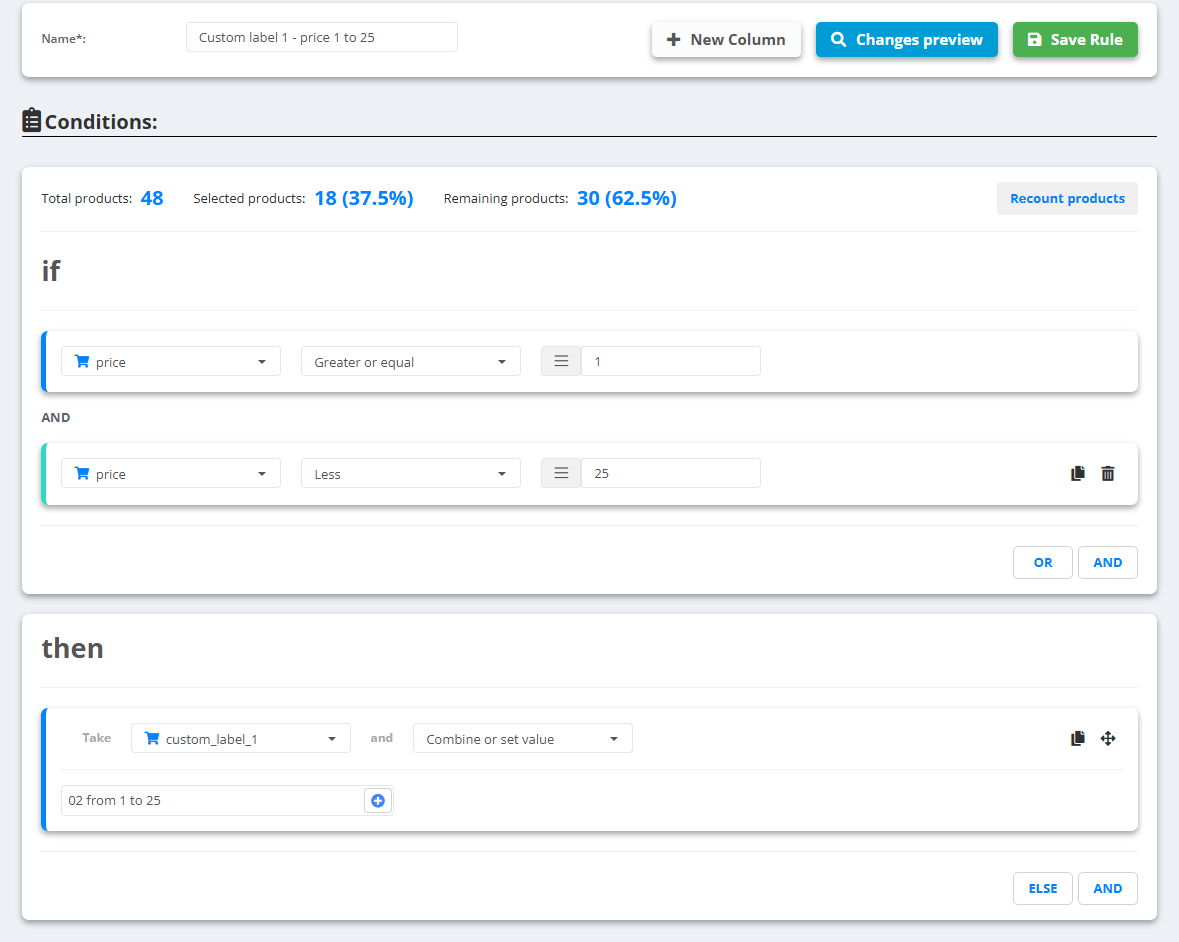
Example
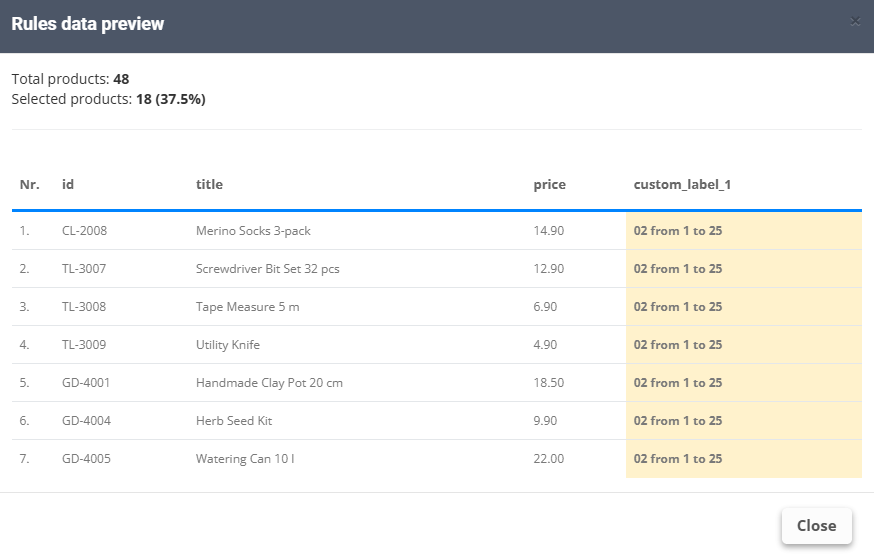
price14.90 →custom_label_1:02 from 1 to 25price74.00 →custom_label_1:04 from 50 to 100(from the 50-100 rule)
Number the band names (01, 02, 03…) so they sort in order in Google Ads. Labels by sales and ROAS instead of price: Set up Shopping labels.