
Black Friday labels, a weekend promotion, seasonal titles - set them up in advance and let the date decide. No one has to remember to switch them on at midnight, or off afterwards.
- Open the data source, go to Rules and create a new rule - for example “Black Friday label”.
- Under Conditions pick Current date (in the Internal fields list), the operator Is on or after and the start date in the calendar.
- Add “and” Current date Is on or before the end date. Add more conditions if only some products are on sale.
- Under then set what changes during the sale - for example custom_label_2 with Combine or set value
black-friday. - Click Save Rule.
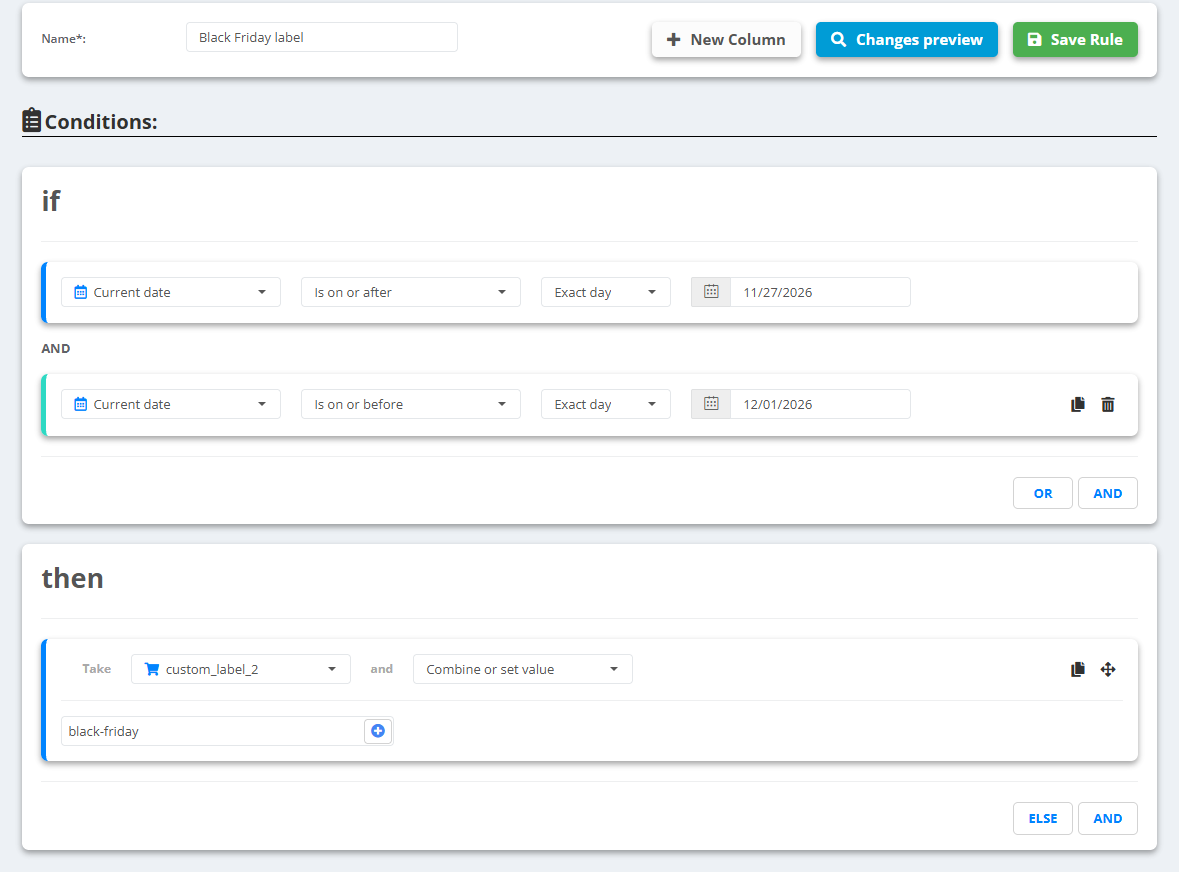
Example
- 27 November - 1 December:
custom_label_2=black-friday - 2 December: the condition no longer matches - at the next update the label is gone
The change happens at the data source's next update after the date, so an hourly schedule switches within the hour. For repeating promotions use Day of week, Day of month, Month or Time instead of fixed dates. Schedule: Update schedule.