
A rule changes one field for the products that match its conditions. Example: IF price is 1 or more AND price is less than 25 THEN set custom_label_1 to “02 from 1 to 25”.
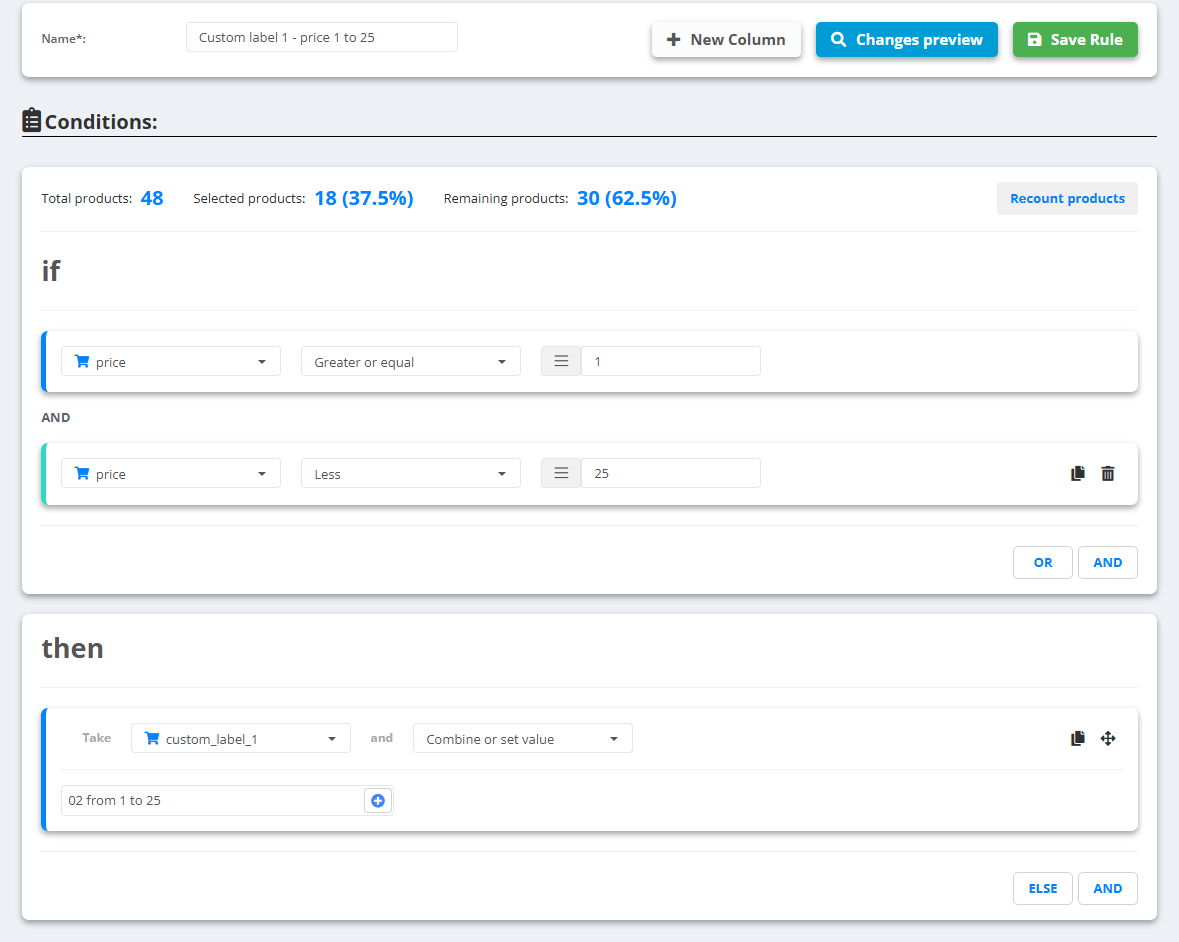
- Open the data source and click the Rules tab, then create a new rule and give it a Name.
- Under Conditions pick a field from Import fields or Internal fields (Current date is in the Internal fields list), an operator and a value. Add more conditions with “and”.
- Under then choose the field to change and what to do: Take a value from another field, All fields & exclude (removes the matching products from the feed entirely), or Combine or set value (type a value, or Combine values… from several fields and text).
- Add an ELSE branch if products that do not match should get something else.
- Click Changes preview - the exact products that will change, with before and after values.
- Click Save Rule.
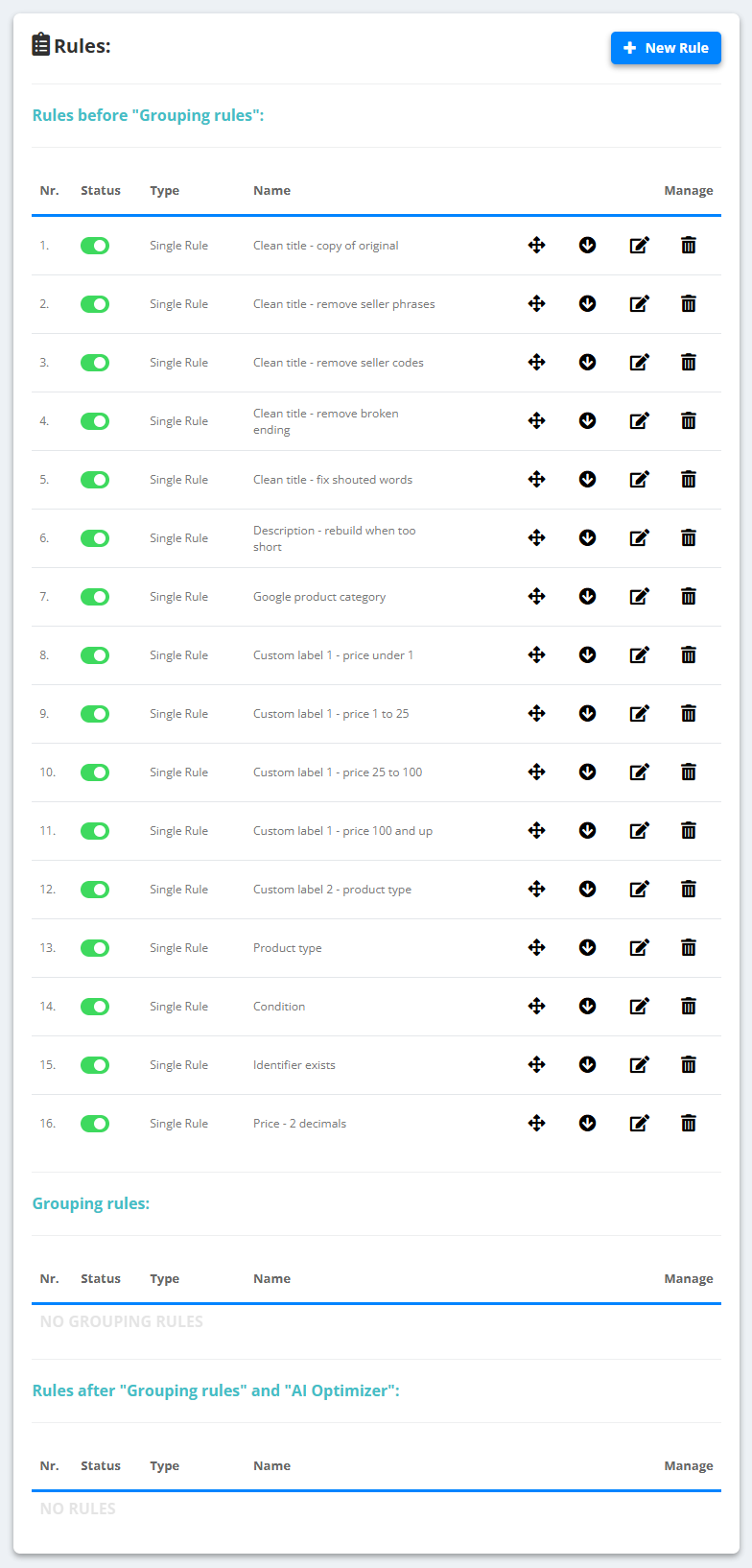
Saved rules are listed under the Rules tab in the order they run - drag to reorder, switch off without deleting, or move a rule to run after Grouping Rules and the AI Optimizer.
Operators you can use
- Text: Contains, Does not contain, Exact match, Does not exact match, Contains any of, Does not contains any of, Is equal to any, Is not equal to any, Is empty, Is not empty, Length exceeds, Length does not exceeds.
- Numbers: Greater, Greater or equal, Less, Less or equal.
- Dates (Current date): Is before, Is after, Is on or before, Is on or after, Is equal to - and what to compare: Exact day, Month, Day of week, Day of month, Time. For seasonal rules that switch themselves: sale rules by date.
Good to know
- The list conditions - Contains any of, Is equal to any and their opposites - take one value per line, for example 1,000 product IDs.
- Exact match and Is equal to any ignore capital letters, spaces at the ends and leading zeros (000173 = 173).
- Number comparisons ignore letters and currency signs (19.99 EUR = 19.99); write decimals with a point.
Order and new columns
- Rules run top to bottom. Drag the rows to change the order - the order on the screen is the order of execution.
- New Column creates a field that did not exist in the source (a custom label, a computed price) and fills it with the rule.
- The Rules data preview shows the field values of a product so you can check what the rule will see.