
UTM parameters tell Google Analytics which channel and campaign brought the visit. Adding them in the feed tags every product at once, without touching the store.
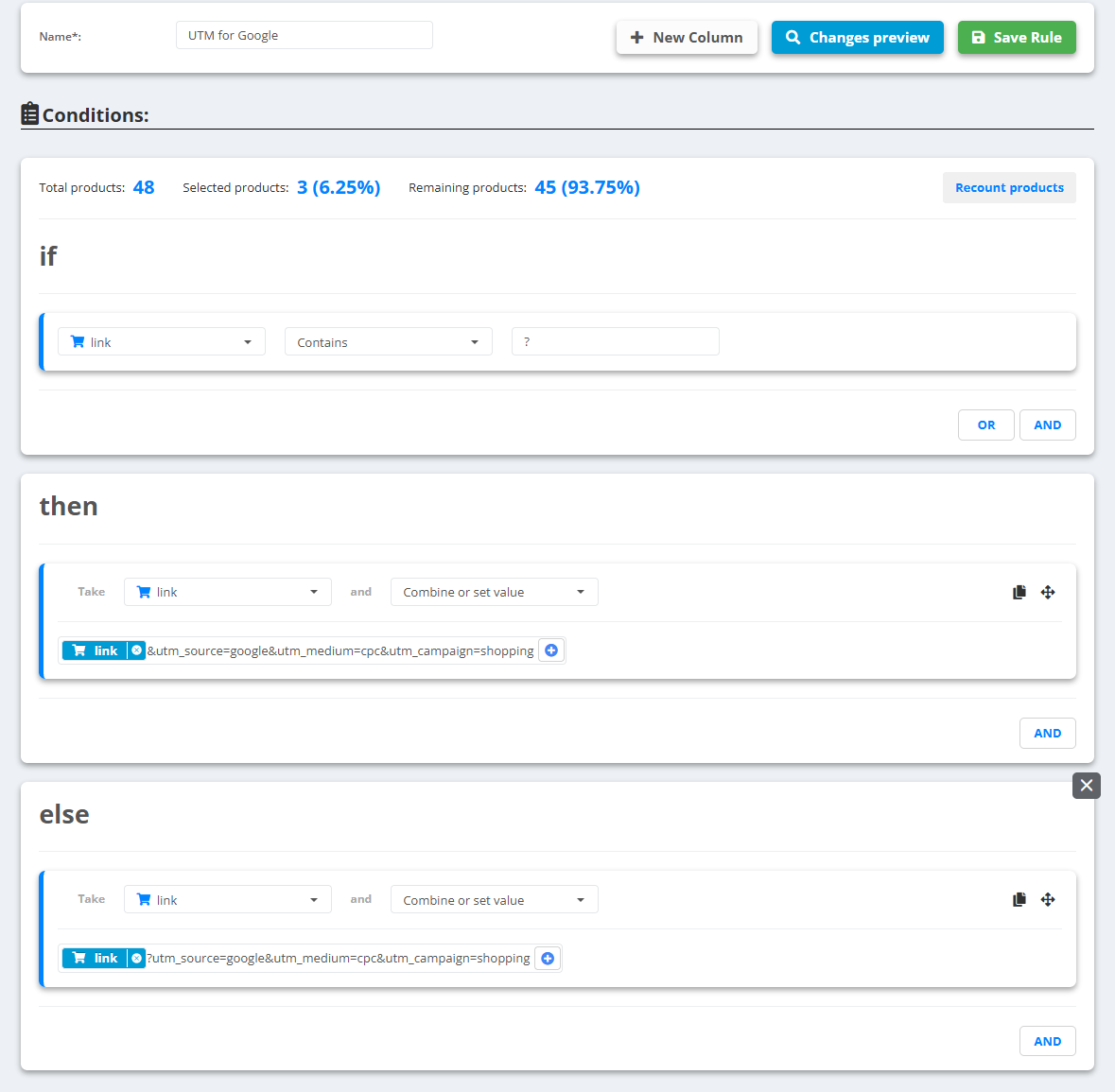
- Open the data source, go to Rules and create a new rule - for example “UTM for Google”.
- Under Conditions pick link Contains
?- links that already have parameters. - Under then pick link, choose Combine or set value and, with Combine values…, put together link and the text
&utm_source=google&utm_medium=cpc&utm_campaign=shopping. - Add an ELSE branch for all other links: link with Combine values… - link and
?utm_source=google&utm_medium=cpc&utm_campaign=shopping. - Check Changes preview - every link should have exactly one
?- then Save Rule.
Example
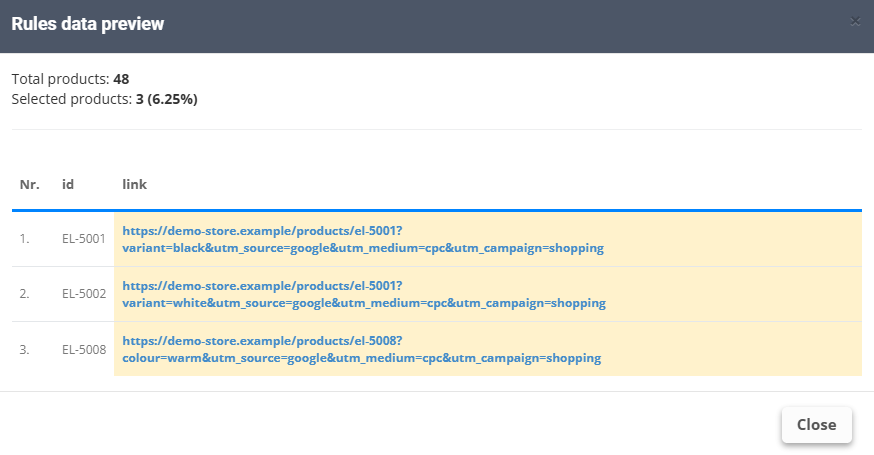
https://demo-store.example/products/sh-1001→https://demo-store.example/products/sh-1001?utm_source=google&utm_medium=cpc&utm_campaign=shoppinghttps://demo-store.example/products/el-5008?colour=warm→https://demo-store.example/products/el-5008?colour=warm&utm_source=google&utm_medium=cpc&utm_campaign=shopping
A rule changes the link for every feed of the data source. For different UTMs per channel, set the link in each export's Mapping with Combine values… instead - see Create a feed export.