
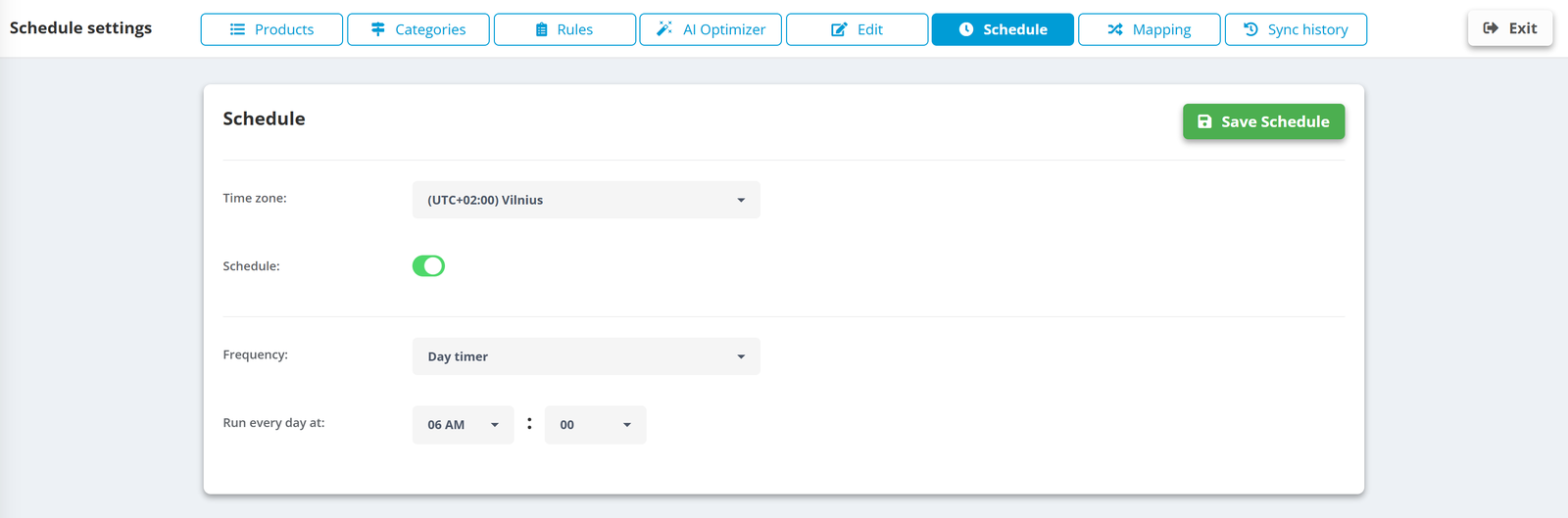
- Open the data source and click the Schedule tab.
- Pick your Time zone.
- Choose the Frequency: Hour timer with a Schedule interval (every hour, 2, 3, 4, 6, 8 or 12 hours) or Day timer with Run every day at a chosen hour.
- Click Save Schedule.
What runs on each update
- The source is re-read, rules, categories and grouping are applied, Image Editor templates run, then every export built on this source is regenerated.
- The update is atomic - the export link never serves an empty or half-written file.
- Products that did not change keep their AI results and generated images; only new or changed products are processed again.
You can also update by hand: in the Data Sources list click Refresh now on the source (and Stop to interrupt a running update). The Sync history tab keeps every run with its time and result.
Match the schedule to how fast your data changes: hourly for stock and prices that move during the day, daily for stable catalogs.