
Shopping Labels pulls your products from Merchant Center, adds performance data next to each one, applies your label rules and writes custom_label_0-4 back through a supplemental feed. Part of the Shopping Labeler module.
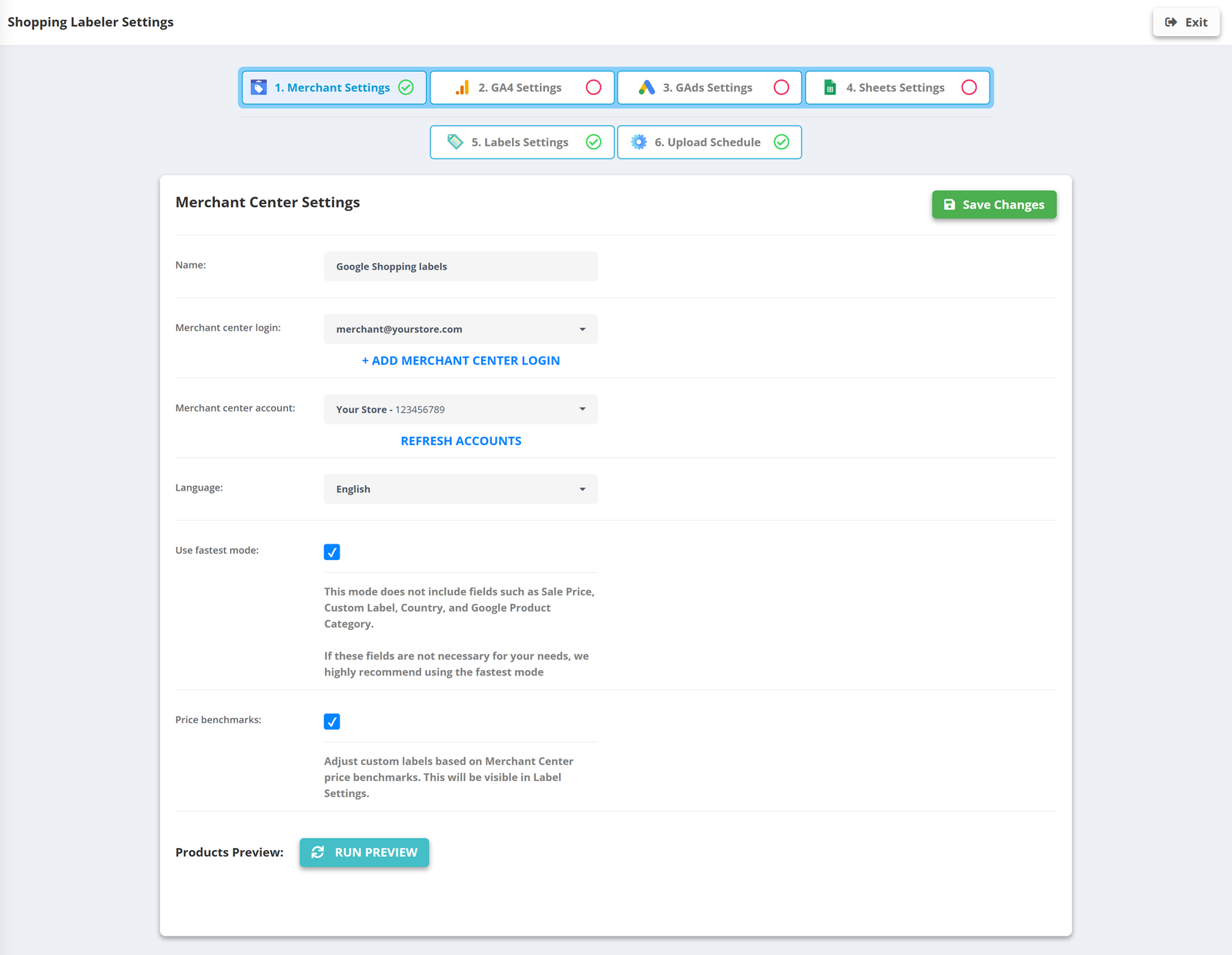
- Go to Shopping Labels and create a template.
- 1. Merchant Settings: the Merchant Center login and account; optionally Price benchmarks. “Use fastest mode” skips sale price, custom labels, country and category fields when you do not need them.
- 2. GA4 Settings (optional): login, account, property, the item ID field and the report period (last 7 to 90 days).
- 3. GAds Settings (optional): the Google Ads account and period - clicks, impressions, cost, conversions, conversion value, ROAS per product.
- 4. Sheets Settings (optional): a Google Sheet with your own columns (margin, season…) joined by item ID.
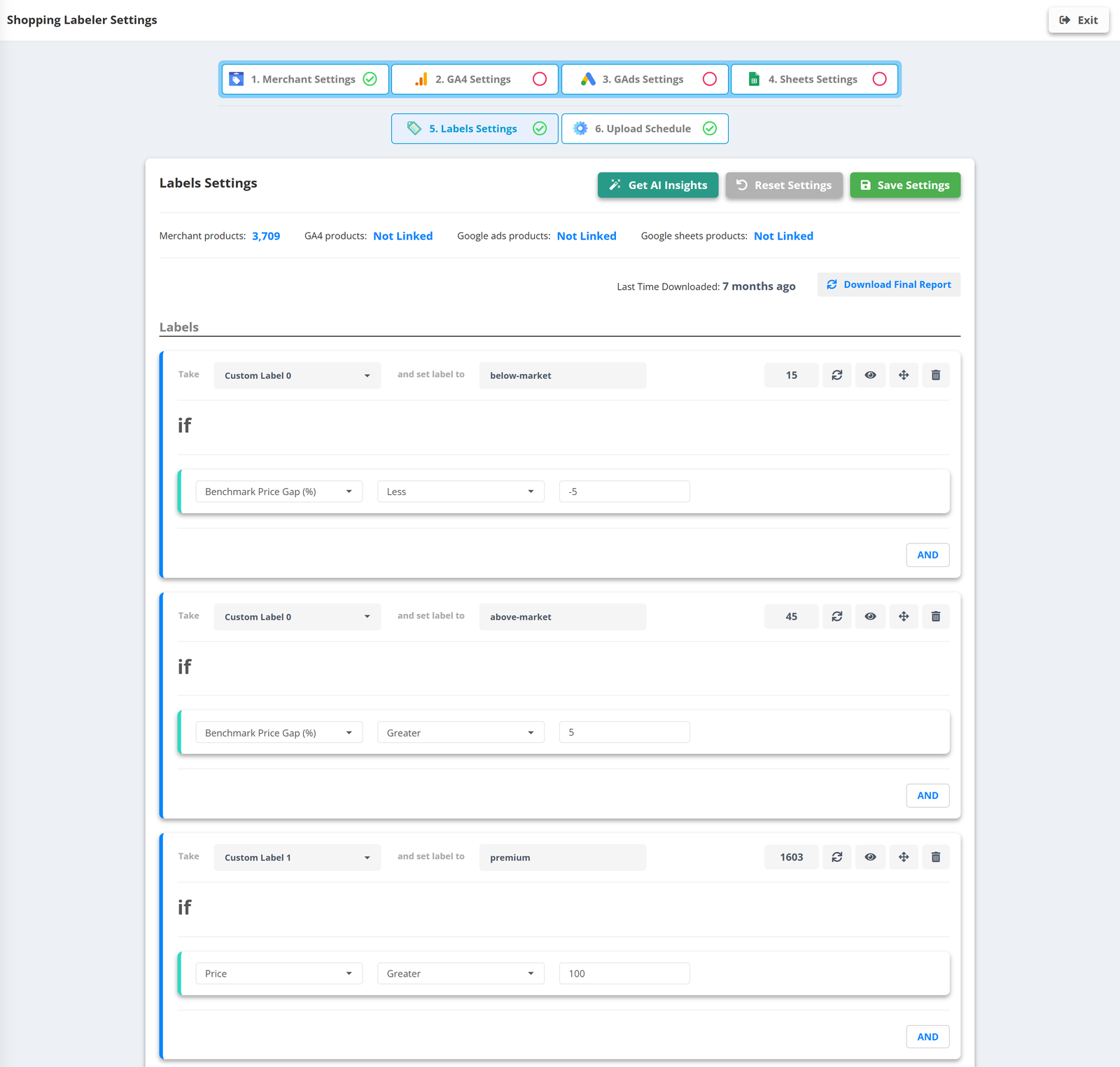
- 5. Labels Settings: Create New Label - pick the label (Custom Label 0-4), the field (title, brand, product type, price, availability, benchmark price gap and - when linked - GA4 and Google Ads metrics), the condition (contains, exact match, contains any, is empty, greater, less…) and the value to set. The ↻ button counts the matching products, the eye previews them.
- 6. Upload Schedule: Frequency - hour timer (every hour to every 12 hours) or day timer - and the time zone. Save Settings.
After the first run
- Labels arrive in Merchant Center via a supplemental feed - the primary feed is not touched. Follow the on-screen steps to create the supplemental feed once.
- Then split your Shopping and Performance Max campaigns by label: a campaign and a budget per label.
- Every run is kept in the history with its result.