
The free Shopping Ads audit reads your Google Ads account - and, if you connect it, your Merchant Center - and writes a report: a 0-100 score, the money spent on products that never sell or lost because the budget ran out, and the five fixes that pay most. It runs 18 checks over Shopping and Performance Max. No PPCDATAFEED account and no card are needed, and nothing in your Google accounts is changed.
Want to see one first? The example report shows a made-up shop, checked exactly the way your account would be.
Run the audit
- Open the free audit and click Connect Google Ads. Pick your Google account and keep the Google Ads permission ticked.
- Pick the Google Ads account and the period - the last 30, 90 or 180 days (90 by default).
- Merchant Center is optional. The audit finds the Merchant Center your Google Ads account is linked to - sign in to compare your prices with the market, or skip it and everything else still runs.
- Wait about three minutes. The page shows the progress and opens the report when it is ready.
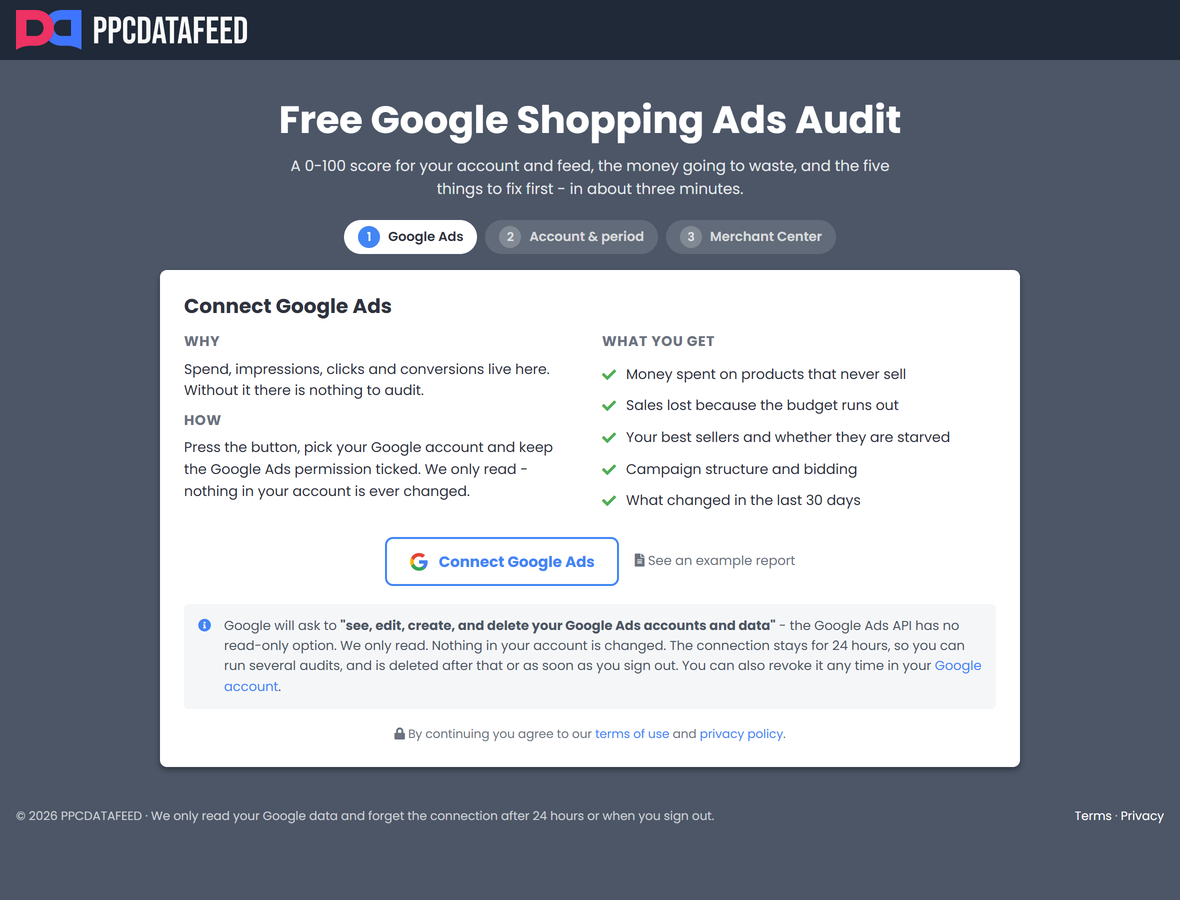
Google asks to "see, edit, create, and delete" your Google Ads data - the Google Ads API has no read-only option. The audit only reads. The connection is kept for 24 hours, so you can run several audits, and is deleted after that or as soon as you sign out. You can also revoke it any time in your Google account.
The score
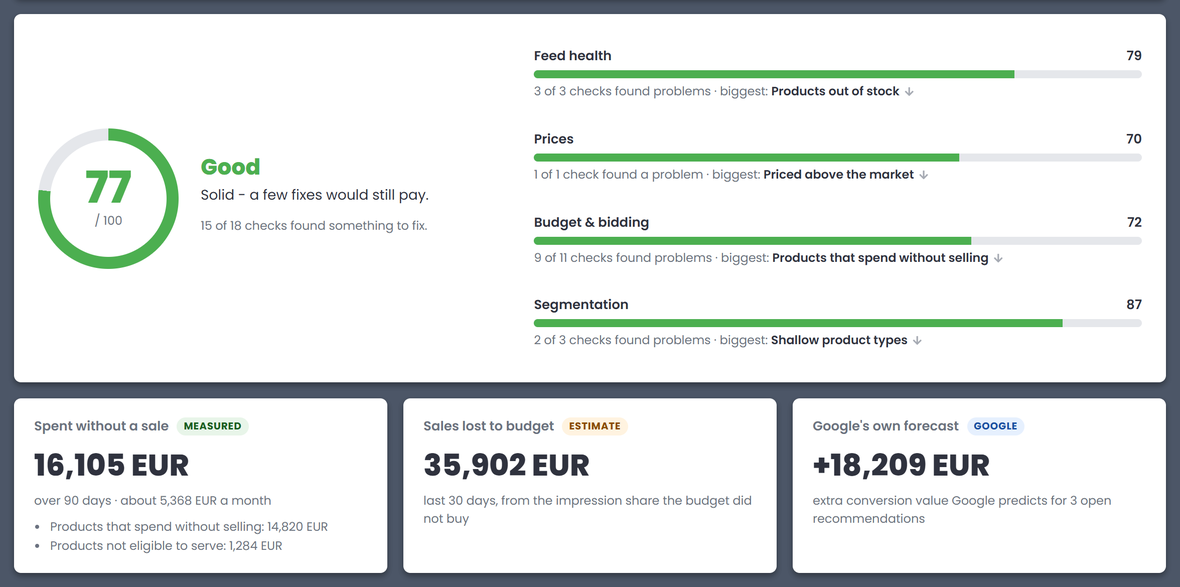
The report opens with a score from 0 to 100 and a verdict: Excellent (90 and above), Good (75+), Weak (40+) or Critical. Next to it are the four areas the 18 checks fall into - Feed health, Prices, Budget & bidding and Segmentation - each with its own score and the biggest problem in it. An area without data, such as Prices without Merchant Center, is left out of the score instead of counting as zero.
Under the score are the money blocks:
- Spent without a sale - measured: what products that brought no conversions cost over the period.
- Sales lost to budget - an estimate for the last 30 days, from the impression share the budget did not buy.
- Google's own forecast - the extra conversion value Google predicts for its open recommendations in the account.
Fix these first
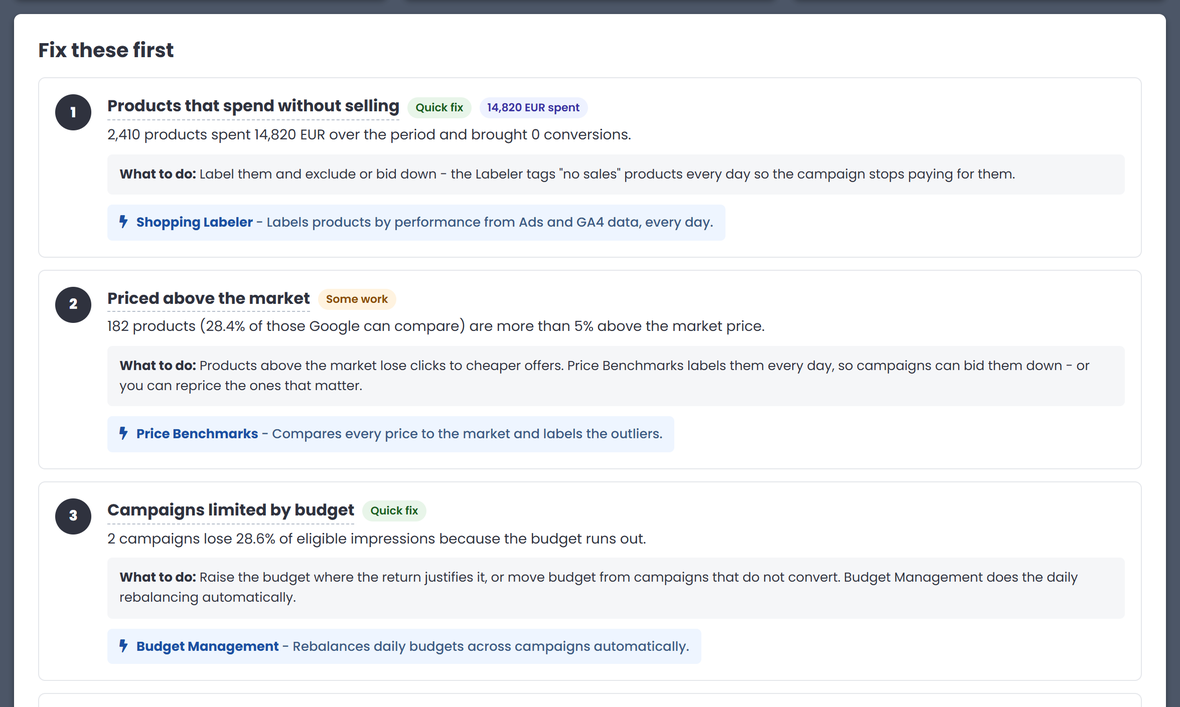
The five findings that pay most, in order. Each one says what is wrong in numbers, whether it is a quick fix or some work, what to do - and which PPCDATAFEED module does it for you.
Below come the account in numbers, the last 30 days against the 30 before, campaigns by type, and All findings area by area - each with the products or campaigns behind it.
The 18 checks
- Feed health - products not eligible to serve, products out of stock, titles shorter than 30 or longer than 150 characters.
- Prices (with Merchant Center) - products priced more than 5% above the market.
- Budget & bidding - no conversion tracking, campaigns limited by budget, impressions lost to rank, Smart Bidding with fewer than 30 conversions a month, products that spend without selling, spend concentrated on a few products, products in no campaign, Performance Max and Shopping competing for the same products, products with no impressions, products that disappeared from the feed, no changes in 90 days.
- Segmentation - custom labels unused, product types less than three levels deep, products without a brand.
Prices against the market
With Merchant Center connected, the report compares each price with the market price Google sees for the same product. Google can only compare products it finds in other shops - usually ones with a GTIN - so the report says how many of yours it covers.
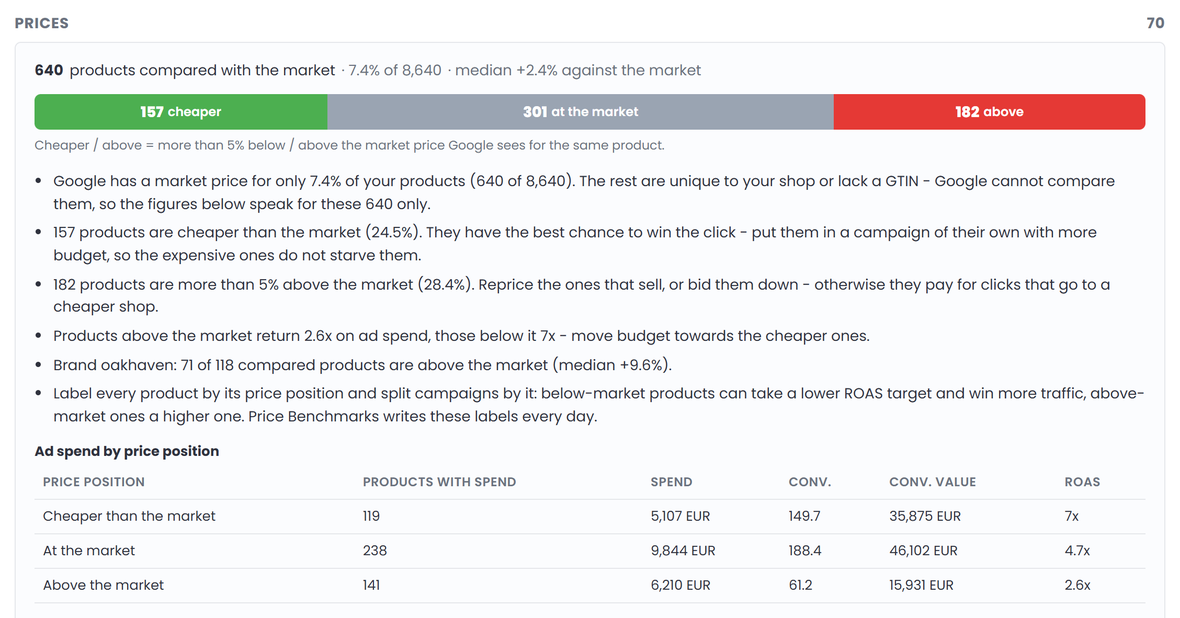
- Cheaper, at the market, above - more than 5% below or above the market price counts as cheaper or above.
- Ad spend by price position - spend, conversions and ROAS for each group, so budget can follow the products that win.
- By brand, and the cheapest and most expensive products against the market.
Save and come back
Print / PDF at the top of the report saves it as a PDF. The report stays available for 180 days.
Fix the findings with PPCDATAFEED
- Products that spend without selling, impressions lost to rank, unused custom labels - Shopping Labels.
- Products priced above the market - price benchmarks in Shopping Labels and the GMC Price Benchmarks source.
- Products not eligible, without a brand or with shallow product types - feed rules.
- Titles too short or too long - the AI-Optimized Feed.
- Campaigns limited by budget - budget rules in the Optimization Tool.
- Products out of stock or gone from the feed - the update schedule.