
Google disapproves ads that send people to products they cannot buy. Filter them out in the export itself: other channels keep their own rules, and nothing is deleted.
- Go to Feed Exports and open the export for Google (or create one).
- Under Conditions click + Add Condition, pick the field availability, the operator Exact match and type the value your store uses for products in stock - for example
in stock. - Click CONDITIONS PREVIEW - Filtered products shows how many products stay in the feed.
- Click Save Template. From the next update on, only products in stock are in this feed.
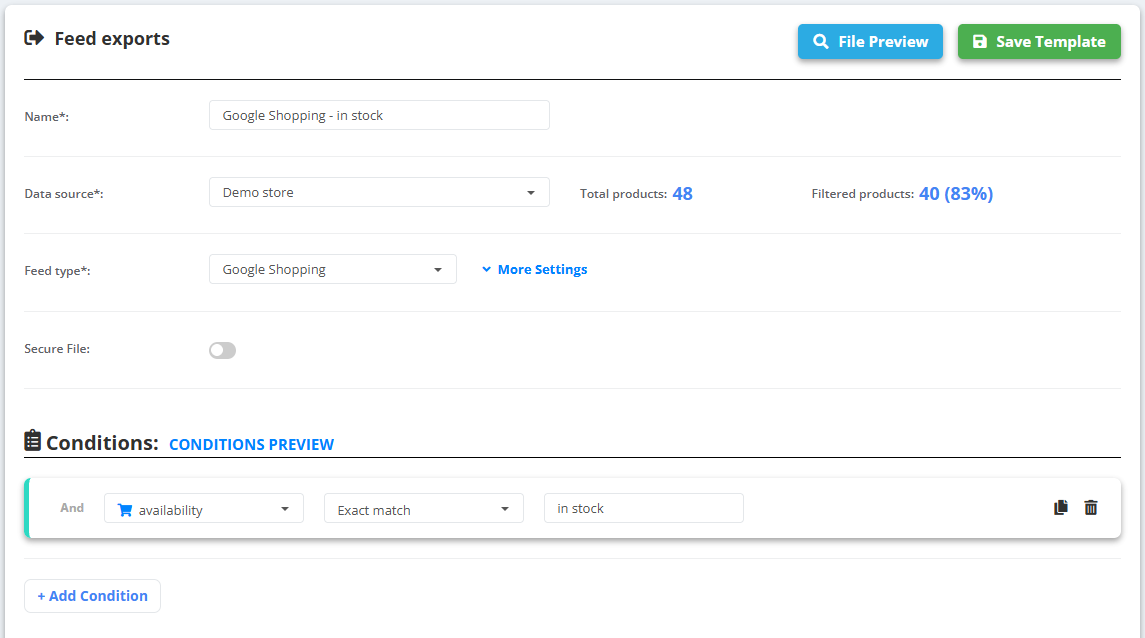
Example
- Catalog: 48 products, 8 of them
out of stock. - Google feed after the condition: 40 products - all
in stock.
Check the exact value first in the data source Products tab: stores write it asin stock,instock,1oryes. If several values mean the same, use Contains any and separate them with||- for examplein stock || instock.
To leave the products out of every feed instead, use a rule with All fields & exclude - see What a rule can do. More about exports: Create a feed export.