
The left menu follows the flow of the data: connect accounts, bring products in, shape them, send them out.
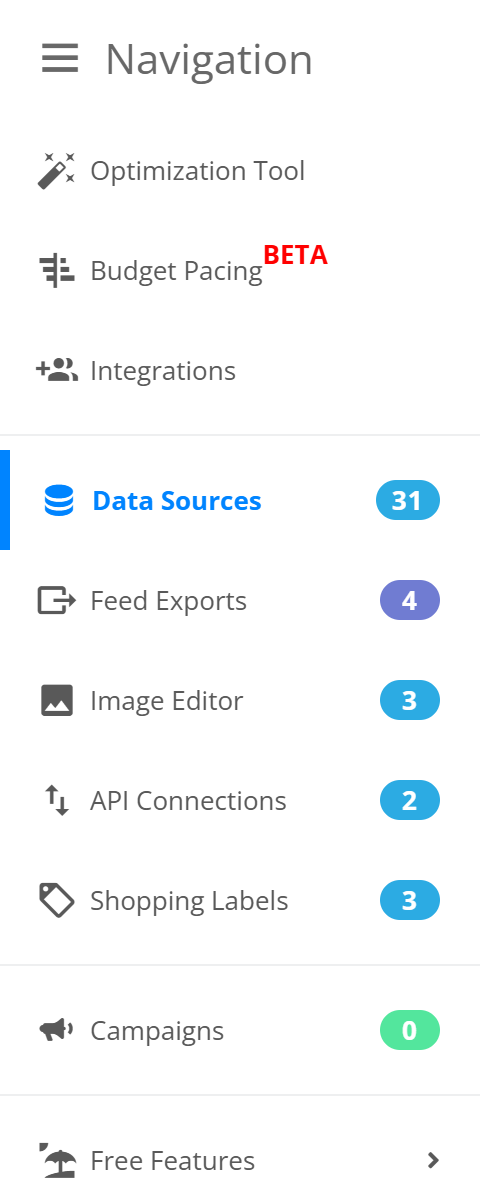
- Integrations - your Google Ads, Merchant Center, Google Analytics and Google Drive logins, and linked Shopify shops. Connect these first; data sources and campaigns pick accounts from here.
- Data Sources - your product catalogs. One data source = one connected shop or file. Rules, categories and the update schedule live inside each data source.
- Feed Exports - files built from a data source for a channel (Google Shopping, Facebook, Criteo, custom XML or CSV). Each export has its own URL.
- Image Editor - Image Fix templates (make photos compliant) and Creative Editor templates (branded images). Module.
- API Connections - push products to Google Merchant Center through the API instead of a file. Module.
- Shopping Labels - custom labels calculated from performance data and sent to Merchant Center. Module.
- Campaigns - Search, Shopping, DSA and PMax campaigns generated from a data source.
- Free Features - Search Terms N-Grams, Negative Conflicts, Pause Empty Ad Groups - account tools that need only a Google Ads login.
Your name in the top right opens My Profile, Billing info, Manage Access (team), Team Activity, Affiliate Program and Notification settings.
Menu items marked as modules appear only when the module is enabled for your account. Ask us and we switch them on.