
Connect the AI assistant you already use - Claude or ChatGPT - to your PPCDATAFEED account. Then ask in plain words in the chat, and it works in the app for you: data sources and rules, feed exports, images, videos, Shopping labels and Google Ads campaigns.
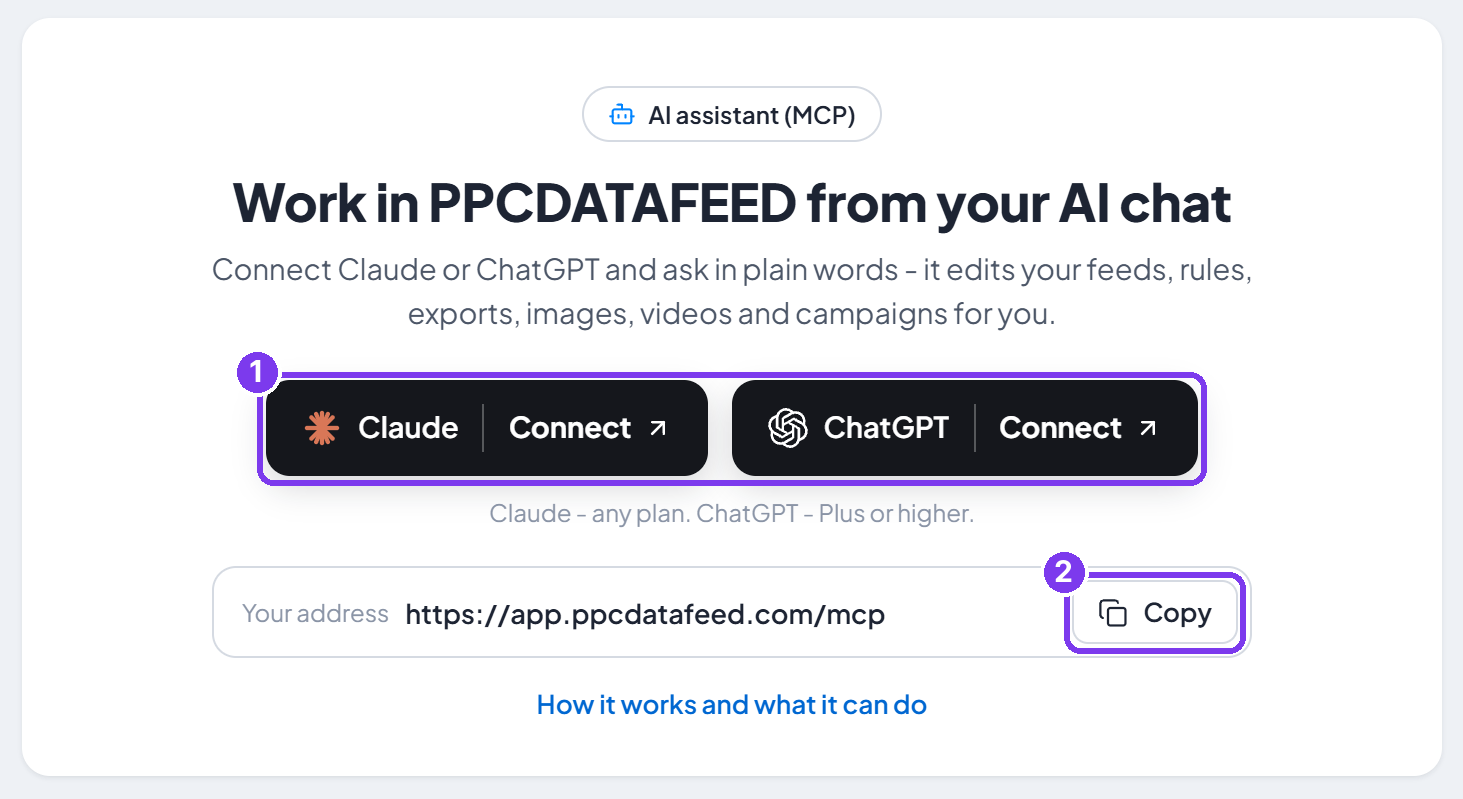
What you need
- A PPCDATAFEED account.
- Claude - any plan, or ChatGPT - Plus or higher.
- Your address:
https://app.ppcdatafeed.com/mcp. You also find it in the app under Integrations > AI assistants, with a Copy button.
No API keys or passwords to copy: your AI app opens the PPCDATAFEED sign-in, you sign in and press Allow.
Connect in 3 steps
- In your AI app, add a custom connector with the address above.
- Sign in to PPCDATAFEED and press Allow.
- In a new chat, switch PPCDATAFEED on and ask.
Step by step with pictures: Connect Claude or Connect ChatGPT.
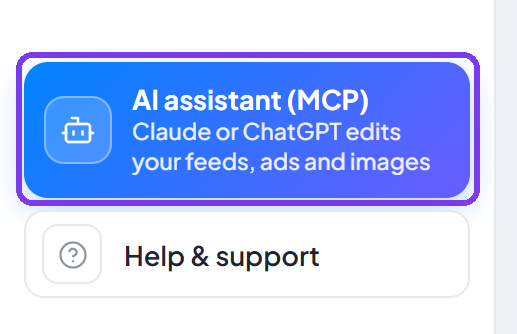
In the app, the AI assistant (MCP) card at the bottom of the left menu takes you to Integrations > AI assistants.
You stay in control
- Nothing paid without you - before anything that costs money, your AI shows the price and asks you in the chat.
- Deleting is yours - your AI only asks; you approve it in the app, under AI asks.
- Every change can go back - changes are marked Changed by AI, and Restore puts them back.
More in Approvals and safety.
Next steps
- What your AI can do - the areas and requests to copy.
- Troubleshooting - when something does not connect.
Need help? Contact us.