
You need ChatGPT Plus or higher and ChatGPT on the web (chatgpt.com) - custom servers cannot be added in the mobile app. On a Business or Enterprise workspace, an admin may have to add it or allow it first.
1. Add PPCDATAFEED
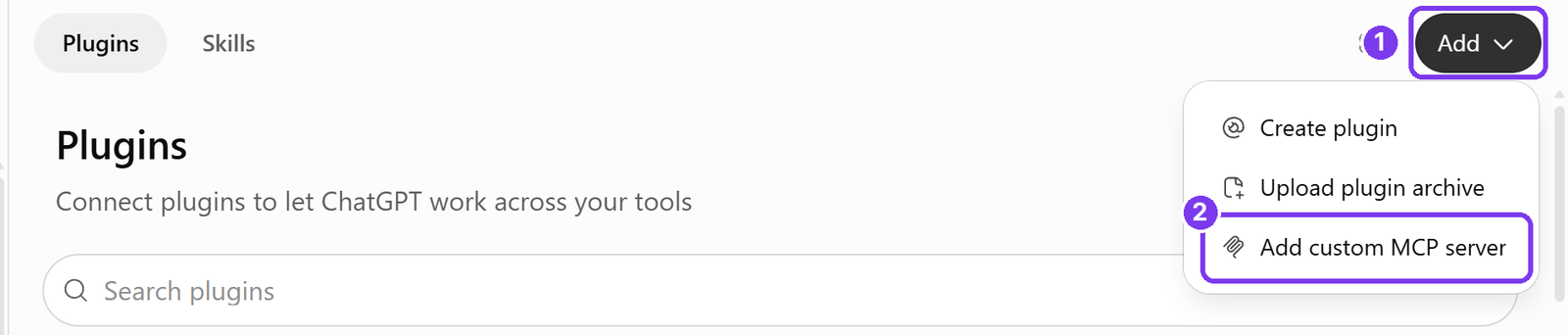
- In ChatGPT, open Plugins in the left menu.
- Click Add, then Add custom MCP server.
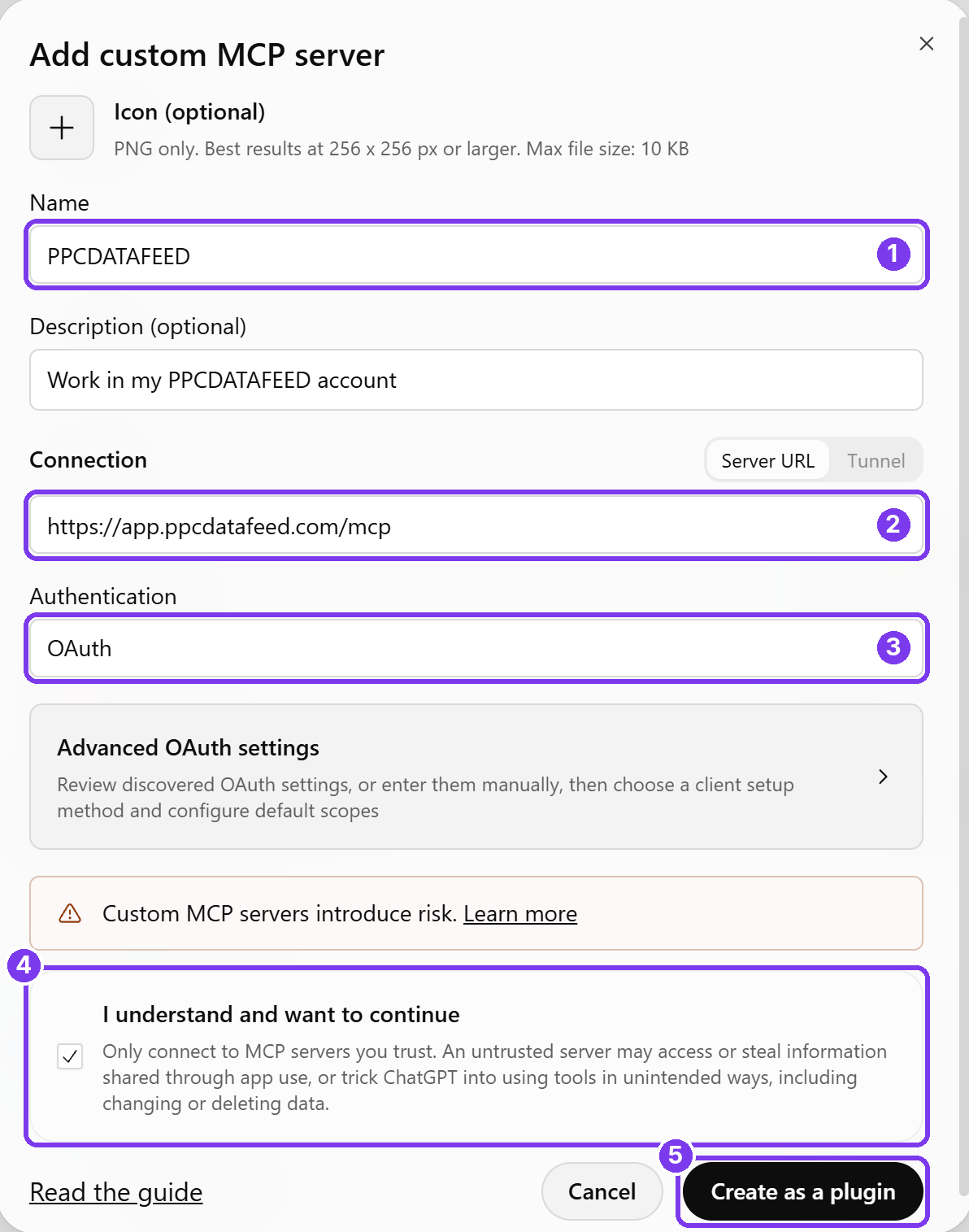
- Name:
PPCDATAFEED. Under Connection, keep Server URL and enterhttps://app.ppcdatafeed.com/mcp. Authentication: OAuth. - Read the warning, tick I understand and want to continue and click Create as a plugin.
2. Sign in and press Allow
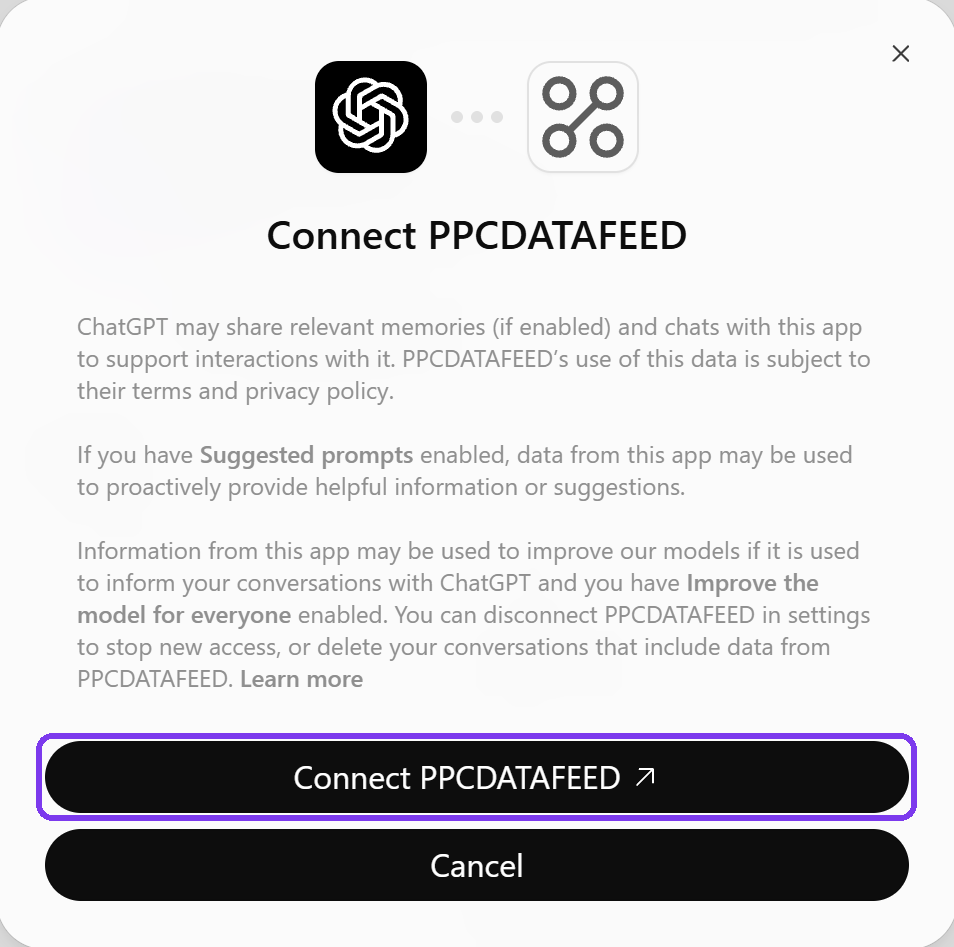
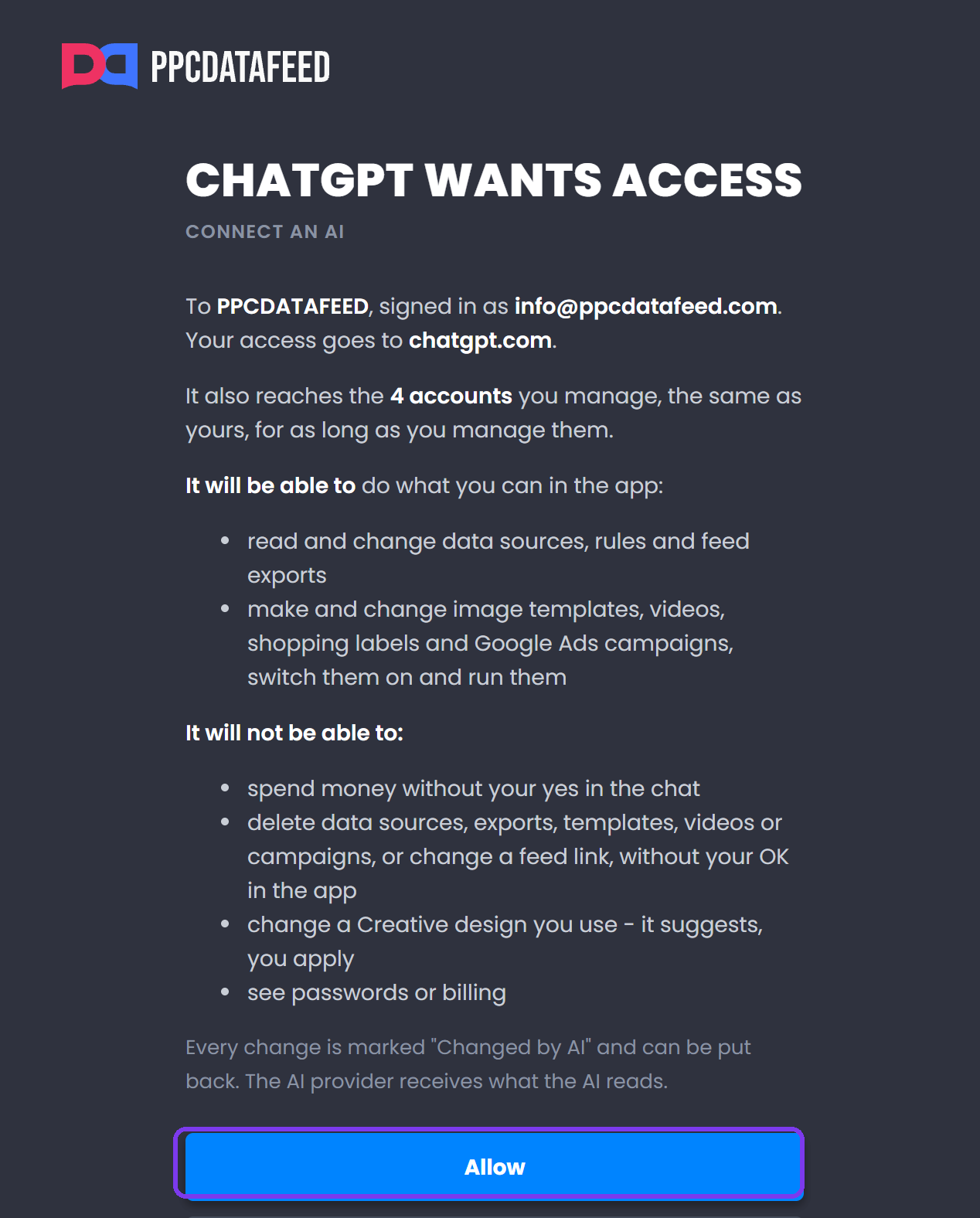
ChatGPT asks to Connect PPCDATAFEED, then opens the PPCDATAFEED sign-in. Sign in with your PPCDATAFEED account, read what the AI will be able to do and press Allow.
3. Use it in a chat
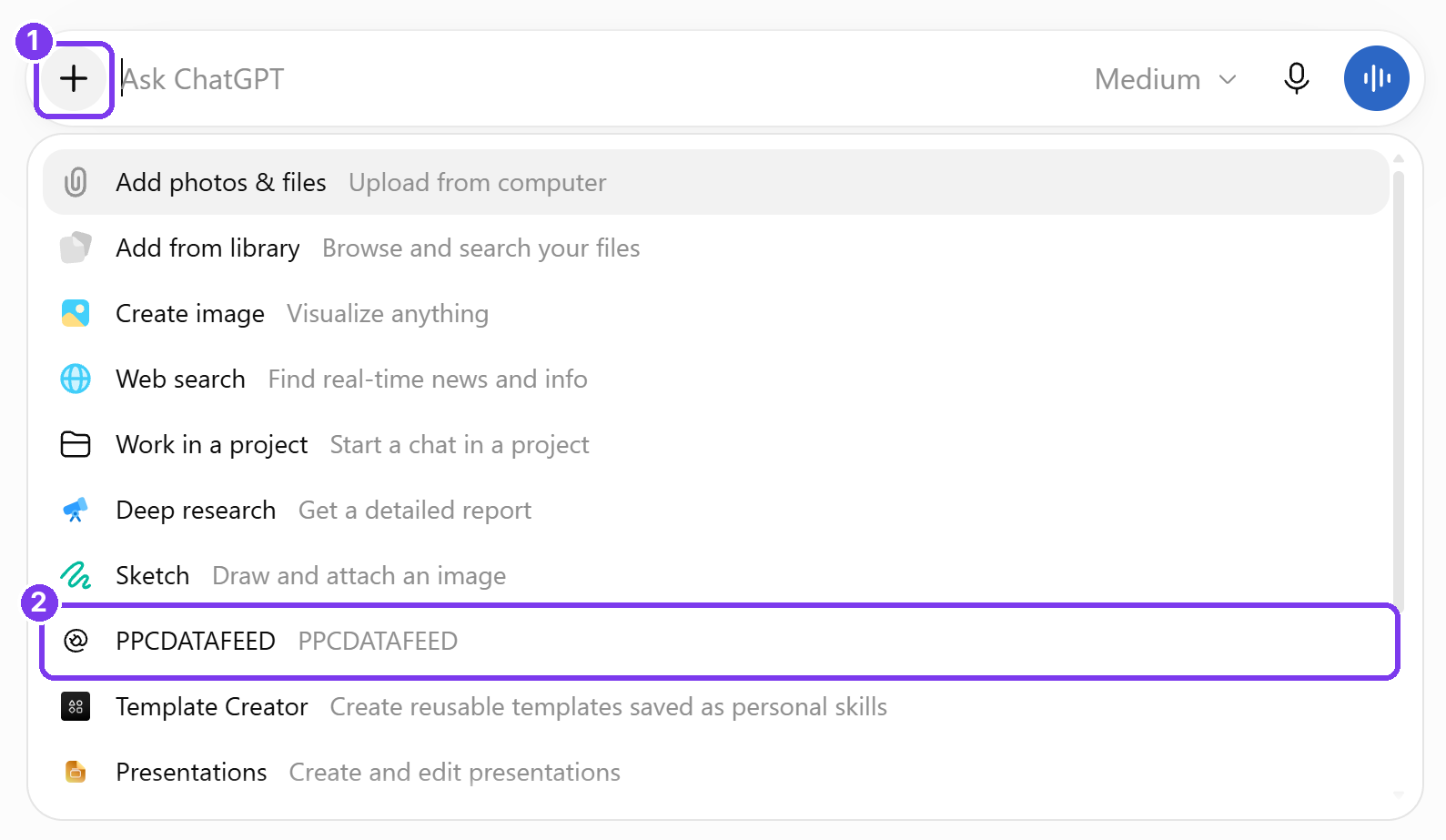
- Start a new chat and click + next to the message box.
- Pick PPCDATAFEED.
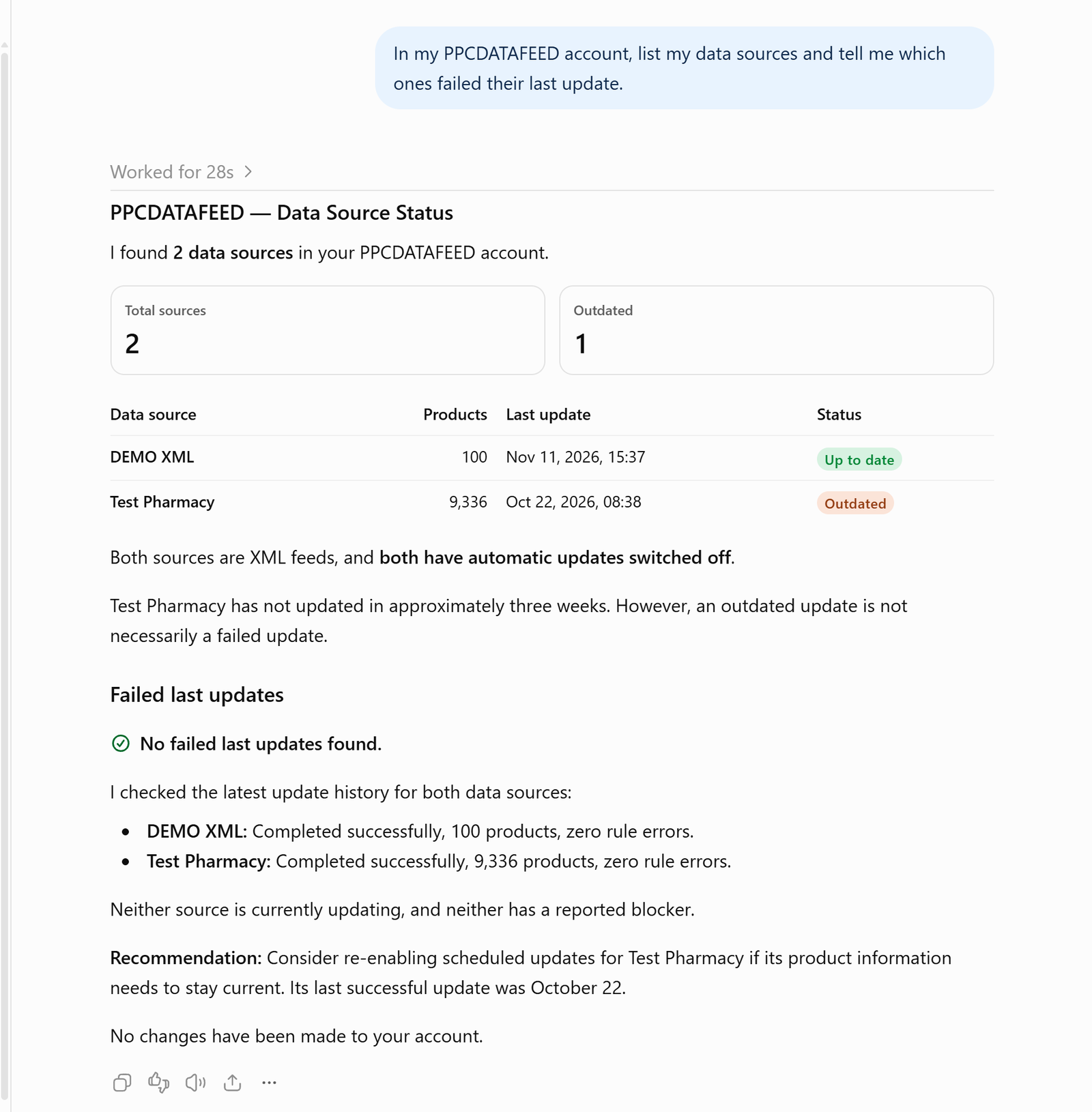
- Ask in plain words, for example: "List my data sources and tell me which ones failed their last update."
When ChatGPT asks first
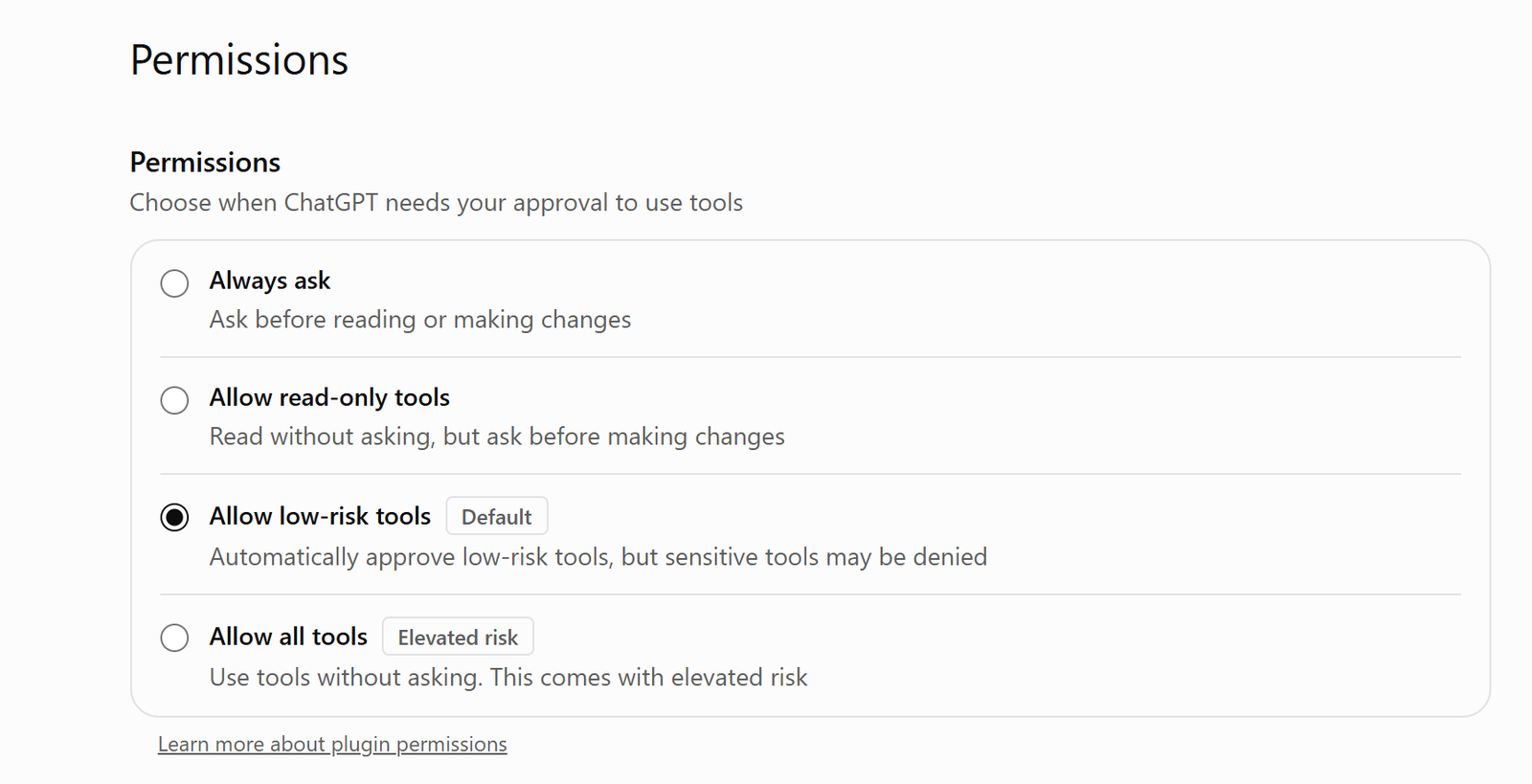
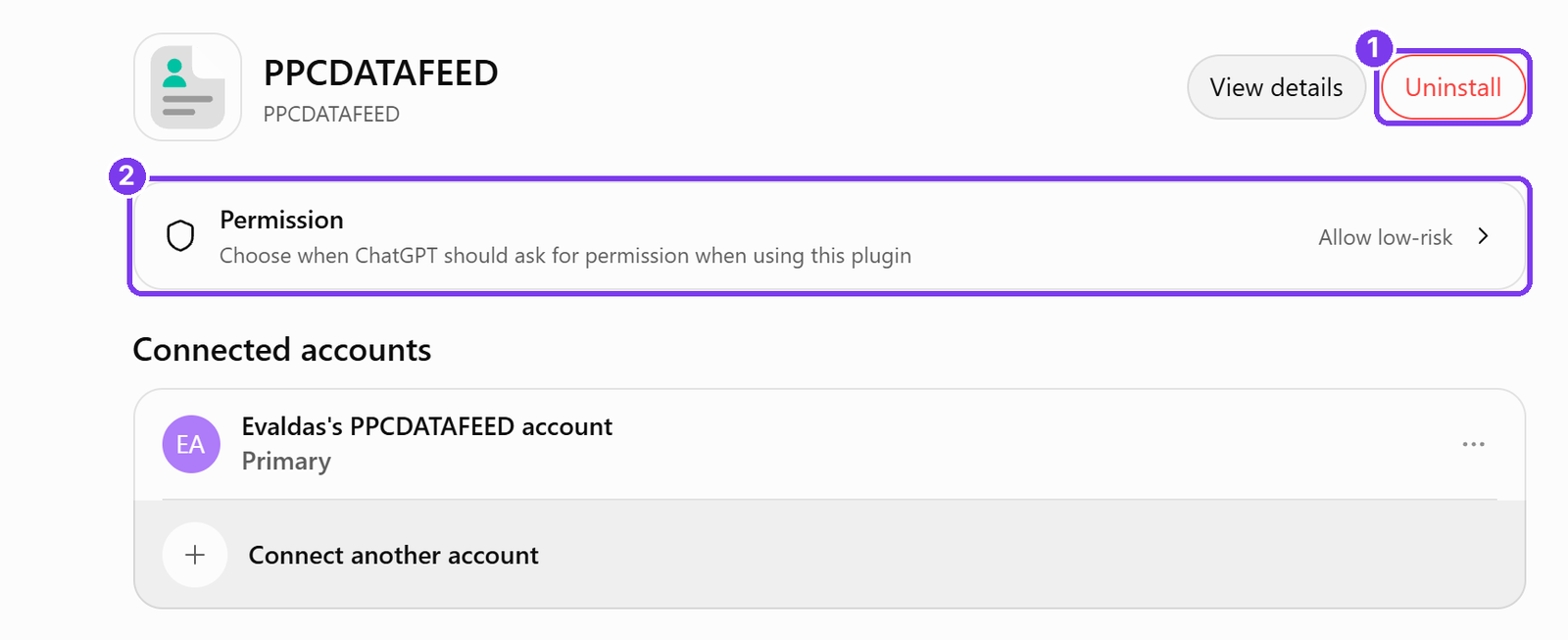
In Settings > Plugins > PPCDATAFEED > Permission you choose when ChatGPT asks before it uses PPCDATAFEED:
- Always ask - before reading or making changes.
- Allow read-only tools - reads without asking, asks before changes.
- Allow low-risk tools (the default) - approves low-risk tools by itself; sensitive ones may be denied.
- Allow all tools - never asks. ChatGPT marks it as elevated risk.
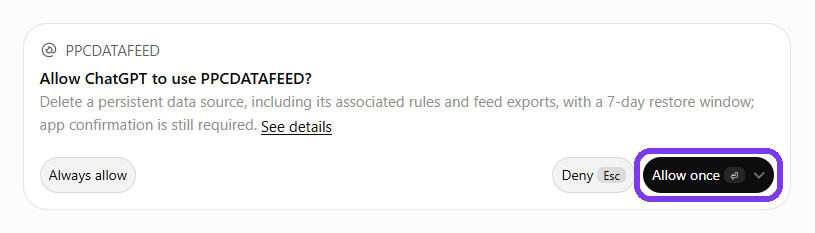
When it asks in the chat, Allow once lets it go ahead this time, Always allow stops the question for that tool and Deny stops it.
Disconnect
In ChatGPT: Settings > Plugins > PPCDATAFEED > Uninstall. Or in the app: Integrations > AI assistants, the bin icon next to ChatGPT.
Next steps
Need help? Contact us.