
1. Bring the products in
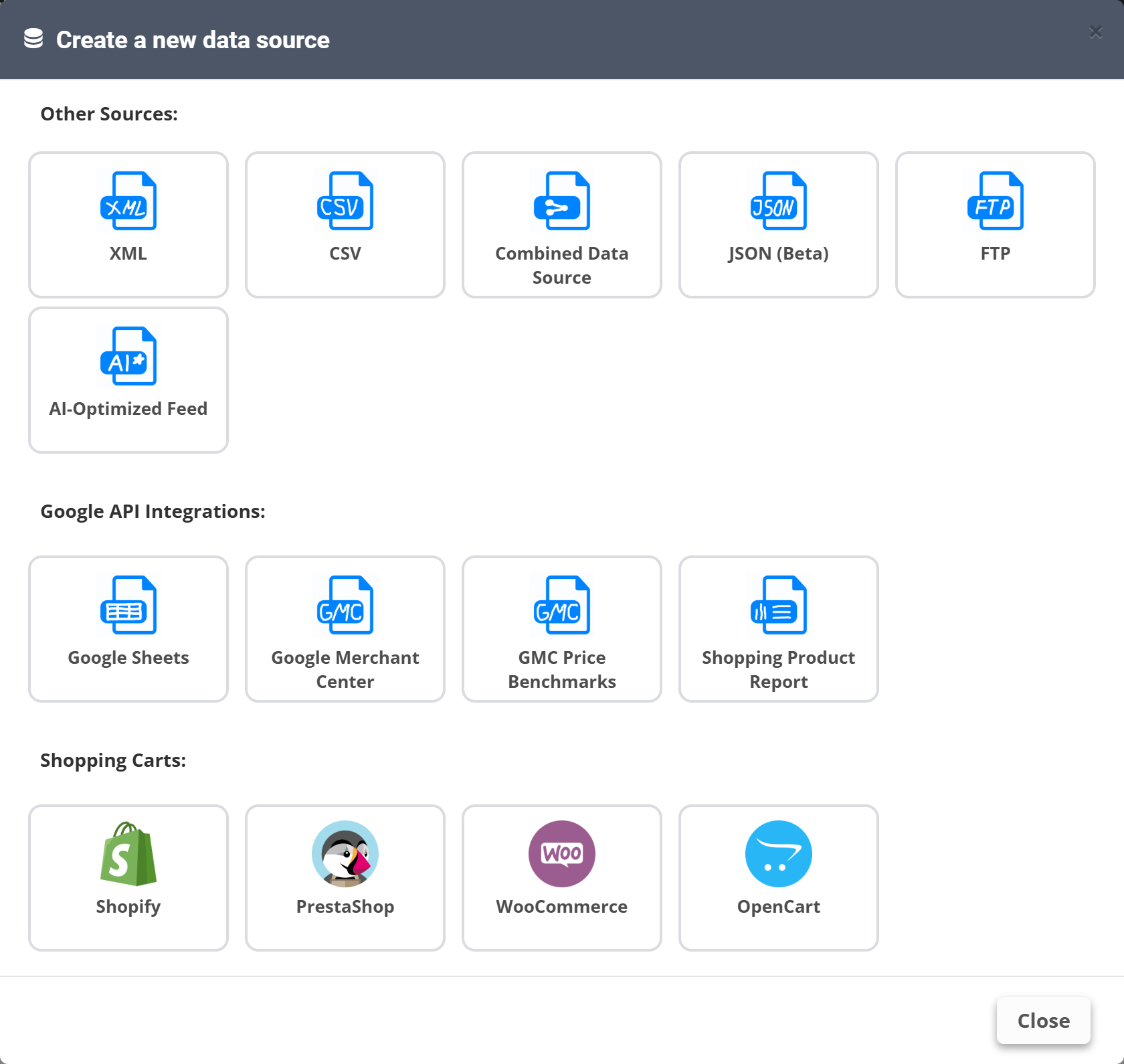
- Go to Data Sources and click Create New Data Source.
- Pick your source: XML, CSV, FTP, JSON, a shopping cart (Shopify, PrestaShop, WooCommerce, OpenCart) or a Google integration (Google Sheets, Google Merchant Center).
- Fill in the name and the source details (URL, or the linked shop) and click Save Template. The first sync starts and the Products tab fills up.
There is nothing to map: rules and exports work with the fields of your file (the Import fields) as they are.
2. Create the export
- Go to Feed Exports and click Create New Feed Export.
- Give it a name, pick the data source and choose Google Shopping as the feed type.
- In Mapping, the Google fields are filled in from your feed by themselves. Rows marked REQUIRED must have a value.
- Click File Preview to see the first 100 products as XML, then Save Template.
3. Hand the link to Google
- Back in the Feed Exports list, copy the Feed URL of the new export.
- In Merchant Center add a new feed with Scheduled fetch and paste the URL.
- Set the update schedule of the data source (the Schedule tab) so the file is refreshed as often as your prices change - see Set the update schedule.
Prices, stock and titles will look wrong in Google only if they are wrong in the file - use the Products tab and File Preview to check before you paste the link.