
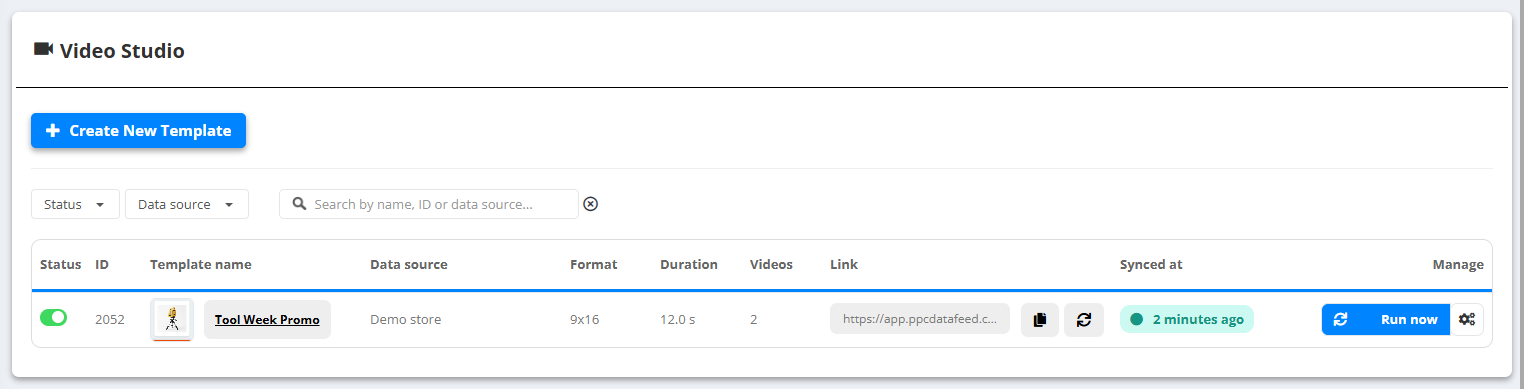
The Video Studio list shows every template with its status, data source, format, duration, number of videos, the link and Synced at.
Render
- Run now renders the template into an MP4 - the row shows the progress. Stop cancels a render that is running.
- If nothing the video shows has changed since the last render - products, prices, photos, design or sound - the run is skipped and the current video stays (Skipped - no changes in Run history).
- The finished video becomes the live one behind the template link.
The link
- The Link column holds one address per template; Copy puts it on the clipboard. It always plays the newest video, so you can put it into a campaign or a feed once.
- Generate new link replaces the address - the old link stops working at once. Use it if a link was shared by mistake.
- Switching the template off (the status switch) also stops its link - the list shows the address crossed out.
Manage
- Videos - every render of the template, newest first and marked Live; play it or Download it.
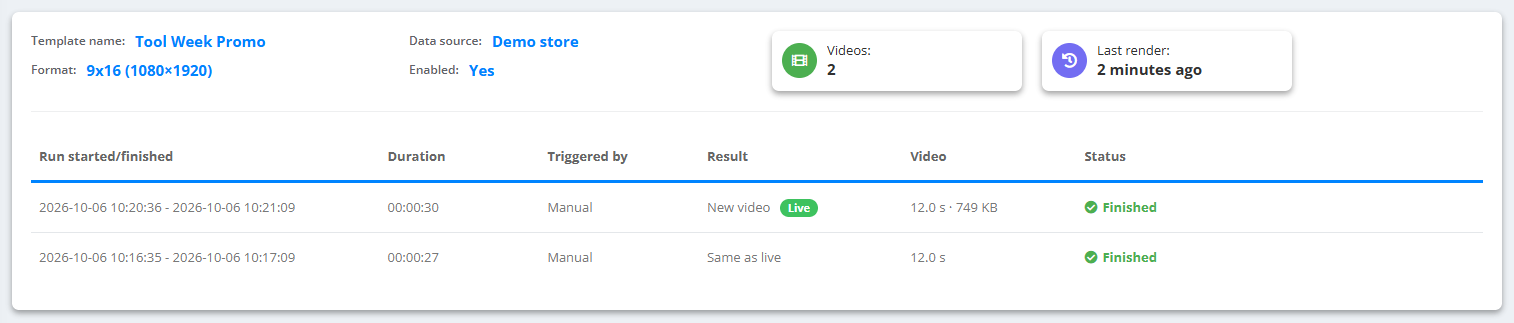
- Run history - every run with its start and end, duration and what triggered it. Result says what came out: New video (marked Live when it is the current one), Same as live (rendered, but identical to the live video, so nothing changes) or Skipped - no changes; Status says how the run ended: Finished, Stopped, Interrupted or Failed with the reason.
- Duplicate - a copy named “Copy of …”, switched off, with its own link and without the videos, history or chat. Handy for a second format or a second product group.
- Delete - removes the template together with its videos and link.