
Under the preview is a timeline: the Spot itself and up to three sound lanes for music and voice. The sound is mixed into the video when it is rendered.
Music or your own audio
- Add audio and choose a file - MP3, M4A, AAC, WAV or OGG - or drop it onto a lane.
- The clip lands after the last clip in that lane. Drag it to move it, drag its ends to trim it, set its volume.
- Select a clip and press Delete (or Backspace) to remove it.
An AI voice-over
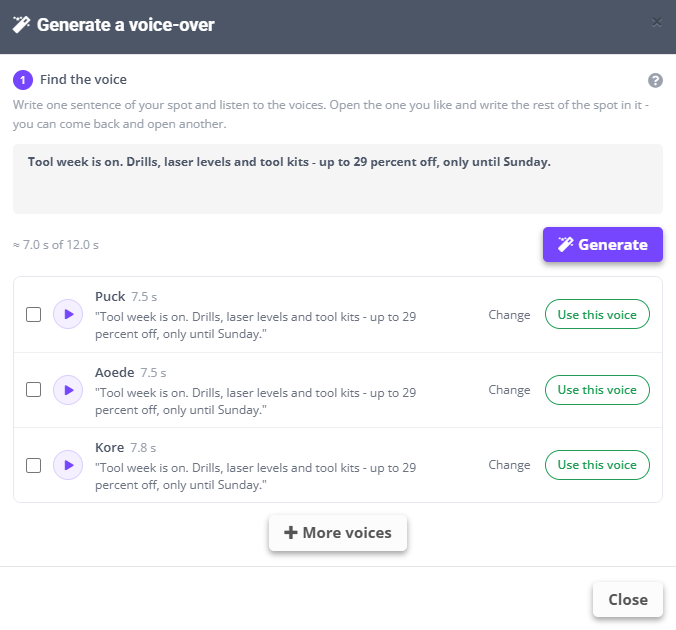
- AI voice opens Generate a voice-over. Under Find the voice, write one sentence of the spot, in any language - the estimate beside it shows how long it runs against the spot (≈ 7.0 s of 12.0 s).
- Generate makes three takes in different voices. Press ▶ to listen to each.
- Change a take: the quick notes Faster and More energy, Other tones (Energetic, Excited, Confident, Cheerful) or your own words - then Make 3 takes. More voices offers female and male voices beyond the first three.
- Use this voice opens the voice: write the rest of the spot with Add a line, Try again for a new take of a line, and Use this to place it on the timeline after the previous clip. You can come back and open another voice.
Writing a note for a new take
- Works: pace (“faster”, “pause before the last sentence”), mood (“more excited”, “more confident”), emphasis (“stress 30 percent”).
- Does not: fixing how one word sounds (use another take or another voice), changing the words (edit the text instead), editing the recording itself.
- Tip: one change per note. Each note makes a new take - the old one stays.