
Video Studio turns a description into a product video. There is no template library to pick from: the AI writes the whole spot - background, motion, type and layout - from what you ask for. Part of the Video Studio module; if Video Studio is not in your menu, write to us and we switch it on.
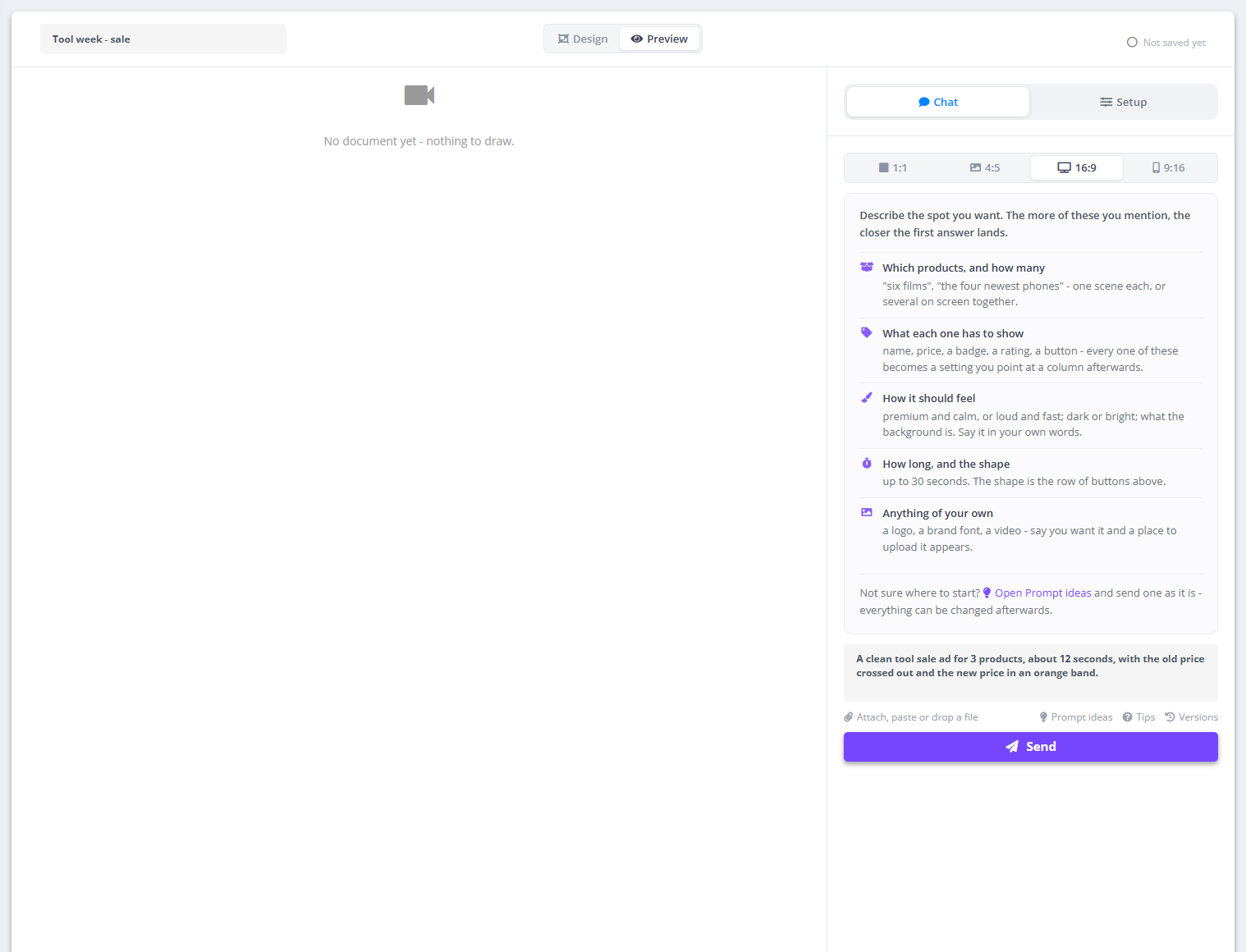
- Go to Video Studio → Create New Template → Single dynamic video.
- Name the template in the field at the top, open Setup and pick the Data source - the catalog the products, prices and photos come from. Switching it later asks first (Change data source).
- Choose the shape with the format buttons above the preview: 9:16 (Stories, Reels, TikTok), 4:5 (feed posts), 1:1 or 16:9.
- In the Chat tab, describe the spot and send it. The first answer usually takes 1-3 minutes - the button shows Working... and a clock.
- The spot appears in the preview, already filled with products from your data source. Notes like New setting - Phone name - choose it in Setup list what the design reads from your catalog - see the Setup guide.
What to write
The app lists what helps the first answer land closest. Mention as many as you can:
- Which products, and how many - “six films”, “the four newest phones”; one scene each, or several on screen together.
- What each one has to show - name, price, a badge, a rating, a button. Every one of these becomes a setting you point at a column afterwards.
- How it should feel - premium and calm, or loud and fast; dark or bright; what the background is. In your own words.
- How long, and the shape - up to 30 seconds; the shape is the row of format buttons.
- Anything of your own - a logo, a brand font, a video. Say you want it and a place to upload it appears in Setup.
Start from a prompt idea
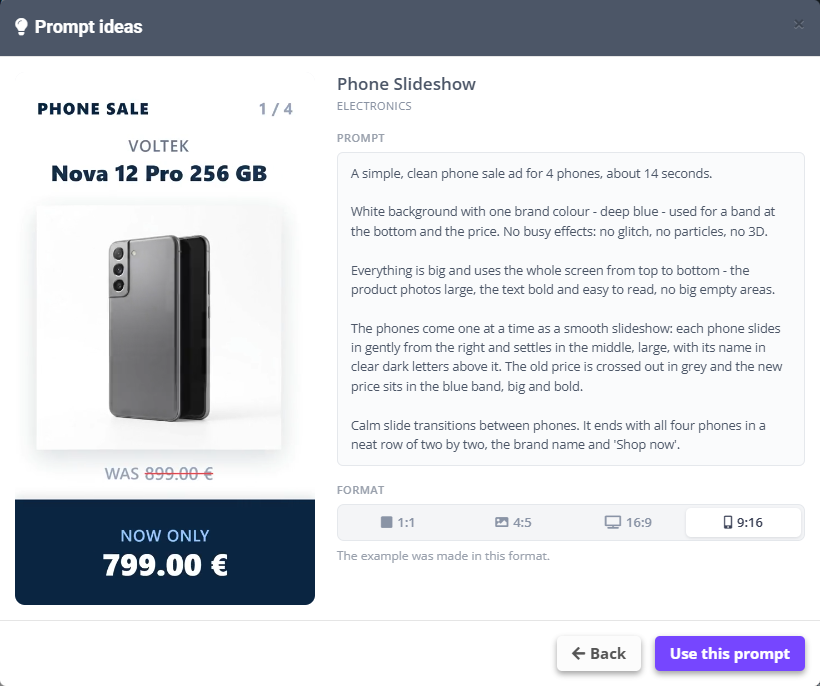
Prompt ideas opens a gallery of real examples - every video in it was made by this editor from the prompt shown with it. Open one to read the prompt and see the format it was made in; Use this prompt puts the text into the chat. Send it as it is or change the products and colours first - everything can be changed afterwards.
Tips in the editor repeats the checklist above. A prompt names no shape, so the same text works for every format.