
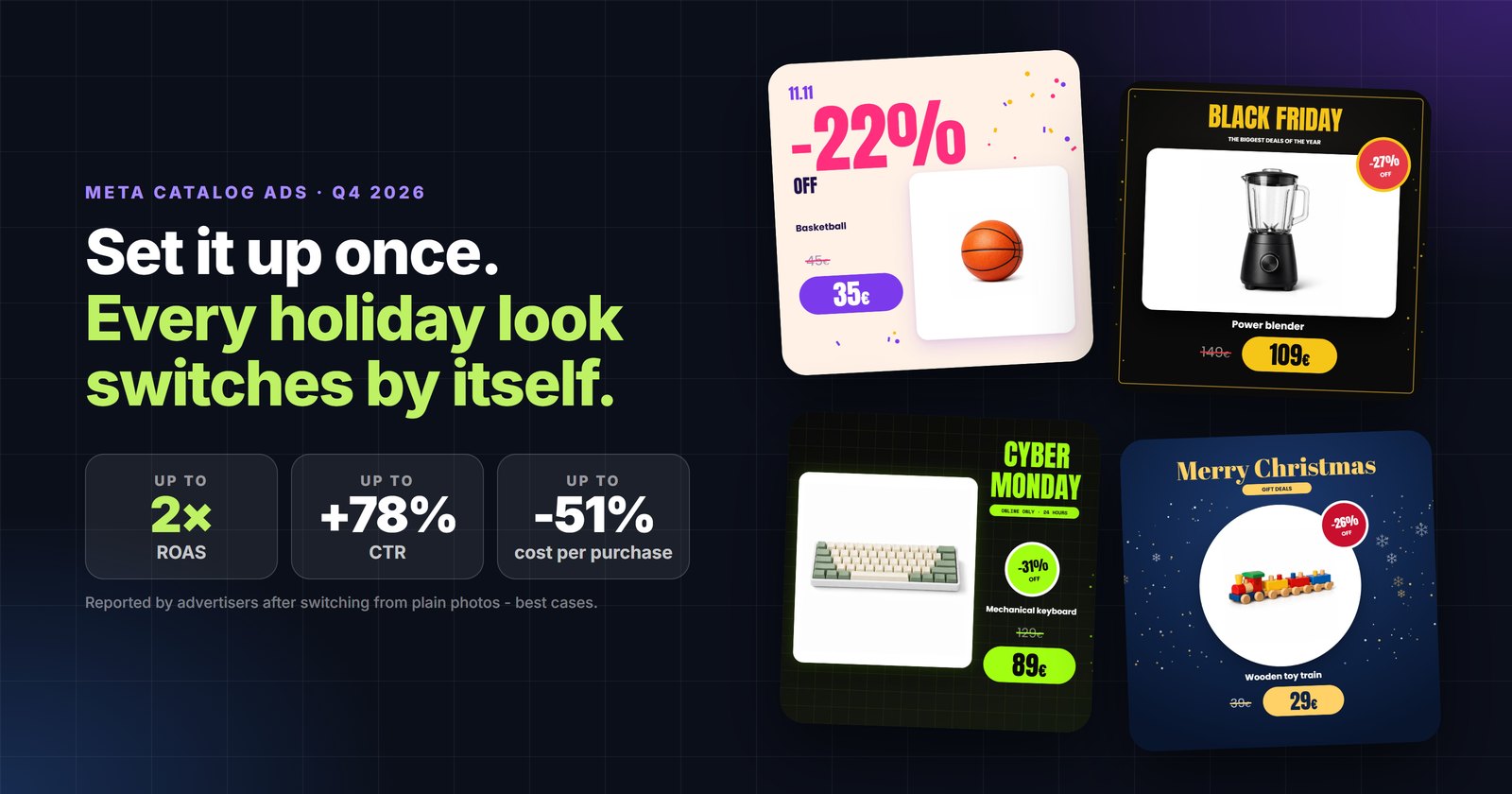
Every Q4 the same thing happens in Meta catalog ads. Thousands of stores show thousands of products on the same white background, with the same grey price under them, in the busiest and most expensive weeks of the year. The stores that do better are rarely the ones with the biggest design team. They are the ones that set the catalog up once, early, and let it change by itself.
This is that setup, step by step: what to do six weeks before Black Friday, what to automate, and what to leave alone once the expensive weeks start.
The short version
- Launch in October, not in Black Friday week. A new ad set leaves Meta’s learning phase after about 50 results in a week, and until then it is "less stable" with "a higher CPA" (Meta). You want that behind you before the expensive days.
- Fix the feed first. Sale prices with start and end dates, correct stock, clean titles. A beautiful image of a wrong price is worse than a plain photo.
- Give every product a branded holiday image - from one template, not by hand. Price, old price, discount badge and your logo come from the feed.
- Schedule each holiday look in advance. Singles Day, Black Friday, Cyber Monday and Christmas switch on and off by themselves.
- Set it up once. Your ads keep running all season. Only the catalog changes underneath them - and Meta picks it up automatically.
Why holiday catalog ads disappoint
When a catalog campaign underperforms in Q4, it is almost always one of three things:
- Plain photos in a crowded feed. In November everybody discounts. A packshot on white with a price under it looks exactly like the nine other stores selling the same thing - so the eye goes to whichever ad is different.
- Prices that do not match. The ad shows yesterday’s price, the product page shows today’s. That costs clicks, trust and, on Google, disapprovals. We covered the mechanics in price and stock mismatches.
- A late start. Campaigns built in Black Friday week spend their most expensive days learning. Meta’s own advice is to avoid edits until an ad set is out of learning, because every edit "resets learning" (Meta).
Set it up once - then it runs by itself
The whole plan rests on one idea: your ads do not change - the catalog does. You build the catalog campaign once, in October, and leave it alone. Every price change, every discount and every holiday look arrives through the feed.
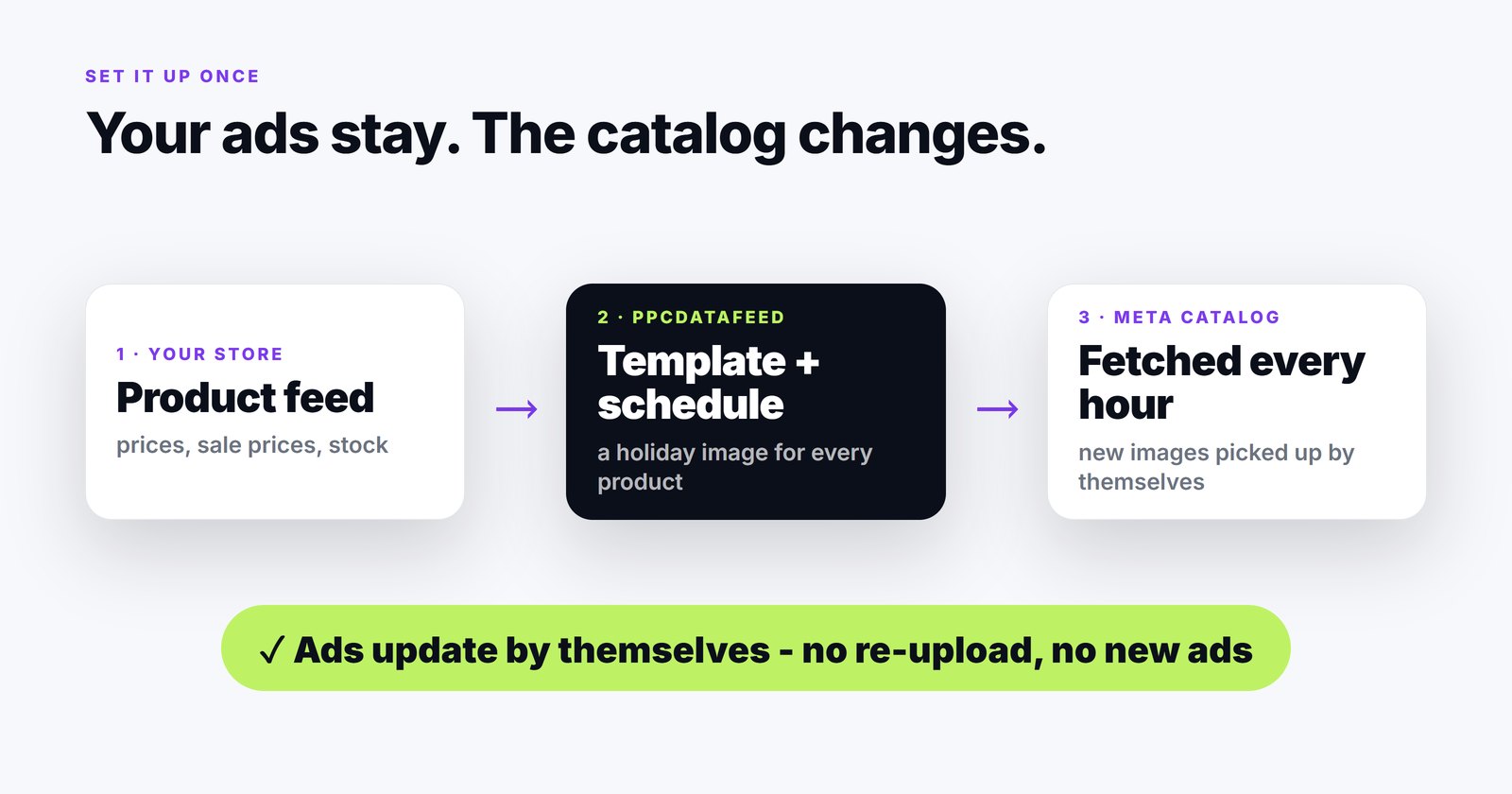
- Create one feed export for Meta. In PPCDATAFEED pick the Facebook export with image templates, map the fields once and copy the feed URL (feed exports).
- Add that URL to your Meta catalog as a scheduled feed. Meta fetches a scheduled feed hourly, daily or weekly (Meta). In Q4, when prices move every day, choose hourly.
- Point the image at the creative. The template writes each product’s holiday image into the field you choose. Map that field as the image in the Meta export and keep the clean photo in the Google Shopping export, where promotional overlays are not allowed.
- Done. When a price changes, a discount starts or a holiday look switches on, the app renders a new image; on its next fetch Meta takes it. No re-uploading, no new ads, no designer.

Why this works without any manual step: every changed creative is saved under a new file name, so the image address changes too. Meta never keeps showing a cached old picture - on the next fetch it simply sees a new image for that product.
The 6-week timeline
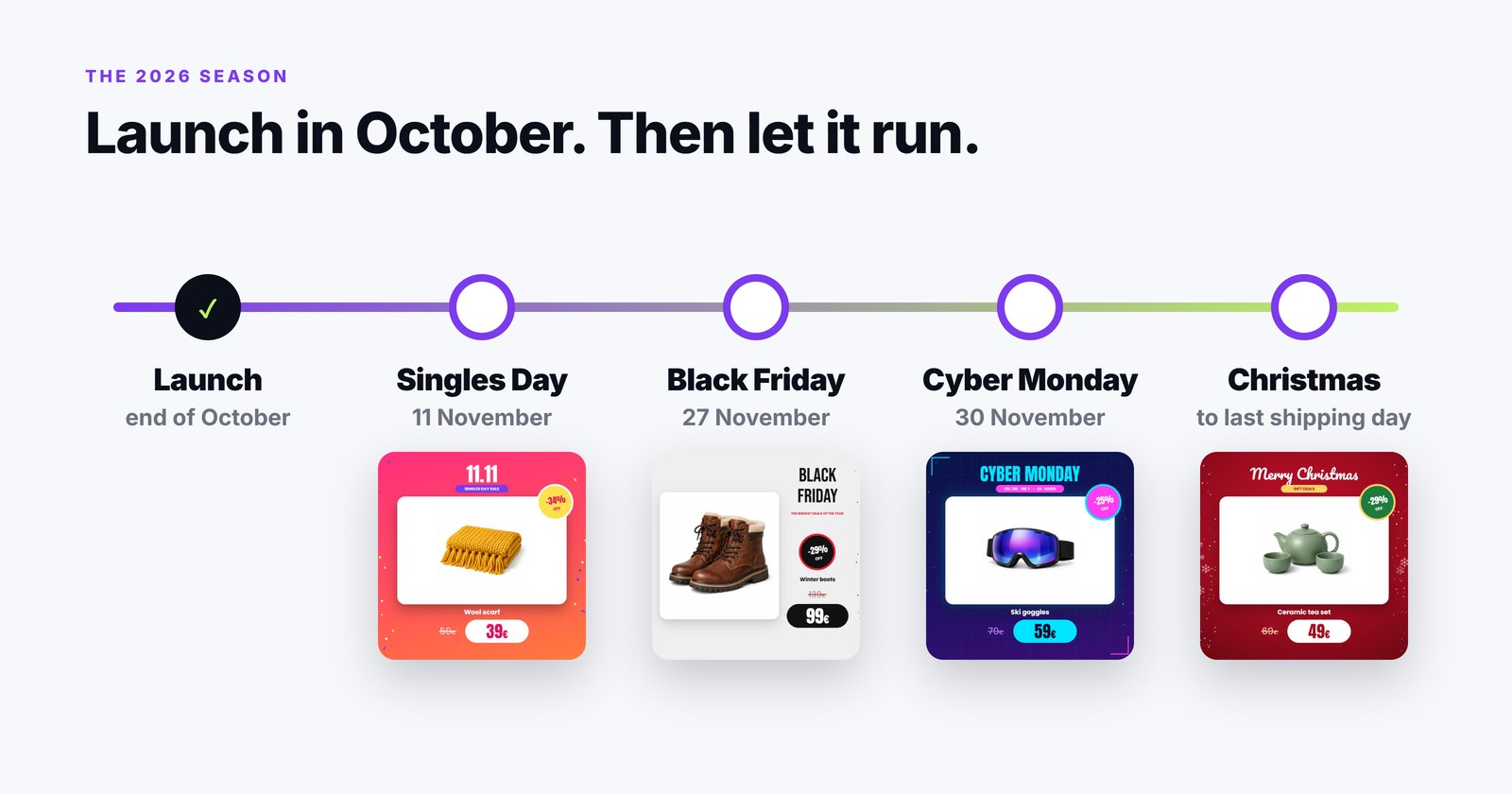
- Mid-October - set up. Audit the feed, add sale prices with dates, build the templates and their schedules, connect the Meta feed.
- End of October - launch. Start the catalog campaigns with your everyday branded look and let them exit learning before November.
- 9-11 November - Singles Day (11.11). The Singles Day look switches on by itself and off at midnight after the day.
- 20-30 November - Black Friday (27 November) and Cyber Monday (30 November). One look for the Black Friday week, a fresh one for Cyber Monday, so returning shoppers see something new.
- December - Christmas, until your last shipping day. A Christmas look with an "order by" message, switching off when you can no longer deliver before the 24th.
- After the season. Nothing to undo: outside every window the standard image comes back by itself.
Step 1 - Get the feed right before anything else
Three fields decide whether your holiday ads tell the truth:
- `sale_price` - the discounted price. It must be lower than
priceand written the same way, for example79.00 EUR(Meta). - `sale_price_effective_date` - when the sale starts and ends, as two ISO-8601 timestamps with a time zone. Without it, a product with a sale price stays on sale until you remove the price (Meta).
- `availability` - products that are out of stock should leave the ads before the expensive clicks land on them.
A product row that is ready for Black Friday looks like this:
<item>
  <g:id>TL-3001</g:id>
  <g:title>Cordless Drill 18 V - 2 batteries, charger, case</g:title>
  <g:price>99.00 EUR</g:price>
  <g:sale_price>79.00 EUR</g:sale_price>
  <g:sale_price_effective_date>2026-11-20T00:00+02:00/2026-12-01T00:00+02:00</g:sale_price_effective_date>
  <g:availability>in stock</g:availability>
</item>
If your platform cannot produce these fields, the feed tool can. In PPCDATAFEED a rule can set sale prices that switch on and off by date, and another can calculate the discount percentage that the image will show. After the first fetch, open the catalog diagnostics in Commerce Manager and clear the errors before you launch anything.
Step 2 - A holiday image for every product, from one template
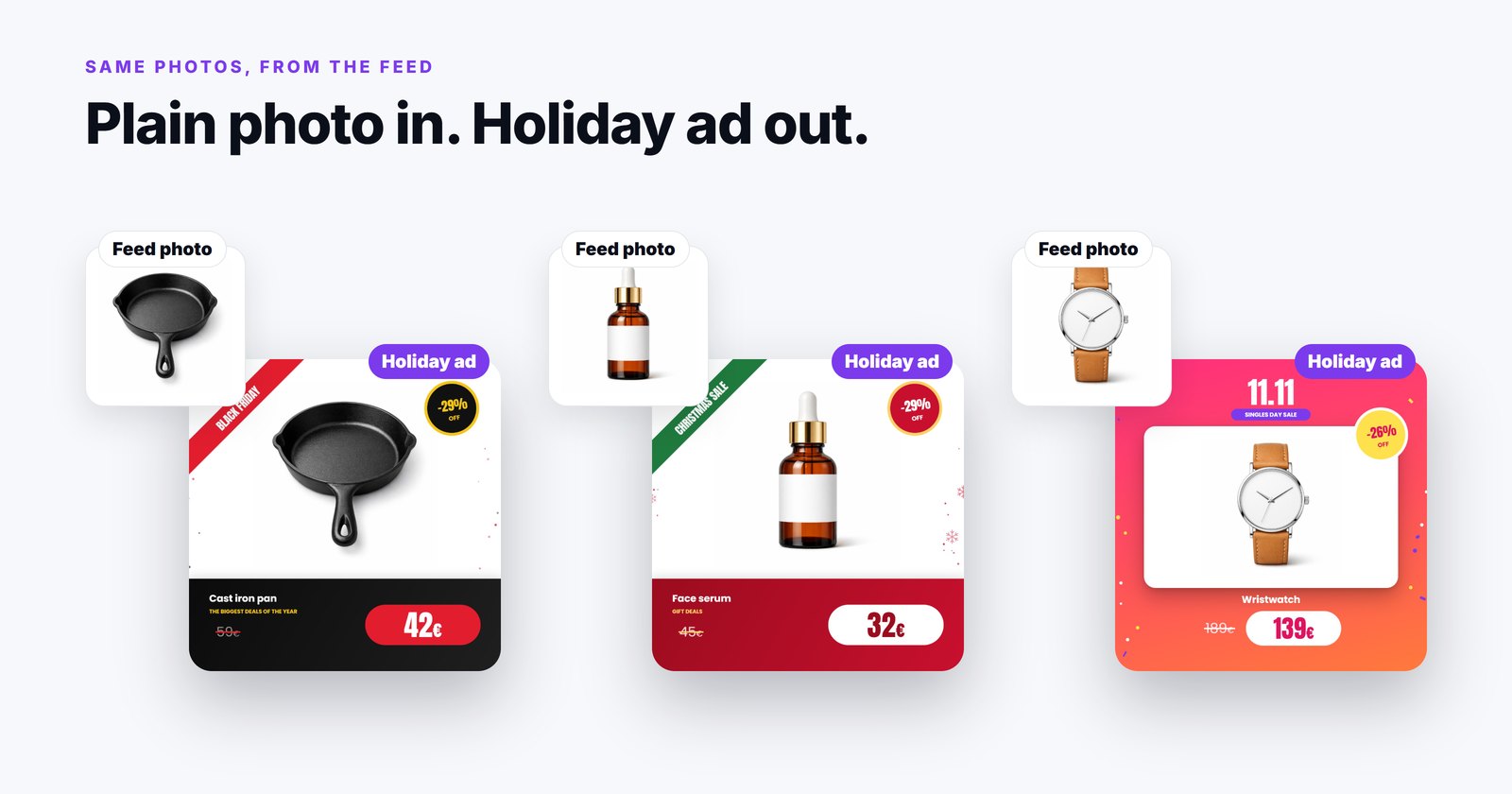
Meta itself can add simple labels to catalog ads - a price, a strikethrough price, a percentage off or free shipping - but only in the Facebook Feed and in Meta’s own style (Search Engine Land). That is a good start. A branded creative goes further: the holiday look, your colours and logo, the price and the discount become the product image itself, so they appear wherever the catalog image is used.
What a holiday template should carry:
- The product, as the largest element. The image still has to show what you sell.
- The price and the old price, from the feed.
{{sale_price}}large,{{price}}struck through - always the current numbers. - A discount badge only when there is a discount. The layer shows only for products with a sale price, so a full-price product never gets a fake "-20 %".
- Your logo and the holiday colours. Black and gold for Black Friday, red and green for Christmas - whatever your brand allows.
- Readable on a phone. Most impressions are square tiles under 400 px wide. Check the template at that size, not on a big monitor.
Why it pays back most in Q4
From Singles Day to Christmas, budgets and traffic are the highest of the year. Every impression costs more, and every extra click or point of ROAS is multiplied by the biggest spend of the year. That is exactly when a plain packshot - identical to what every other store shows - is most expensive, and when an image that stops the scroll pays back the most.
This is what advertisers report after switching their catalog ads from plain photos to branded creatives: up to 2× ROAS, up to +78 % click-through rate and up to -51 % cost per purchase. The figures are published by catalog-creative platforms - a study of more than 115,000 catalog ads, where the top 20 % of advertisers compared branded catalog ads with their own plain ones, and customer case studies reporting +25 % to +94 % ROAS. They are best cases, and results depend on your catalog and offer - which is why it is worth testing on your own numbers in October, so the winner is running when the volume comes. More on where creatives belong and where they do not in branded product creatives.
In PPCDATAFEED this is the Image Creative Studio: you design the template once - or start from a ready layout - and it is rendered for every product in the catalog, on every feed update, re-rendering only the products that changed.
Step 3 - Schedule every holiday look in advance
This is the part that makes the season effortless. Each template has a schedule: a start, an end and a time zone. Build all four holiday looks in October, give each its window, and they switch on and off by themselves.
The simplest structure is one everyday template plus one template per holiday:
- Everyday brand look - no schedule, the lowest priority. This is what shoppers see most of the year.
- Singles Day - 9 to 12 November, higher priority, only products with a sale price.
- Black Friday - 20 to 30 November, higher priority, only products with a sale price.
- Cyber Monday - 30 November to 1 December, the highest priority, so it wins over Black Friday on the overlapping day.
- Christmas - 1 December to your last shipping day.
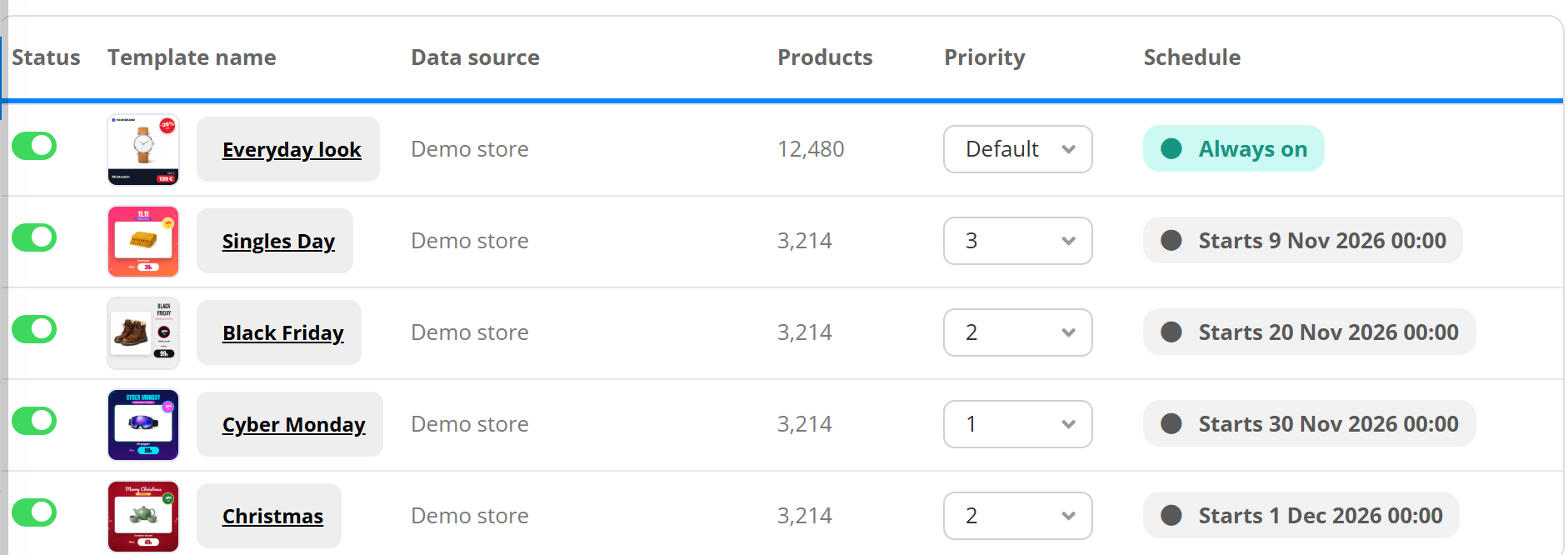
When two templates apply to the same product, the one with the higher priority is drawn last and wins. Inside a holiday window the holiday look takes over; outside it the everyday look is back. Switch a template off and the product’s original photo returns by itself on the next update - nothing to clean up.
Step 4 - Campaigns, product sets and budgets
- Fewer, bigger ad sets. Meta recommends avoiding "high ad volumes" and combining similar ad sets, because each one learns less when spend is split (Meta).
- Product sets by what you promote. An "on sale" set (products with a sale price), a bestsellers set, a gift set under a price you choose. They are filters on the same catalog, so they update with the feed.
- No new ads for each holiday. Creating a new ad starts learning again (Meta). With scheduled looks you do not need new ads at all - the same ads show the new images.
- Raise budgets in steps, on ad sets that are already stable. Ads Manager shows a "Last significant edit" column - use it to see which changes put an ad set back into learning (Meta).
Step 5 - Video from your best deals
Reels and Stories reward motion. A short video of your three best Black Friday deals often does more there than any still image. In the Video Creative Studio you describe the video in words, pick the products, and their photos and prices come from the feed - in 9:16 for Reels and Stories, and 1:1, 4:5 or 16:9 for the feed. When the prices change, the video renders again; upload the new version to your ad.
The checklist before November
- Sale prices have start and end dates, with your time zone.
- Out-of-stock products leave the feed - or at least the ads.
- The Meta feed is a scheduled feed, fetched hourly.
- The creative goes into its own field: the Meta export uses it, the Google Shopping export keeps the clean photo.
- An everyday brand template plus one scheduled template per holiday, with priorities set.
- Templates checked on real products at phone size: long titles, tall images, products without a discount.
- Catalog campaigns launched by the end of October and left alone while they learn.
- Product sets for sale items, bestsellers and gifts.
That is the whole season, set up in an afternoon in October and left to run.
Want it done for you? Book a free 30-minute demo call - we connect your feed, build the holiday templates and schedule the season with you, and the first 30 days are free. See holiday creatives.