
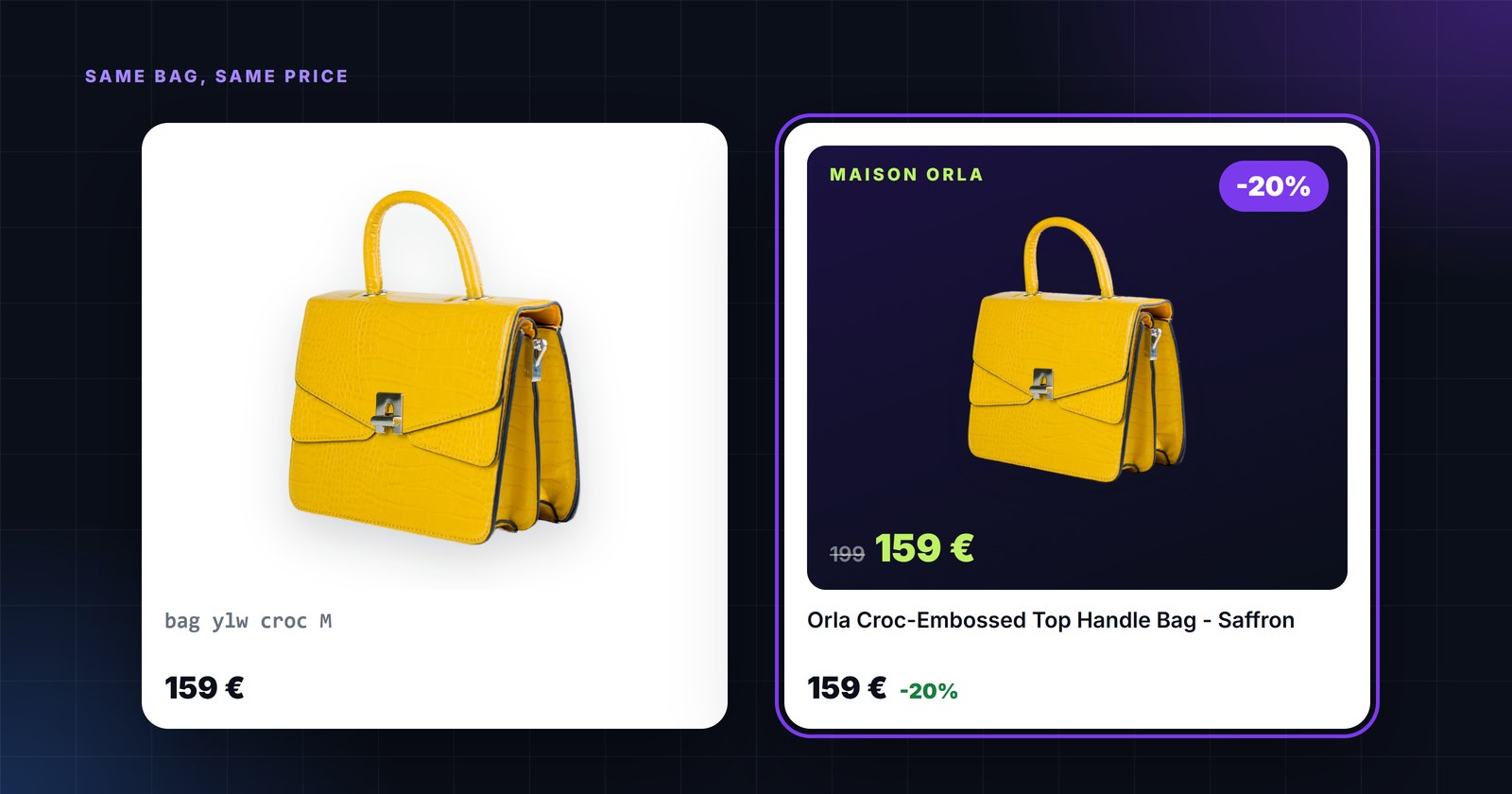
Open any product search and look at the images. Ten sellers of the same shoe, ten identical white-background photos, ten prices in the same grey font. The only thing that differs is the store name. In that lineup, an image that carries the brand colours, the price and a "-20 %" badge is the one the eye lands on. That is the whole case for branded product creatives - and also the reason they are banned in some places.
This is a practical guide to where creatives belong, where they do not, what to put on them, and how to produce one for every product in the catalog without a designer touching each one.
Where creatives belong - and where they are prohibited
The line is drawn by the platforms’ image rules, not by taste.
- Google Shopping `image_link` - no. Google’s specification forbids "promotional elements or content that covers the product": calls to action, watermarks, logos that are not part of the product, borders (Google). A creative with a price badge as the main Shopping image is a disapproval waiting to happen. Keep the clean photo there.
- Meta catalog ads - yes, with care. Meta itself offers image templates that add price frames to catalog ads, and Advantage+ catalog ads are built to show prices and offers. At the same time Meta asks that images used for Shops carry no text overlays, promo codes or "time-sensitive information like temporary price drops" (Meta). The clean way to have both: a separate feed for ads with the creative as the image, and the plain photo for the Shop catalog.
- Display and retargeting networks (Criteo and similar) - yes. Dynamic banners are literally product image plus price; a branded, consistent image improves the whole banner.
- Price comparison sites, affiliate networks, marketplaces - check each. Many accept any image; some marketplaces require plain white backgrounds for listings but allow branded images in their sponsored placements.
- Your own channels - yes. Email, social posts, on-site collections and sale landing pages are the cheapest place to use catalog creatives, and the place where consistency across hundreds of products is otherwise impossible.
Rule of thumb: if the placement is an ad and the platform builds the unit from your feed, a branded image helps. If the placement is a listing that must look like a catalog page, keep the photo clean.
Why they work
Three mechanisms, none of them magic:
- Contrast. Feed placements are grids of near-identical images. Colour, a brand mark and a badge break the grid. The click has to go somewhere; it goes where the eye already is.
- Information before the click. Price, discount, "free returns", sizes in stock - the things that decide a purchase are visible before the tap, so the clicks you do get are better qualified.
- Consistency. A catalog with 12,000 SKUs from 40 suppliers looks like 40 stores. One template makes it look like one brand, which is what remarketing needs to build recognition.
We deliberately do not quote a "+X % CTR" figure here. Results depend on the placement, the category and how crowded the auction is; the honest way to know is to run a creative feed against the plain one for the same product set and compare.
Use cases that pay off
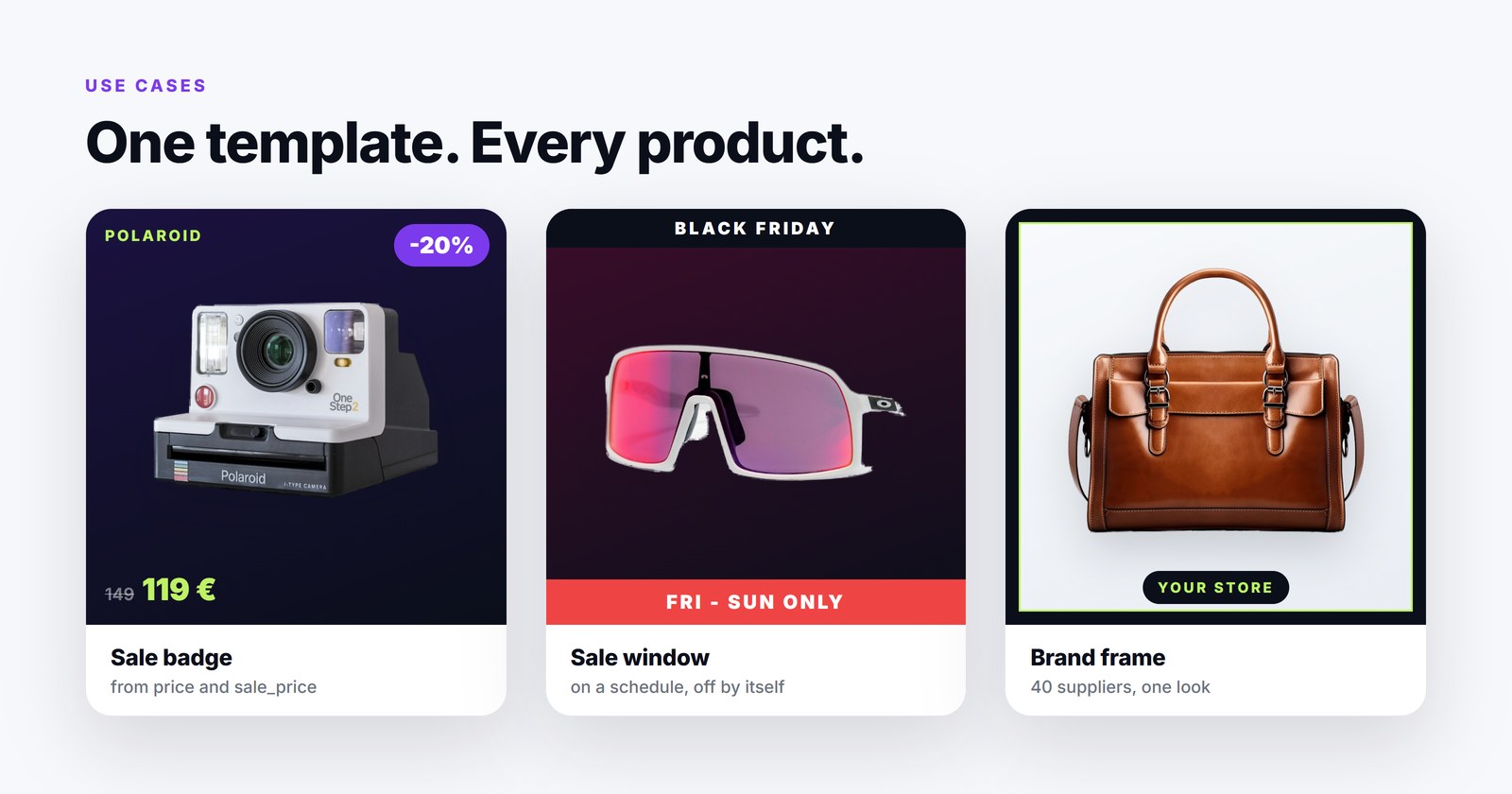
- Sale and price-drop badges. The badge reads
priceandsale_pricefrom the feed and computes the discount; it appears only on products that actually have a sale price and disappears when the sale ends - no stale "-30 %" on a full-price item. - Campaign windows. A Black Friday or summer-sale frame that switches on Friday and off Sunday night by schedule. Outside the window the standard image returns by itself.
- Bestseller and "low stock" badges. Driven by labels: products your Shopping Labels or rules mark as bestsellers get the badge; the rest do not.
- Brand frame for mixed supplier catalogs. Photos from different suppliers get the same background, logo position and typography.
- Attribute callouts. "Sizes 36-46", "Free returns", energy class, material - fields that convert but never fit in a title.
- Language variants. Text layers read fields, so the same template renders
title_defor the German feed andtitle_ltfor the Lithuanian one.
How to produce one for every product
Doing this by hand is impossible past a few dozen products. In PPCDATAFEED the Creative Editor works from a template: layers on a canvas, where text layers read feed fields.
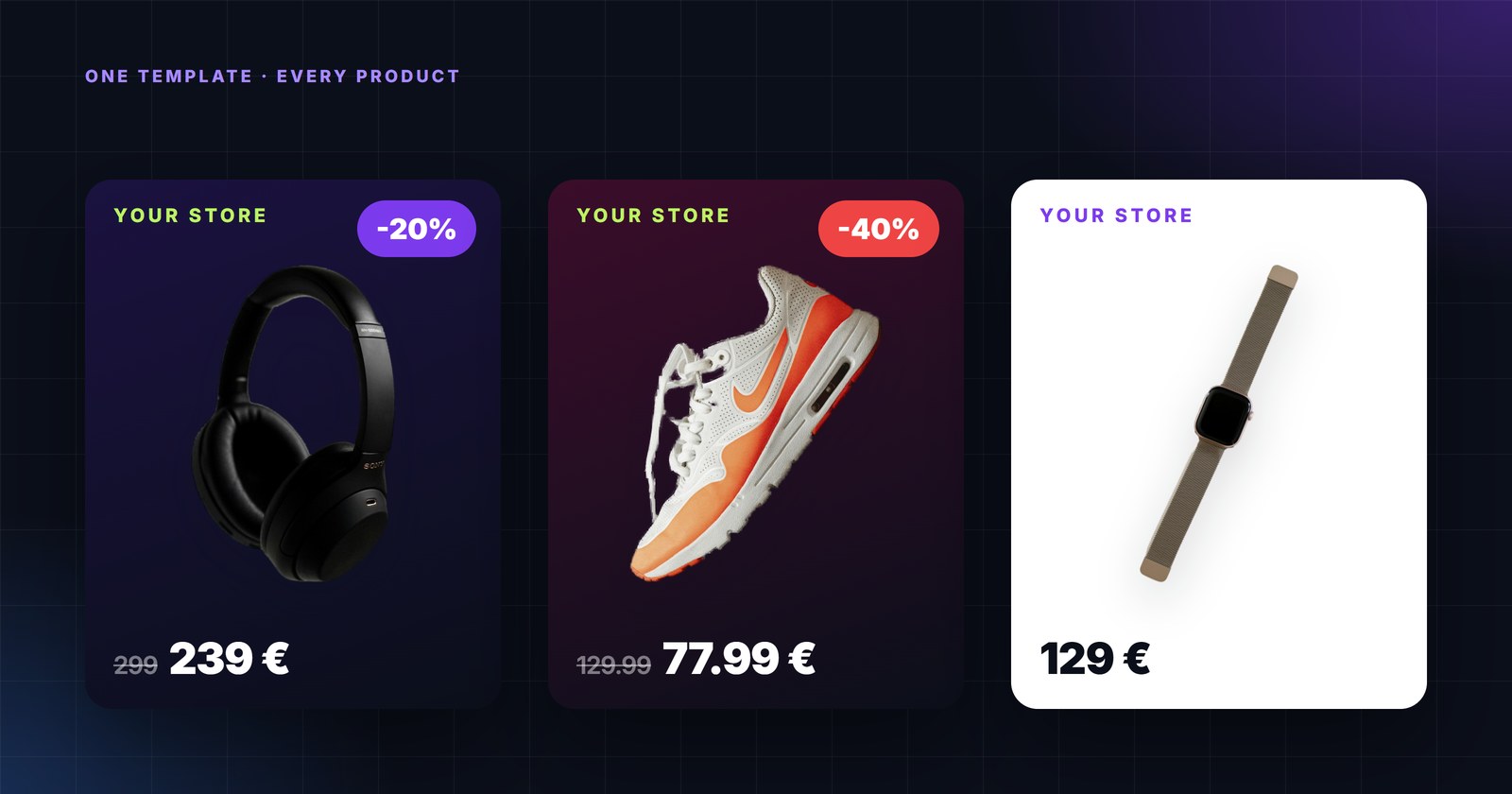
- Design once. Background, brand mark, product image layer,
{{sale_price}}in large type,{{price}}struck through, a badge with-{{discount}}%. Each layer can be shown only when a condition is met - the badge only when a sale price exists. - Filter and schedule. Choose which products get the template (a brand, a category, only discounted items) and when it runs (dates with a time zone).
- Preview on real products. Check long titles, tall images and missing fields before saving.
- Let it run. Creatives are rendered for the whole catalog on every feed update - new products get theirs, changed prices get a new image, and only changed products are re-rendered.
- Map the output field per channel. The creative URL goes into a field of your choice. Map it as the image in the Meta ads feed and in the display feed; leave the clean photo in the Google Shopping feed.
Pitfalls to design around
- Legibility at thumbnail size. Most impressions are 1:1 tiles under 400 px wide on a phone. Test the design at that size, not on a 4K monitor.
- Safe zones on 9:16. In Reels and Stories the profile icon and the call-to-action cover parts of the image; keep text out of the bottom and top bands.
- Price accuracy. A creative is a promise. Regenerate with every feed update and never let a creative outlive the price it shows - which is why generation must be automatic, not a monthly export.
- Product visibility. The product must remain the largest element; a badge that covers the product is a rejection on Meta and a bad ad everywhere.
- Don’t break the clean feed. Keep the original
image_linkfor the channels that require it. Two fields, two feeds, one catalog.
Branded creatives are not a replacement for good product data - a beautiful image of a product with a wrong price or a missing GTIN still does not sell. But once the data is right, they are the cheapest visible difference between your listing and the nine identical ones next to it.