
A Lifestyle images template takes the photo of each product from your feed and draws the same product in a real setting. The product stays as it is in the photo - its shape, colours, materials and every printed word and number. The pictures go into a feed field of their own; the product’s main photo is never replaced.
Create the template
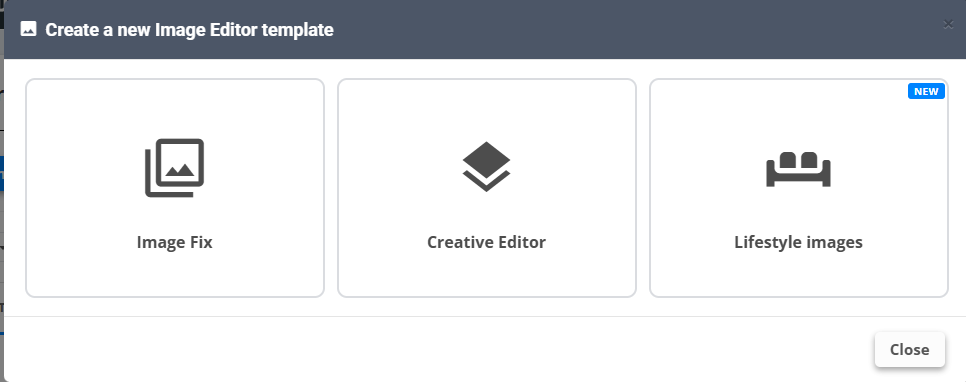
- Go to Image Editor → Create New Template → Lifestyle images.
- Pick the data source and the Image URL field - the products’ own photo, always the feed’s original.
- Lifestyle picture URLs go to: choose an empty field or Create new field. The pictures are written there, one per line.
- Set the Prompt rows, the Pictures per product and the Image size (see below).
- Click Generate previews to see the result on four of your products - previews are always free.
- Save. A new template is saved switched off; switch it on in the template list and the whole catalog is drawn in the background.
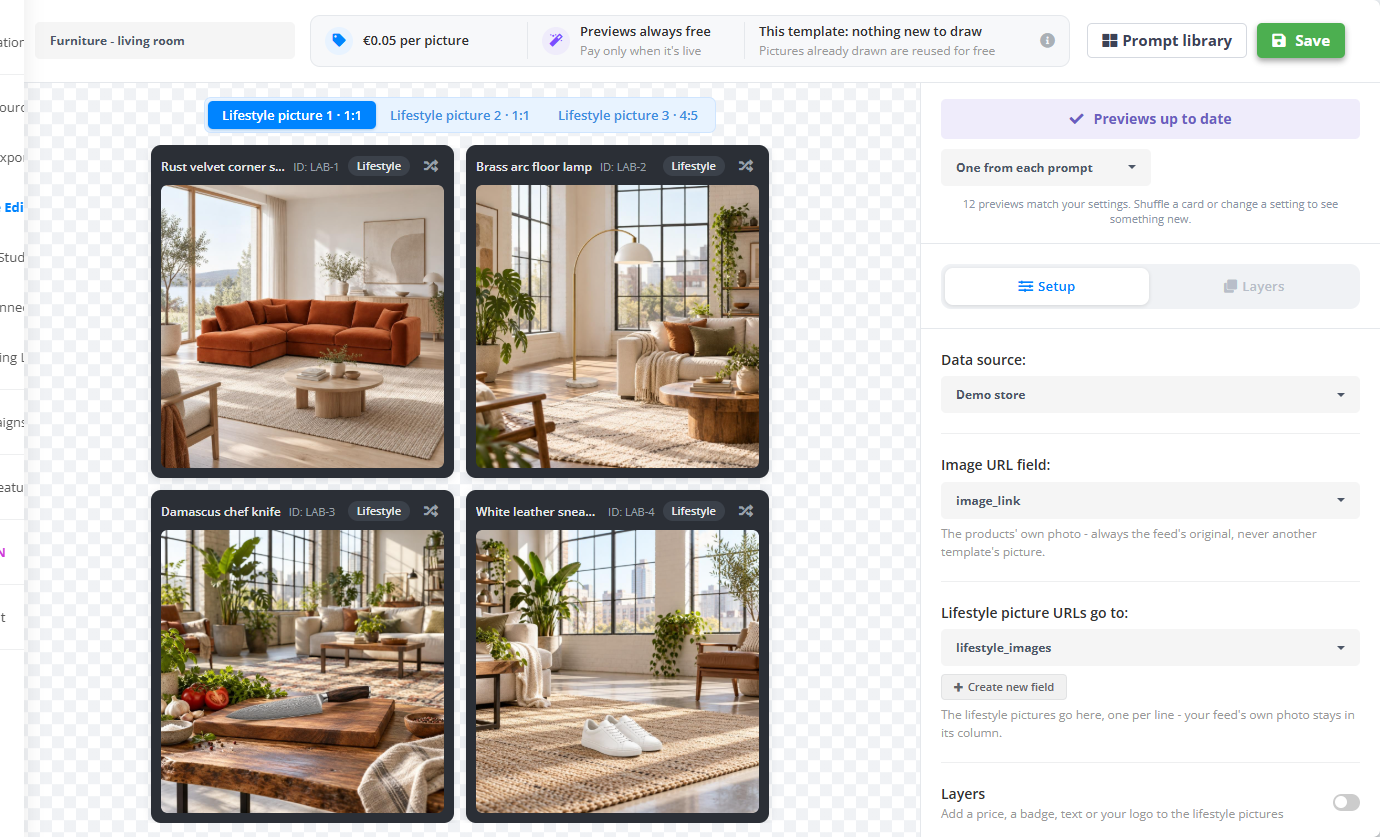
Each preview card has a Lifestyle / Original switch, so you can compare the picture with the product photo it was drawn from.
Tell it where to place the products
The Prompt rows decide the scene. Top row wins: each product is checked from row 1 down and gets the prompt of the first row it matches, so put the narrow groups first and leave All other products at the bottom. Different prompt for some products adds a row.
- Auto - the AI picks a fitting place for each product. With several pictures per product, each one gets a different scene.
- Prompt library - one of the ready-made scenes (below).
- My own prompt - describe the place in a sentence: the room, the light, the camera. Do not describe the product - it is always kept exactly as in its photo.
- Same prompt, new angle - for picture 2 and up: the same scene from another angle. Clothes stay on the same person.
- Don't draw - on the last row only: products that match no row keep only their own photo.
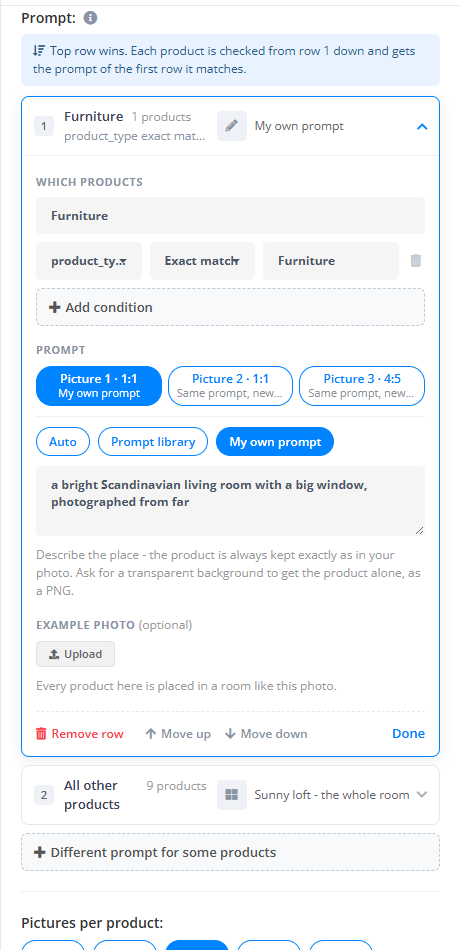
Example photo (optional): upload a photo of a room you like, and every product in that row is placed in a room like it. Ask for a transparent background in your own prompt to get the product alone, as a PNG.
A prompt that asks for text, a logo, a badge or a price is refused - those are added with Layers, where they stay sharp and update by themselves.
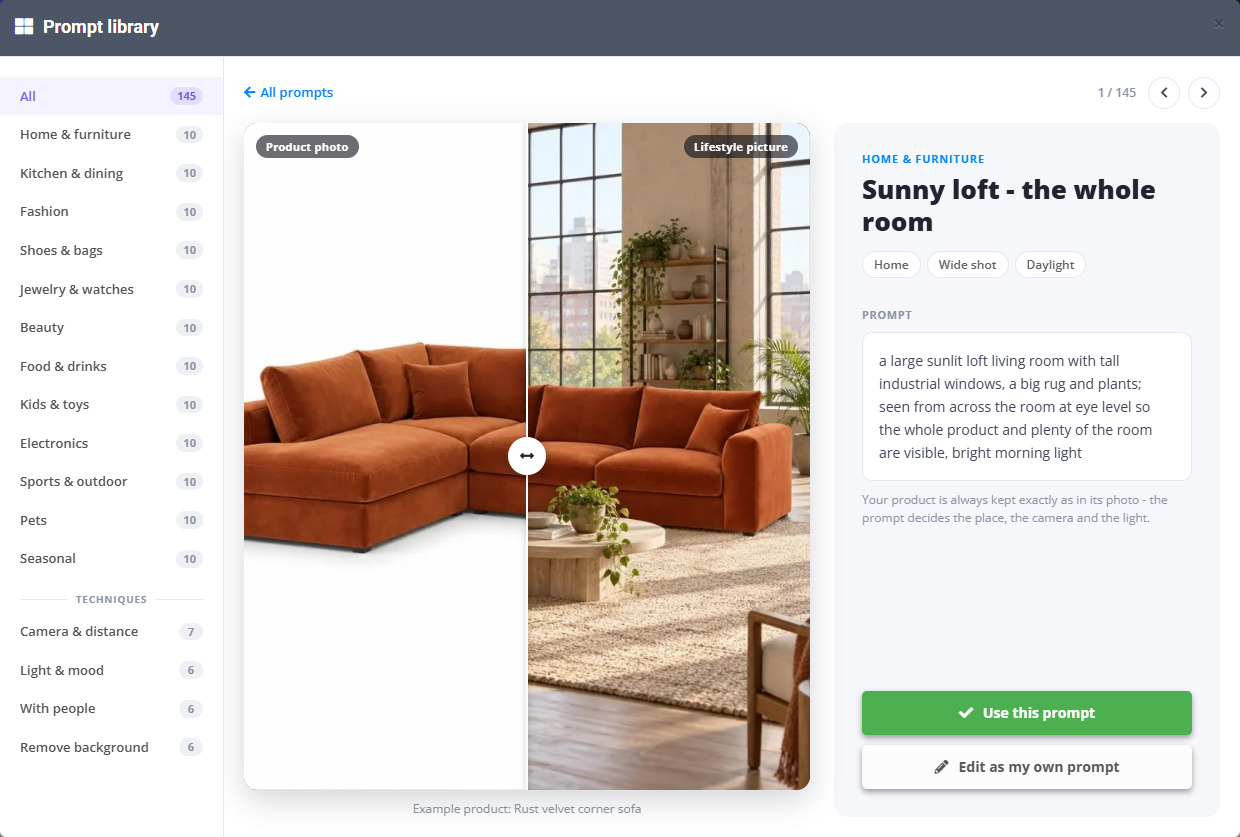
The Prompt library
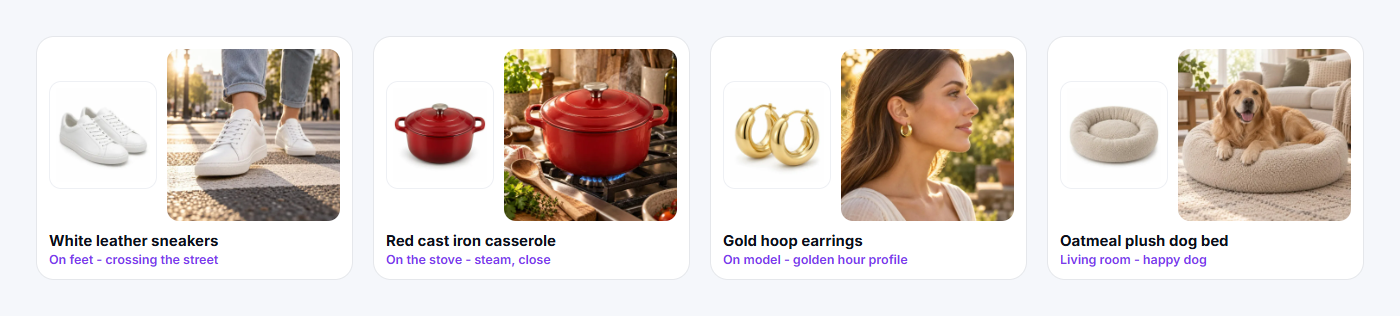
Prompt library at the top of the editor opens 145 ready-made scenes - ten for each product category (home, kitchen, fashion, shoes and bags, jewelry, beauty, food, kids, electronics, sports, pets, seasonal) and techniques: camera and distance, light and mood, with people, remove background. Every example was drawn from the product photo next to it. Pick one with Use this prompt, or Edit as my own prompt to start from it.
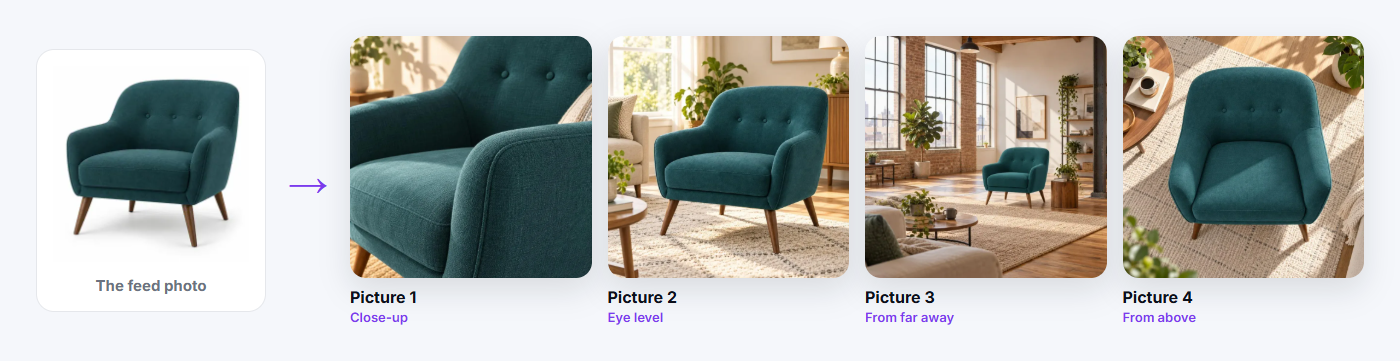
Several pictures per product
Pictures per product goes from 1 to 5. Each picture can have its own prompt and its own Image size: 1:1 and 4:5 work for Google Shopping and Meta, 9:16 is for Meta Stories and Reels only, and Original keeps the shape of the product photo.
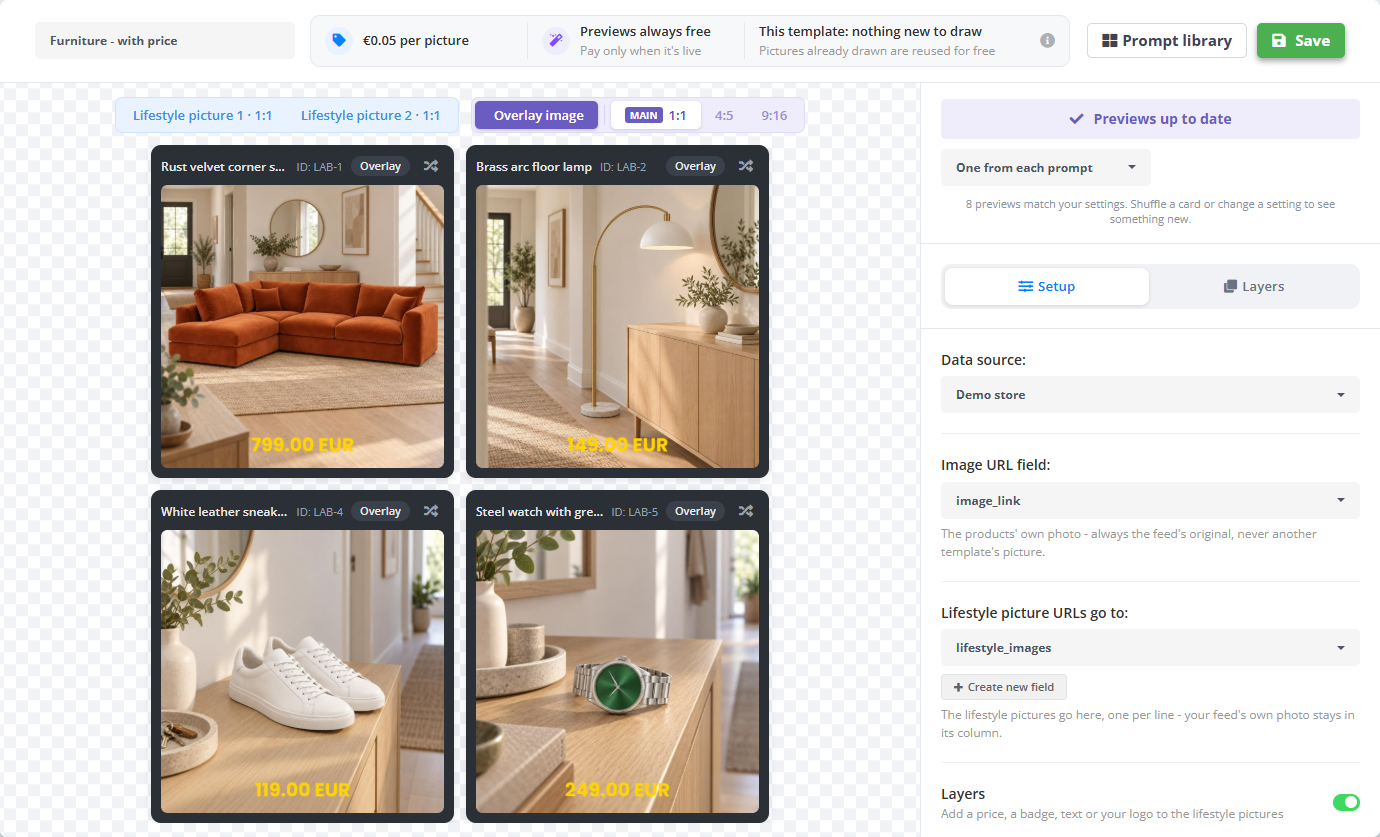
Add the price, a badge or your logo
Switch on Layers in Setup and design an overlay in the Layers tab - the same editor as the Creative Editor, with feed fields such as {{price}} and {{sale_price}}. The finished pictures go to Overlay image URLs go to, one per size. When a price changes, only the overlay is drawn again - no AI and no cost.
Check the pictures and redraw
There is no approval step: every picture that passes our quality check goes straight to the feed. Open the template’s Images tab to look through them - each card shows the product, which picture it is and its state.
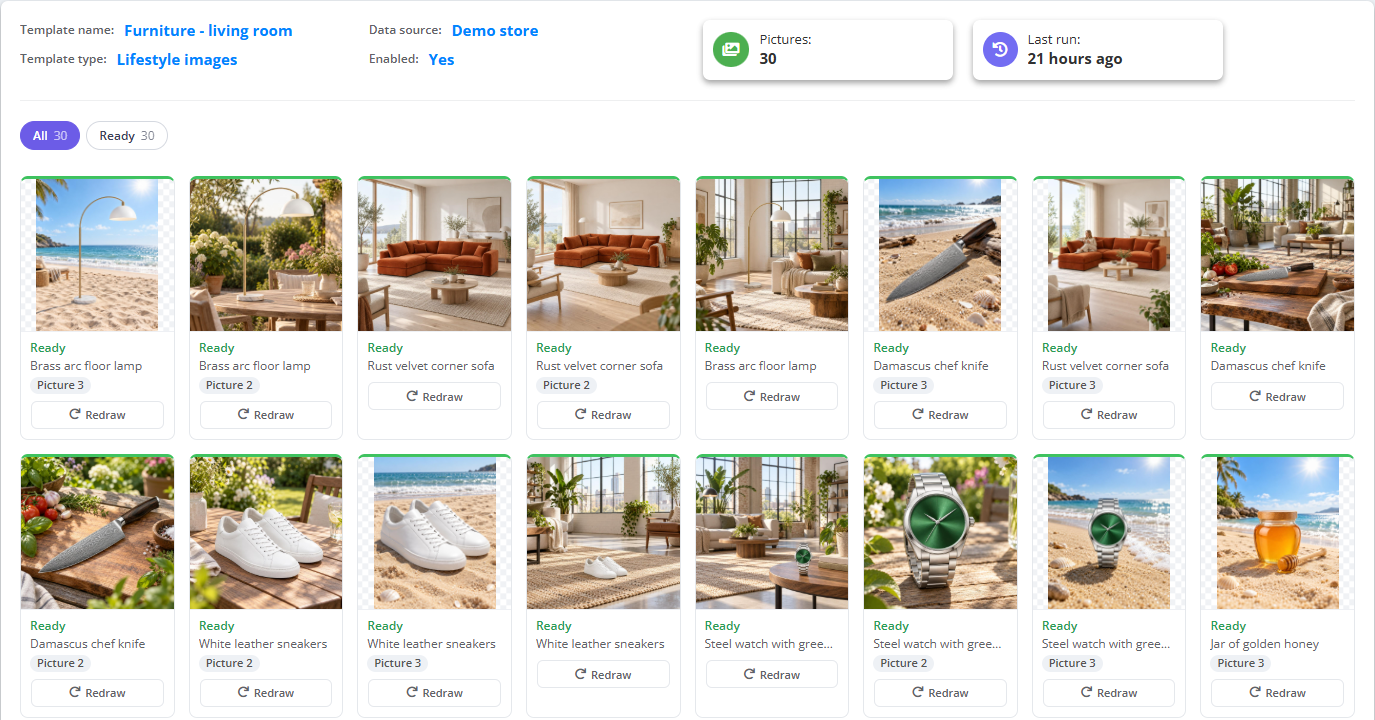
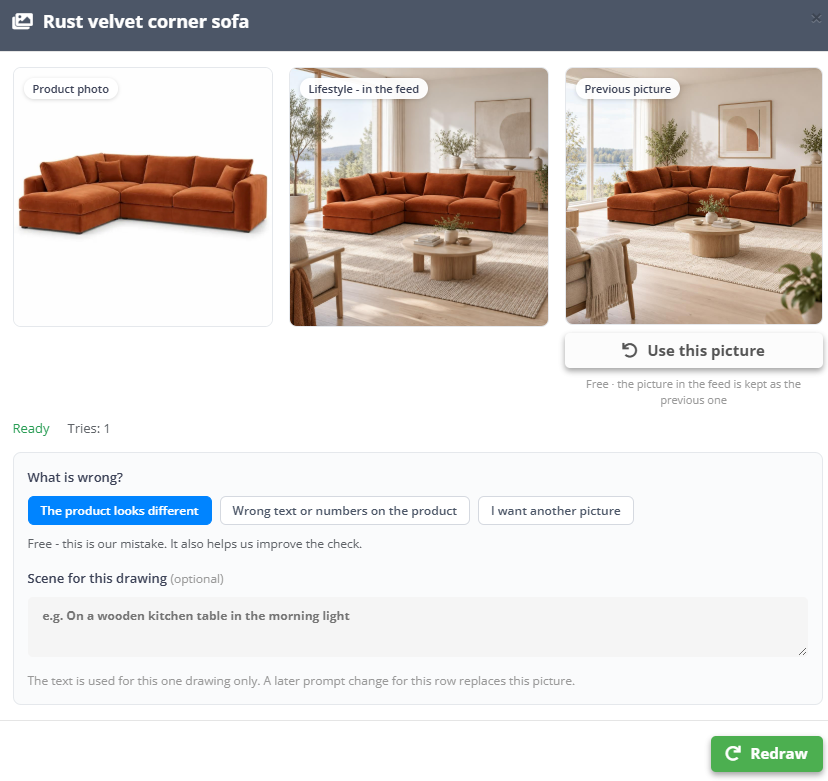
Click a picture to compare it with the product photo. Redraw asks What is wrong?:
- The product looks different or Wrong text or numbers on the product - our mistake, redrawn for free.
- I want another picture - a new picture, paid like any other.
- Scene for this drawing - optional words for this one drawing only.
- Use this picture brings back the previous picture after a redraw - free.
Send the pictures to the channels
- Google Shopping: map the lifestyle field to
lifestyle_image_linkin the feed export - Google’s own field for lifestyle photos, up to 5 per product. The mainimage_linkstays the product photo. - Meta: the pictures can go to Facebook and Instagram catalog ads as additional images, together with the other Image Editor pictures.
- Each update of the data source draws only new and changed products; the export runs again after the template finishes.
What it costs
You pay only for pictures that pass the quality check - €0.05 each by default, with the first 100 free on every account. Previews, rejected tries and redraws of our mistakes cost nothing, and Monthly spending limit pauses drawing when the amount you set is reached. A price, title or filter change never draws again. More on the Lifestyle images page.
If it does not work
- Skipped - the photo already shows the product in use: the feed photo is already a lifestyle picture, so nothing is drawn.
- Skipped - the product photo is too small: the photo is too small to draw from - use a bigger image in the feed.
- A changed image address (even an added
?v=) counts as a new photo and is drawn again. - A paused template says why in the list - the free pictures are used up, the balance is low or the monthly limit is reached. Your feeds keep running either way.