
- Go to Image Editor → Create New Template → Image Fix.
- Template name and Select data source.
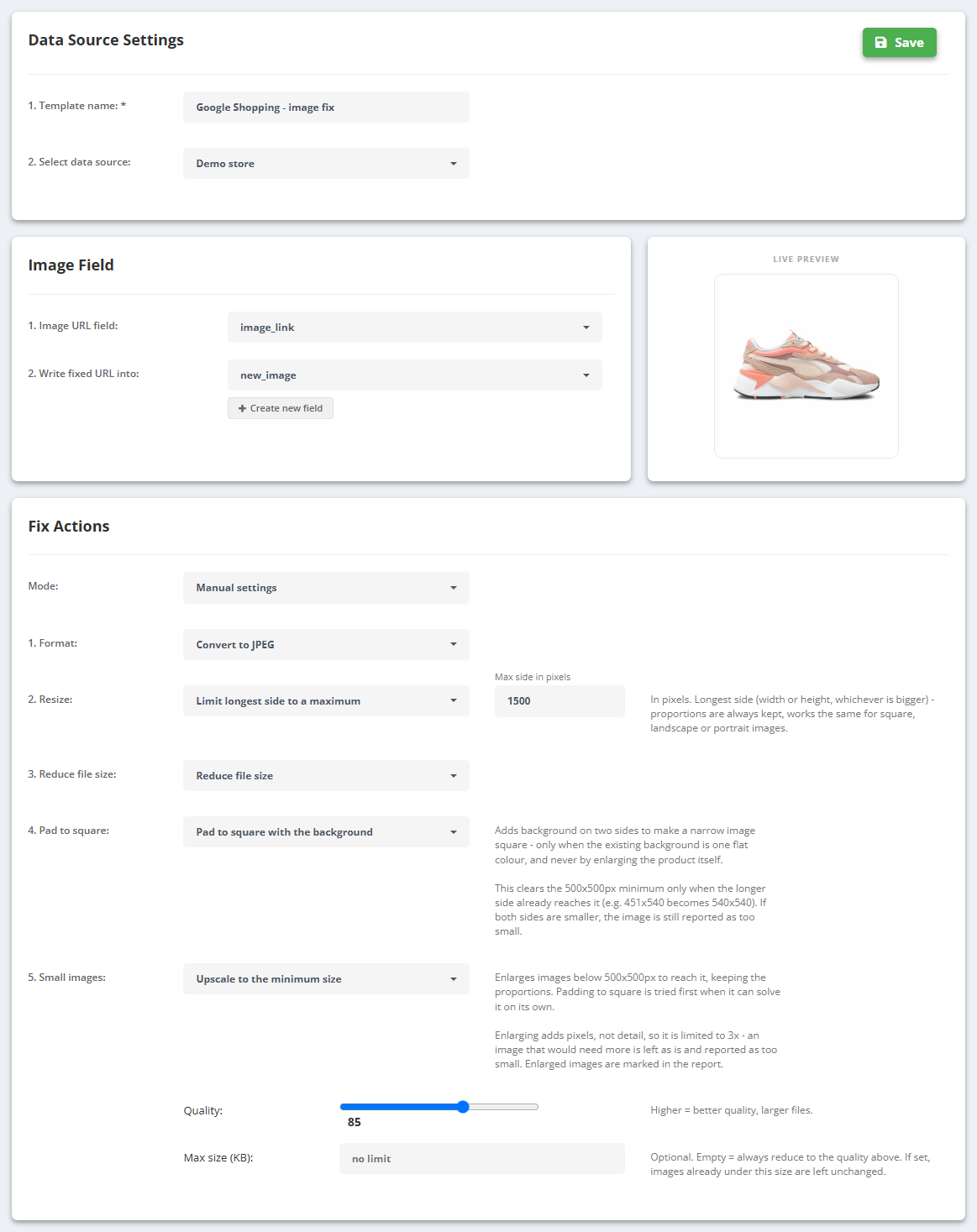
- Image Field: the Image URL field to read and Write fixed URL into - an existing field or Create new field (keep the original and map the new field in the export).
- Fix Actions → Mode: Auto Optimization with Optimize for “Google Shopping” or “Meta Ads”, or Manual settings.
- Manual settings: 1. Format (convert to JPEG/PNG or keep), 2. Resize (max side in pixels), 3. Reduce file size (quality, optional max size in KB), 4. Pad to square, 5. Small images (upscale up to 3×).
- The Live Preview shows the original photo of a real product from the field you picked. Save.
- In the Image Editor list, switch the template on - it runs right away and then with every data source update; Run now starts it again at any time.
- See the result in Manage → Preview images: Already fine, Fixed with notes (what changed and the new size) and Problems.
What the Auto presets do
- Google Shopping: resizes the longest side down to 1500 px if larger, reduces file size at the best quality, flags images under 500×500 px or in an unsupported format. No padding - Google needs no fixed shape.
- Meta Ads: resizes down to 1440 px, reduces file size, pads non-square images to 1:1 when the background is clean and uniform; otherwise the image is flagged for review.
Photos that already pass are left untouched and keep their original URL. Fixed images are served from our image CDN; the address changes only when the image changes.
If it does not work
- No fixed images on the products? Check that the template is switched on and that its run has finished - the list shows when it last ran.
- An image is listed under Problems? It is below the minimum and cannot be upscaled enough (at most 3×), or the URL could not be loaded. In Manual settings set 5. Small images to upscale, or replace the photo in the shop.
- Image Fix works on every product of the data source - it has no product filter or schedule. To fix only some products, send the fixed field to the channel only where it is needed.
- Changed the template? Click Run now, or wait for the next update of the data source.
- A feed export waits until the images are ready, so the new links appear in the feed after that.