
- Go to Image Editor → Create New Template → Creative Editor.
- Setup: the Data source, Write fixed URL into (the field that gets the creative URL), Image size, Background, optional border, Filter products and Scheduling (start and end dates with a time zone - for sale designs).
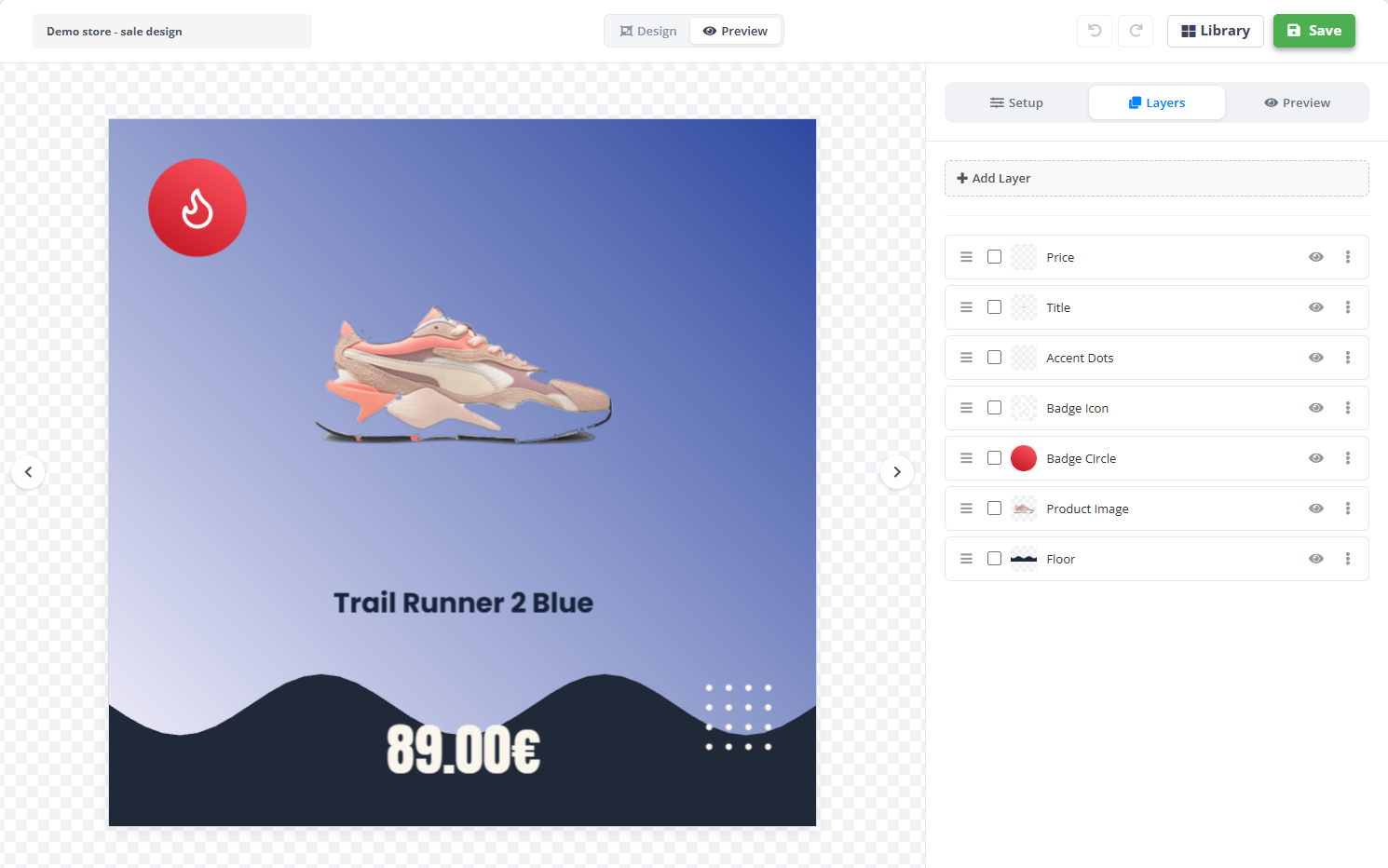
- Layers: add text, shape and image layers. Text layers read feed fields -
{{price}},{{sale_price}},{{brand}}- so the same design fits every product. Show this layer only if hides a layer on products that do not match (a sale badge only when there is a sale price). - Library: start from a layout, add badges, shapes, icons, graphics or your uploads.
- Preview: See it on real products renders the design on products from your catalog.
- Save. Creatives are rendered for the whole catalog and refreshed with every update; Priority decides which template wins when several match a product.
Outside the scheduled dates the field simply keeps the value the feed delivers - the standard image comes back by itself.
Several sizes from one design
- Add size adds another shape of the same design: 1:1, 4:5, 1.91:1 or 9:16 - up to 4.
- There is one design, but every size is drawn separately, so you can arrange each one for its shape.
- The field gets the links of all sizes; the main size comes first.
Your own fonts
Library → Fonts: upload your own font - TTF or OTF only. It is used both in the editor and in the rendered images.
Prices that look like prices
Switch on Price formatting on a text layer to draw the value as a price: smaller cents and the currency symbol, for example 2,⁹⁹€.
When the text does not fit
Each text layer has a choice for text that is longer than its box:
- Shrink to fit - the text gets smaller until it fits.
- Keep size, move to the next line - the size stays and the text wraps.
- Keep size, let it run outside - the size stays and the text may go past the box.
If it does not work
- No creatives on the products? Check that the template is switched on, that the Scheduling window is open now, and that the products match Filter products.
- Changed the design? Click Run now, or wait for the next update of the data source.
- A feed export waits until the images are rendered, so the new links appear in the feed after that.