
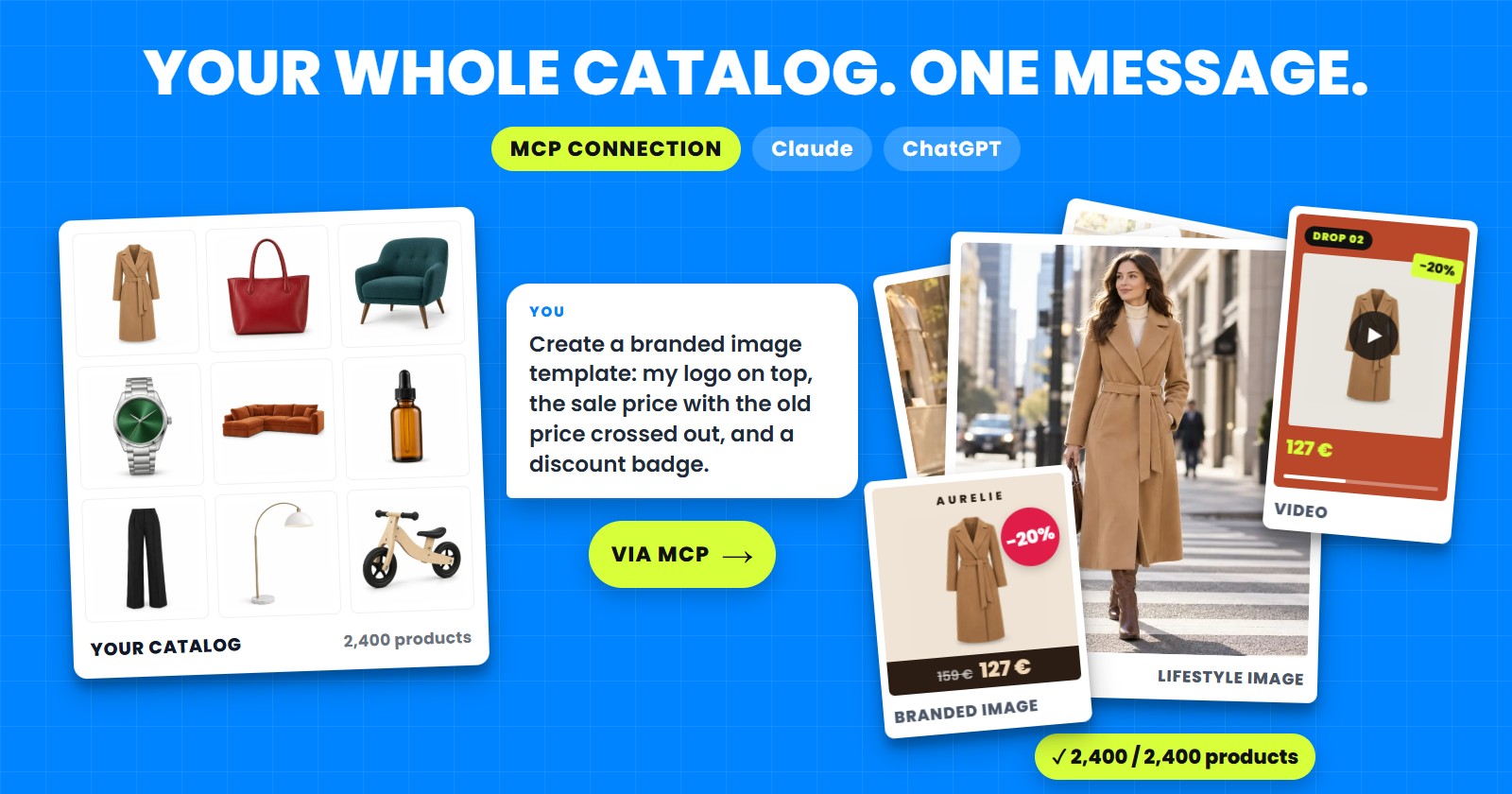
If you manage product feeds, Claude or ChatGPT is probably already open in another tab. You ask it to rewrite a title, explain a Merchant Center error, suggest a rule. Then you copy the answer, switch to your feed tool and click it all in by hand. The AI knows what to do - it just cannot reach the place where it has to be done.
That gap is closed. PPCDATAFEED now has its own MCP connection - not a chat bot inside our app, but a direct link between your own AI and your account. Connect Claude or ChatGPT once, and your AI works directly in your account - data sources, rules, exports, images, videos, Shopping labels and Google Ads campaigns - the same way you do, and for the whole catalog at once: one request updates every product, not one ad at a time. And it asks you before anything costs money or gets deleted. Everything about it is on the AI Assistant page; this post is the why and the how.
What MCP is, in one paragraph
MCP - the Model Context Protocol - is the open standard Claude and ChatGPT use to work with other apps (Anthropic). An app with an MCP server gives the AI a set of tools it may use on your behalf, inside the permissions you grant. For you it means one simple thing: the AI stops being an advisor and becomes an assistant with hands. You describe the result; it finds the right screens, settings and fields.
Three steps: connect, ask, approve
- Connect. In Claude: Customize → Connectors → Add custom connector (Claude Help). In ChatGPT: Plugins → Add → Add custom MCP server (OpenAI Help). Paste
https://app.ppcdatafeed.com/mcp, sign in to PPCDATAFEED and press Allow. No API keys to copy, nothing to install. - Ask. Write what you want in plain words, the way you would brief a colleague: “Which products are missing a GTIN?”
- Approve. Your AI shows what it found or what it is about to change. Anything paid and anything deleted waits for your yes.
Step-by-step guides with screenshots: Connect Claude and Connect ChatGPT.
What a normal week looks like
A connected AI works in the modules your account has. A few typical requests, and what happens next:
Monday morning: is everything running?
- “Which of my data sources failed their last update, and why?” - the AI reads the update history and explains the error in plain words, then offers to run the update again.
- “Which products in my feed are missing a GTIN?” - a list, not a hunt through filters.
A rule without the rule editor
- “In Shop feed, set custom_label_0 to ‘promo’ for every product with a sale price. Show me a preview first.” - the rule is created, the preview shows how many products it touches, and the change is marked so you can put it back.
A new channel in one sentence
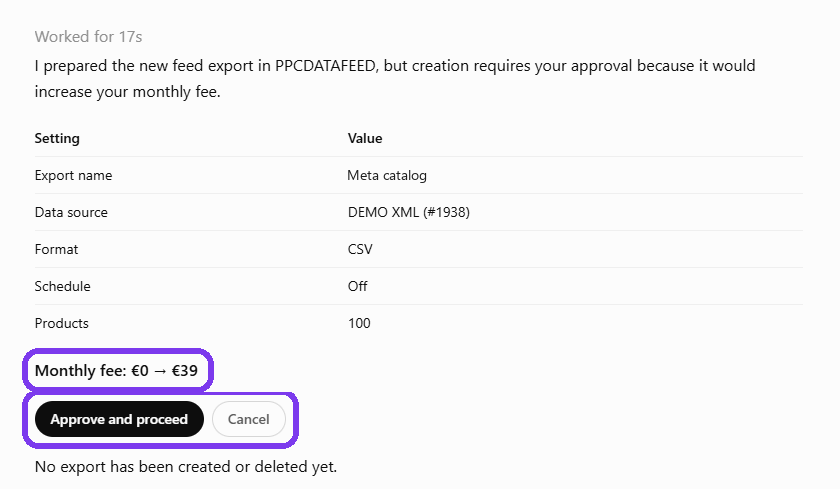
- “Create a Meta catalog export from Shop feed and give me its link.” - the export, its schedule and the link to paste into Commerce Manager. If the export changes your monthly fee, you see the new price first.
Creatives for a campaign
- “Make a sale image template with a red price badge and show me a preview.”
- “How much would lifestyle pictures for my 20 sofas cost? Do not start yet.” - the AI answers with the price and waits.
- “Make a 15-second video of my new arrivals with a voice-over. Show me the scenes first.”
Google Ads, straight from the feed
- “Build a Search campaign structure from my feed and check whether its keywords actually get searched - do not upload yet.” - the structure, the keyword check and a preview; the upload waits for you.
One conversation, the whole chain
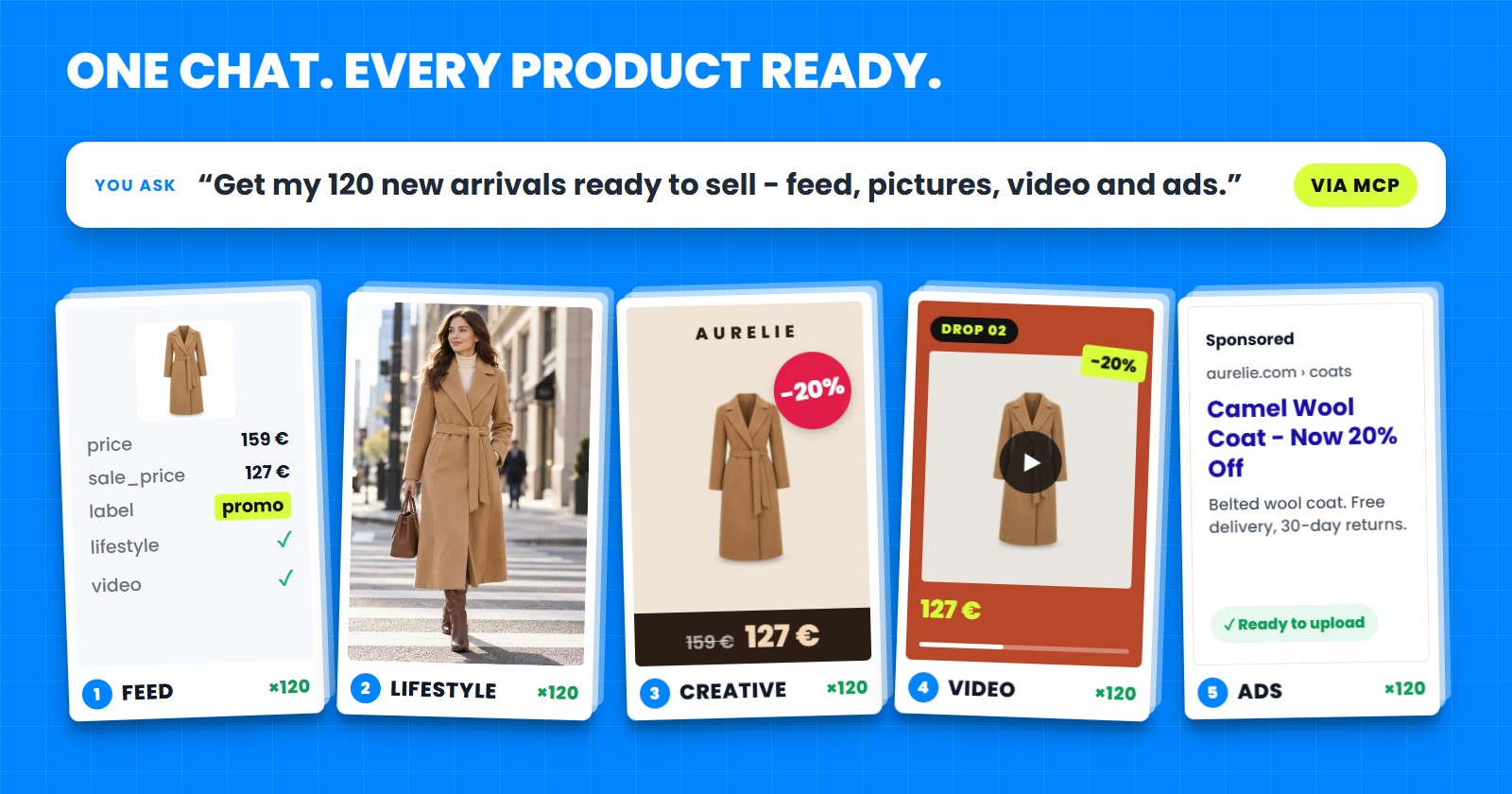
Getting a sale live normally means five screens and an afternoon: a rule to mark the sale products in the feed, lifestyle pictures, an image template with the sale badge, a short video, and a campaign for the whole group. Each step needs the result of the one before.
With your AI connected, it is one conversation. It walks the chain in order - feed, pictures, video, campaign - shows you what it did at each step, and stops wherever something costs money. This is possible for one reason: in PPCDATAFEED all five live in the same app, on the same product data. Your AI does not have to stitch three tools together - it works in one.
How it compares
AI connections for feed tools are new, so we read what the feed management tools on the market publicly document in November 2026. Most of them have no AI connection at all. The few that do let the AI read the feed, find problems and fix products; some also edit rules and exports, and some make ad images. We did not find one that lets the AI make product videos or build Google Ads campaigns from the feed.
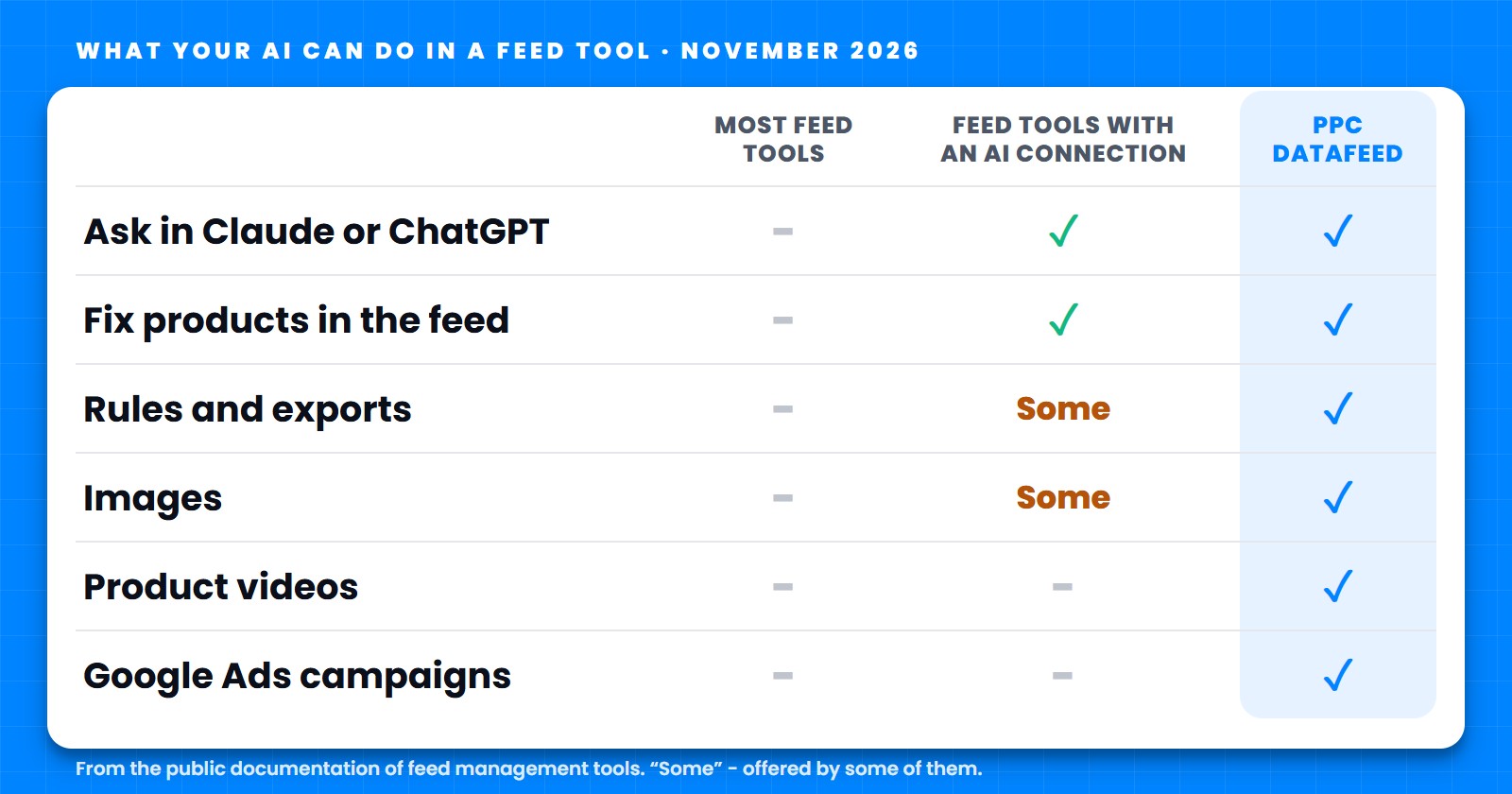
What that means in practice:
- The whole chain, not just the feed. Feeds, images, videos, Shopping labels and Google Ads campaigns in one connection.
- It does the work, not only reads. Rules, exports, templates, videos and campaign structures are created and changed - with a preview first.
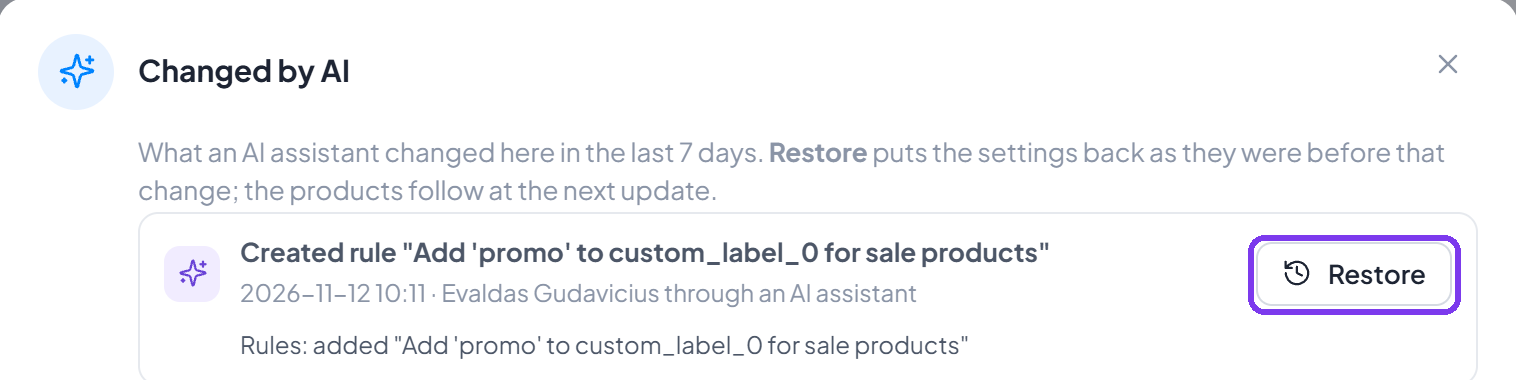
- Every change can go back. Each AI change is marked “Changed by AI”, and Restore puts it back as it was.
- Prices before payment. Anything that costs money shows the price in the chat and waits for your yes.
- No extra fee for the connection itself.
You stay in control
Giving an AI access to the feeds that run your ads only makes sense if nothing can happen behind your back. These are the rules it works under:
- Nothing paid without you. Before anything that costs money - a new export or lifestyle pictures, for example - the AI shows the price and asks in the chat.
- Deleting is yours. The AI cannot delete a data source, export, template, video or campaign. It can only ask - and you approve it in the app, under AI asks. Deleted data sources and exports can be restored for 7 days.
- Every change is marked. The Changed by AI list shows what an AI changed in the last 7 days, and Restore puts the settings back as they were.
- Designs you use stay yours. A Creative design that is already live changes only when you press Apply on the AI’s suggestion.
- It sees only your account - and the accounts you manage, if you are an agency. Never your passwords, invoices or payment details, and it cannot manage your users or billing.
You can disconnect at any time in PPCDATAFEED under Integrations → AI assistants, or in Claude or ChatGPT; a connection also ends by itself after 30 days without use. What the AI reads is sent to its provider (Anthropic or OpenAI), as our Privacy Policy describes. More in Approvals and safety.
For agencies: every client in one chat
If you manage client accounts in PPCDATAFEED, your AI can work in them too, for as long as you manage them. Name the account in the request - “In the account Demo Store, list the feed exports” - and the AI switches context without you logging in and out. A morning check across clients becomes a few questions instead of a few dozen tabs.
What it costs
Nothing extra. Connecting your AI to PPCDATAFEED is free - you only need your own Claude plan (any plan, on the web or in the desktop app) or ChatGPT Plus or higher on chatgpt.com. Paid features cost exactly what they cost in the app - for example a lifestyle picture is €0.05 - and your AI asks before using them.
Get started
- Open the AI Assistant page and pick Claude or ChatGPT.
- Follow the guide - it takes about two minutes.
- Ask your first question. A good one to start with: “Which of my products have problems, and what would you fix first?”
Not on PPCDATAFEED yet? Book a free demo call - we set up your first feed with you and show the AI assistant on your own catalog.