
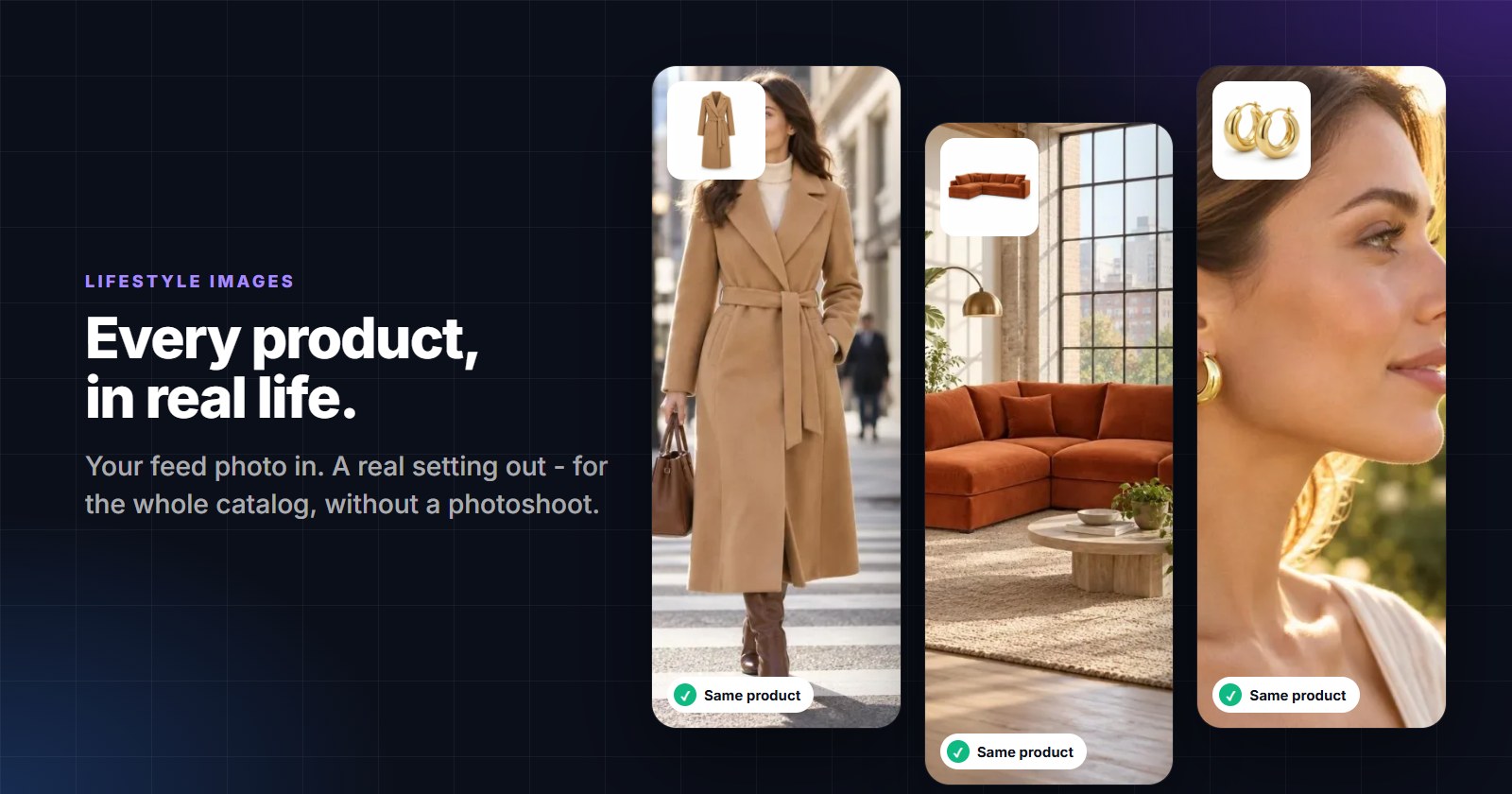
Most catalogs have one photo per product: the product on white. It is the right photo for the job it does - it shows exactly what you sell. What it cannot show is how big the sofa is in a real room, how the coat falls when someone walks, whether the earrings are delicate or bold. That is the job of a lifestyle photo, and it is the one most stores never have, because a photoshoot does not scale to 3,000 products and 40 new arrivals a week.
This guide covers what Google and Meta accept, where lifestyle pictures help, what changed with AI - and the one rule that decides whether an AI picture is an asset or a liability.
Two photos, two different jobs
Google has a separate field for each job. image_link is the main image: the product alone, clearly visible. lifestyle_image_link is for "a lifestyle image" of the product - Google’s own examples are "clothing worn by a model" and "furniture staged within a room" (Google). The two do not compete: the main photo stays, the lifestyle pictures travel next to it.
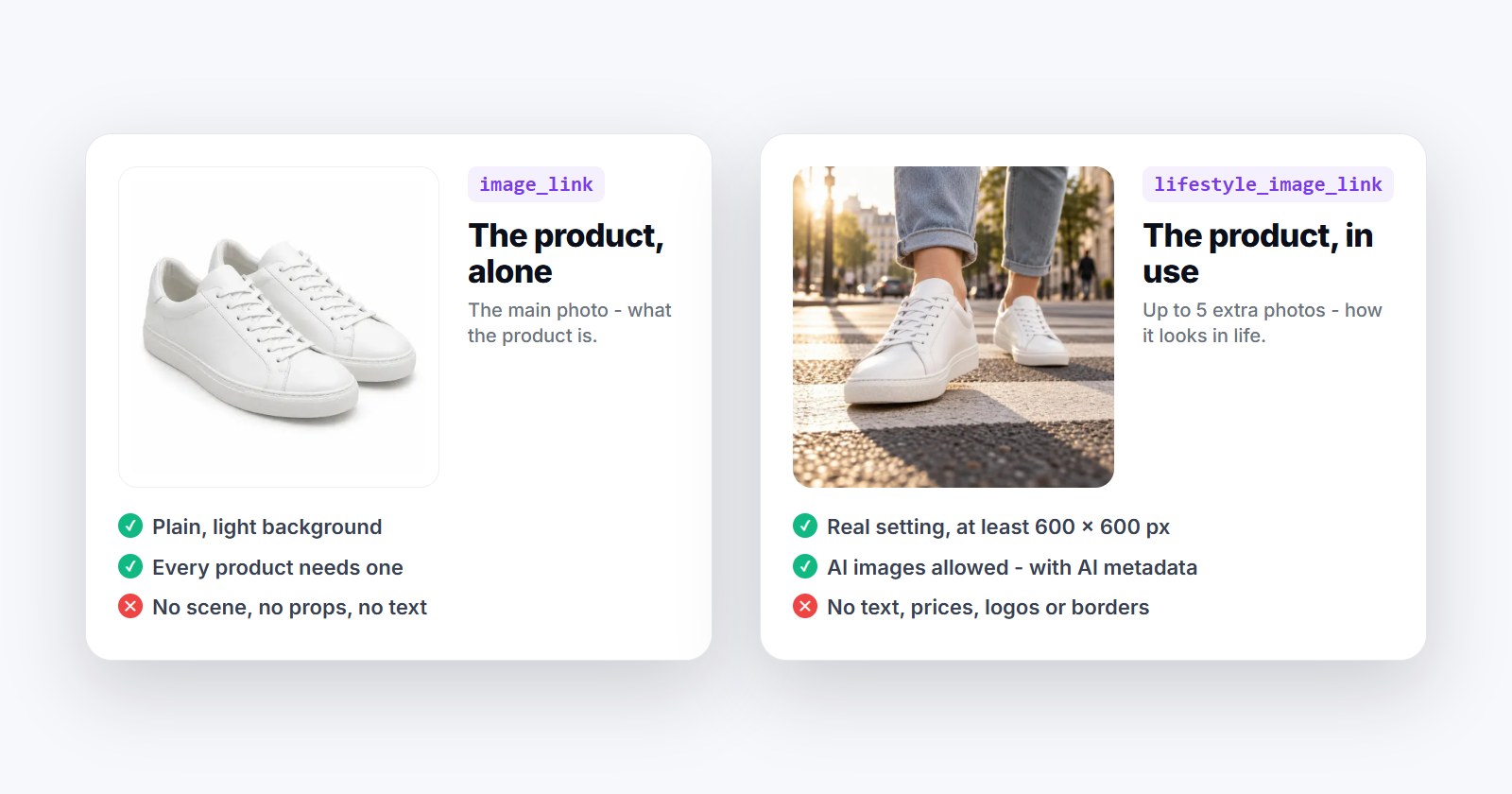
The rules for lifestyle_image_link, from Google’s specification (Google):
- Up to 5 lifestyle images per product, at least 600 × 600 pixels.
- No promotional elements or text - no calls to action, prices, logos or barcodes - and no borders or padding to reach the aspect ratio.
- AI-generated images must say so in their metadata (for example the IPTC
DigitalSourceTypevalueTrainedAlgorithmicMedia), and the metadata must not be stripped (Google). - Where they show: Google describes them as images shown in free listings for the product.
Never put a lifestyle picture into image_link. The main image still has to show the product clearly on its own; the scene belongs in the lifestyle field.Where lifestyle pictures help
- Google free listings - through
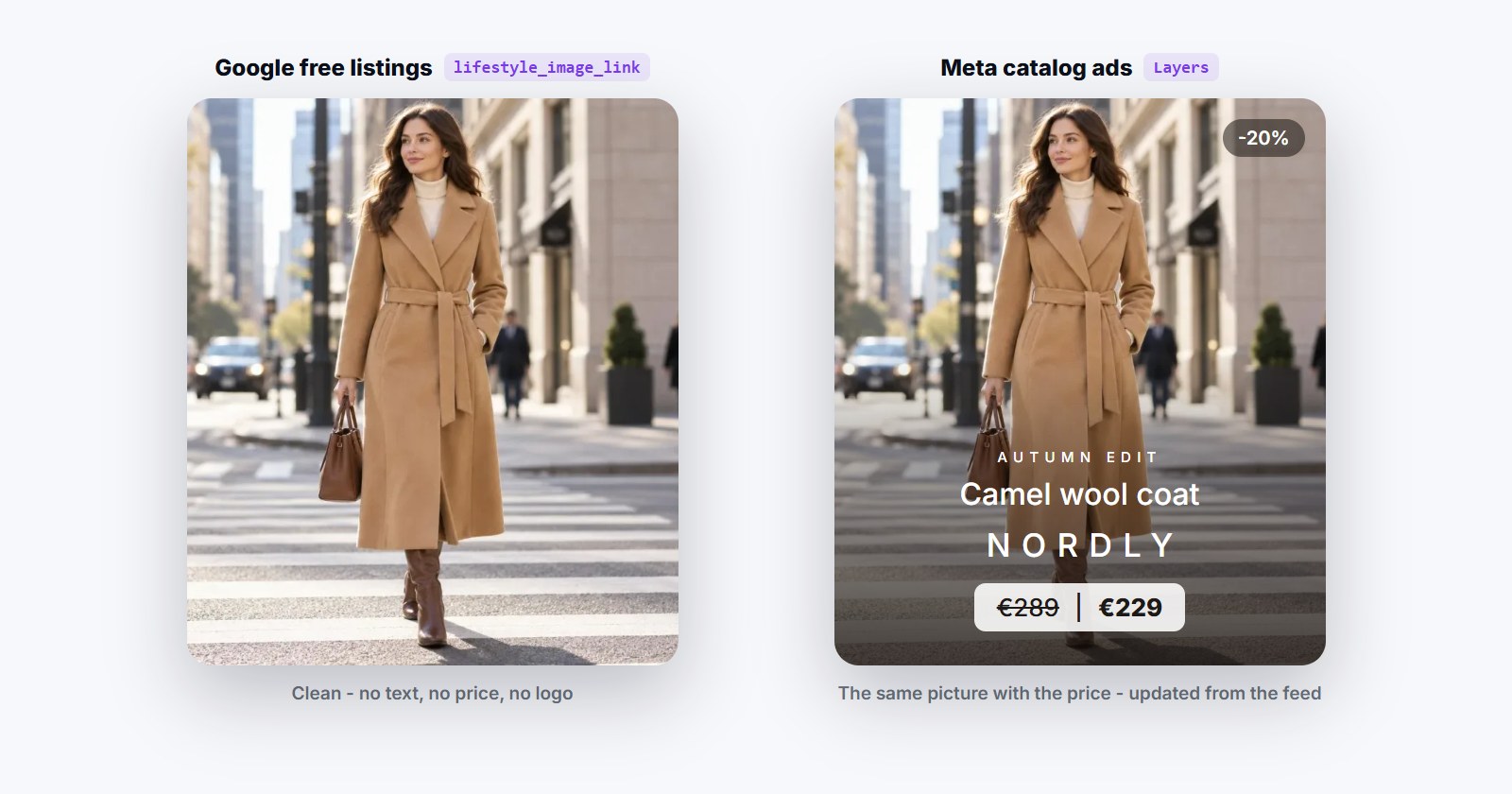
lifestyle_image_link, next to your main photo. - Meta catalog ads - Facebook and Instagram take extra product images from the catalog, and a picture of the product in use is the kind of image a feed placement is made for. Here you may also add a price or a badge, which Google’s lifestyle field does not allow.
- Stories and Reels - a tall 9:16 picture fills the screen; Google does not take that shape, Meta does.
- Your own channels - category pages, emails and social posts, where a consistent look across hundreds of products is otherwise out of reach.
AI is good enough now - if the product stays the product
Image models can put a product into almost any scene in seconds. The risk is not an ugly background; it is a picture that quietly changes the product: a logo redrawn, a watch dial with the wrong numbers, a sneaker with an extra stripe, a pattern "improved". On a product listing that is not a creative choice, it is a misdescription - and the customer who orders it sends it back.
So the useful question about any AI tool for catalog images is not "how pretty" but "how does it know the product did not change?" Look for three things:
- It starts from your photo. The product is drawn from the product photo in your feed, not from its title.
- It checks every picture against that photo - shape, colours, materials, every printed word and number - and throws away the ones that fail.
- It keeps the file as generated, so the AI metadata Google asks for is not stripped by re-encoding.
Every category, its own scene
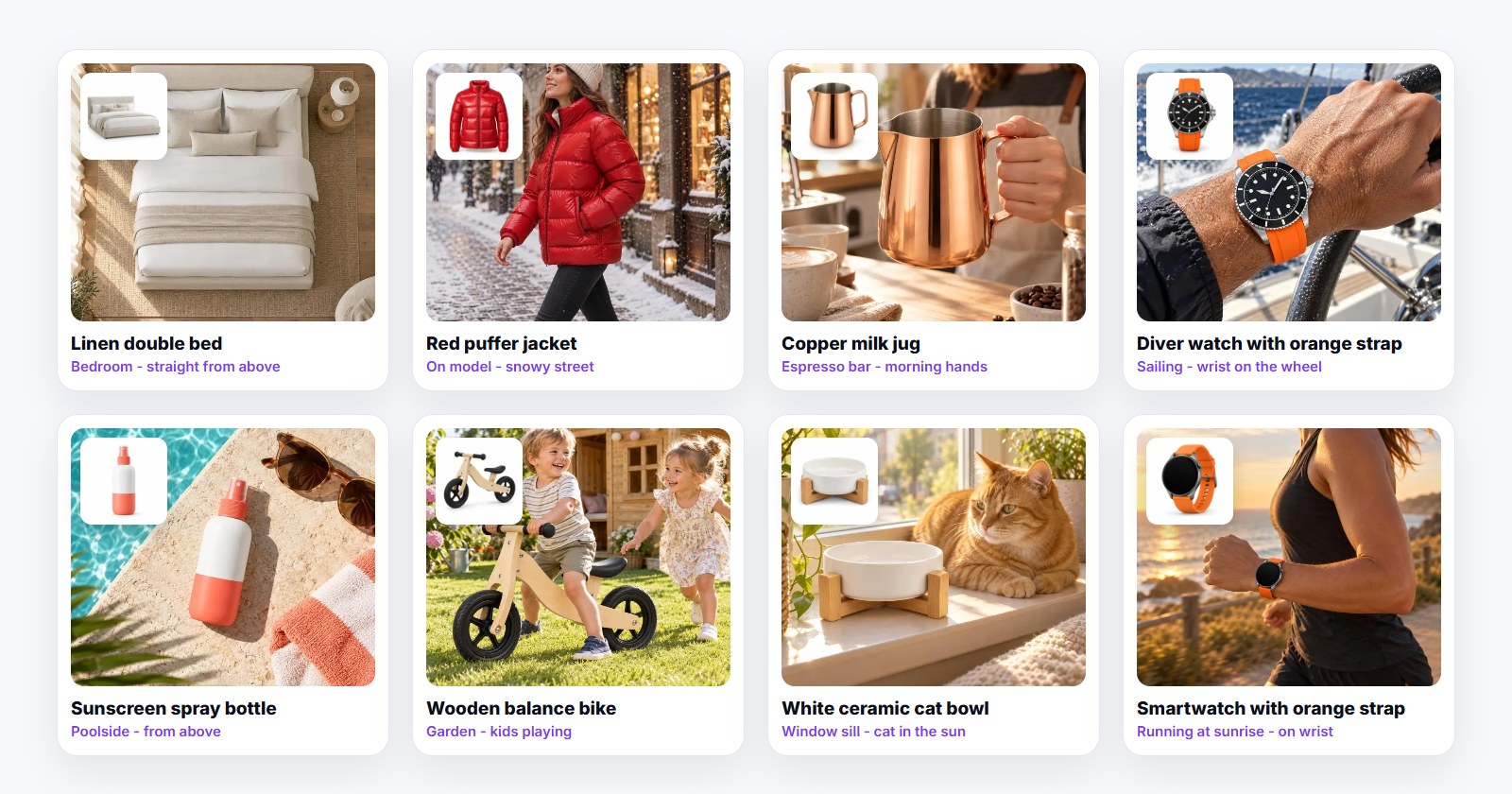
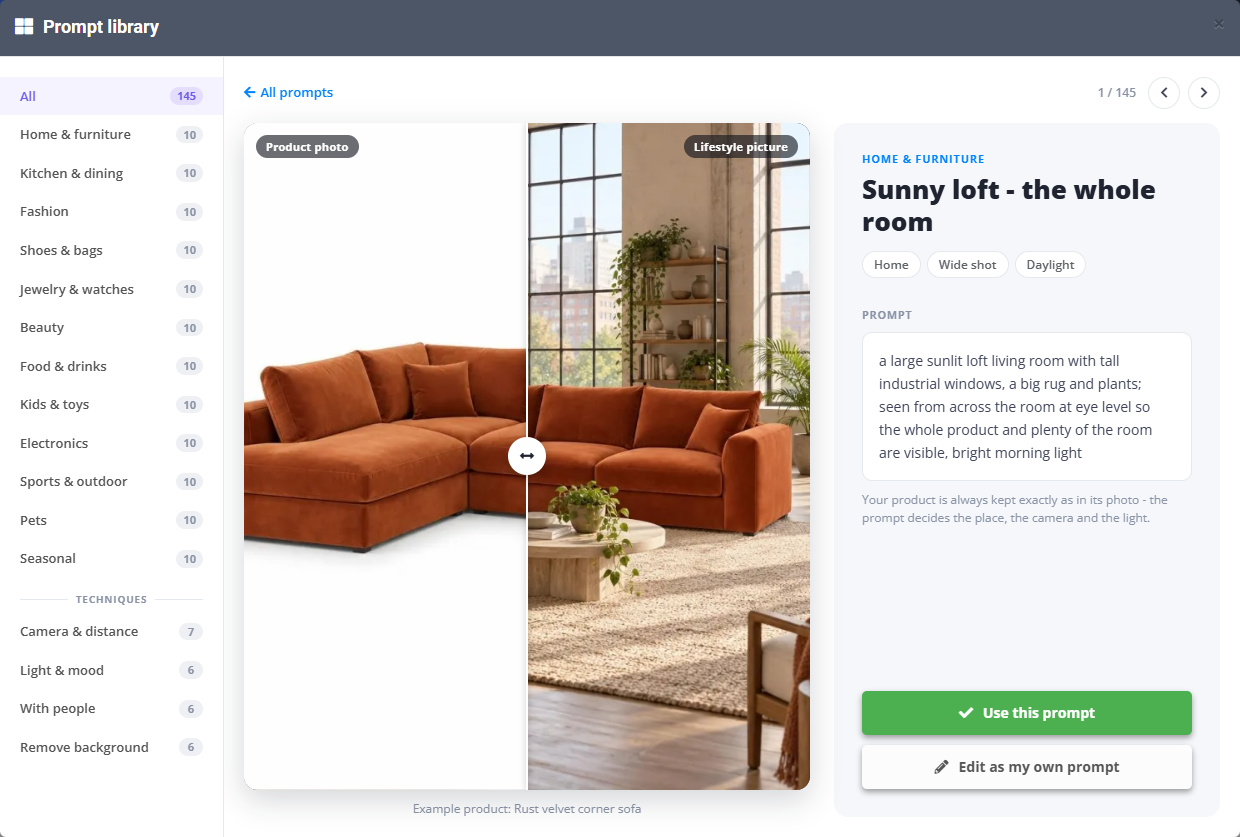
A good scene is specific to the product: a bed seen from above, a puffer jacket on a snowy street, a milk jug at an espresso bar, a watch on a wrist at the wheel of a boat. One scene for the whole catalog looks like a template; one per category looks like a shoot.
When you write the scene yourself, describe the place, the camera and the light - never the product. "A bright Scandinavian living room with a big window, photographed from far" works for every sofa in the catalog. Leave out text, prices and logos: they are refused in Google’s lifestyle field anyway, and on Meta they belong on a separate layer, where they stay sharp and follow the feed.
One product, several shots
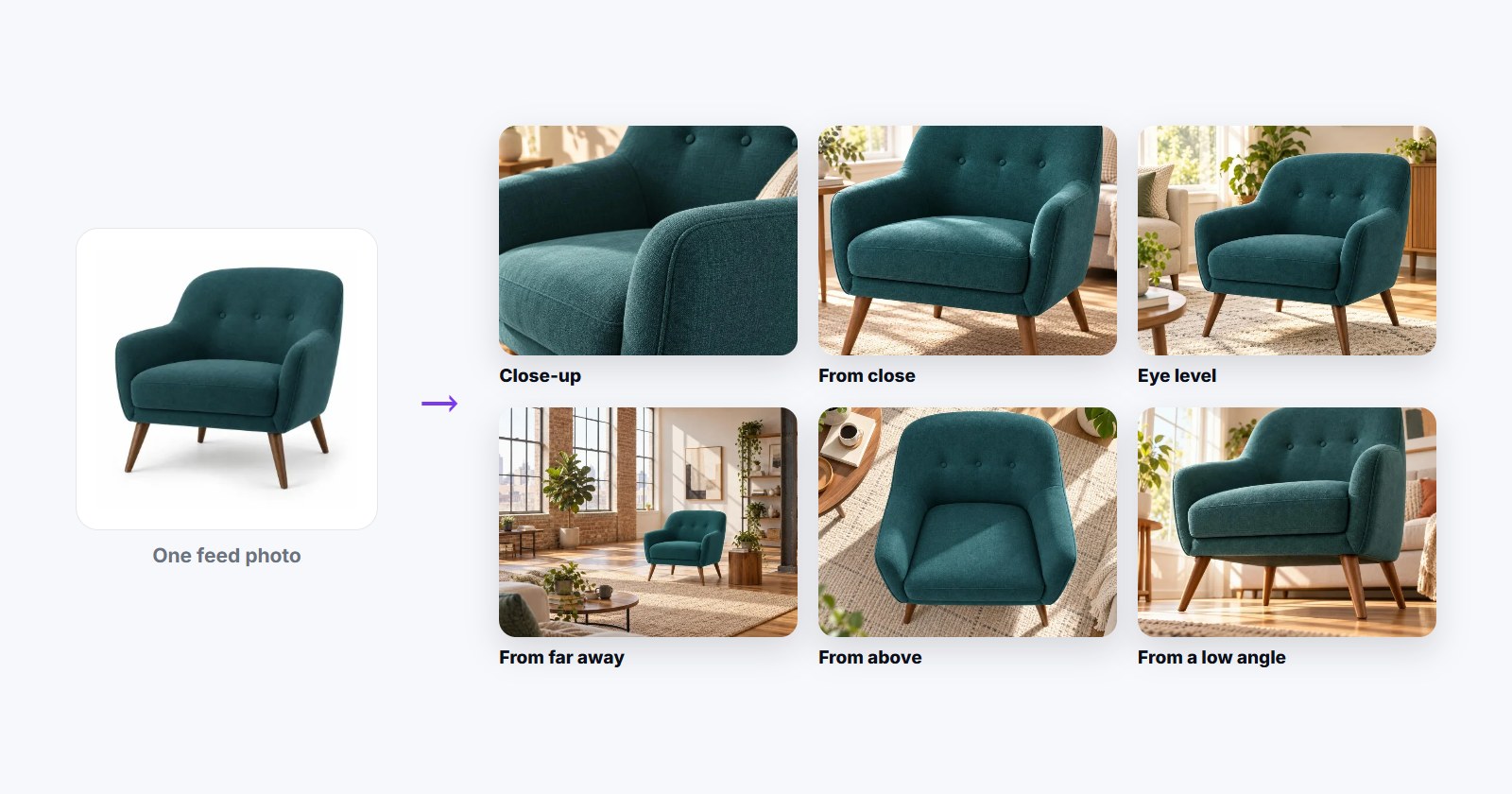
Google takes up to five lifestyle images per product, and the shots that sell are different ones: a close-up of the fabric, the product at eye level, the whole room. Asking for a different camera position is enough - the product stays the same, only the picture changes.
How to do it for the whole catalog
In PPCDATAFEED this is Lifestyle images, a template type in the Image Editor. It reads the product photo from your feed and writes the pictures into a field of their own - the main photo is never touched.
- Pick the catalog and the field. The data source, the photo field it reads, and the field the pictures are written to.
- Set a scene per group of products. One row per category or brand - a scene from the prompt library of 145, your own sentence, or Auto, which picks a fitting place for each product. The top row that matches a product wins.
- Choose how many pictures. One to five per product, each with its own scene and size: 1:1 or 4:5 for Google and Meta, 9:16 for Stories and Reels.
- Look at free previews on four of your own products, change a scene, try again.
- Switch it on. The whole catalog is drawn in the background and written to the feed. After that, only new and changed products are drawn.
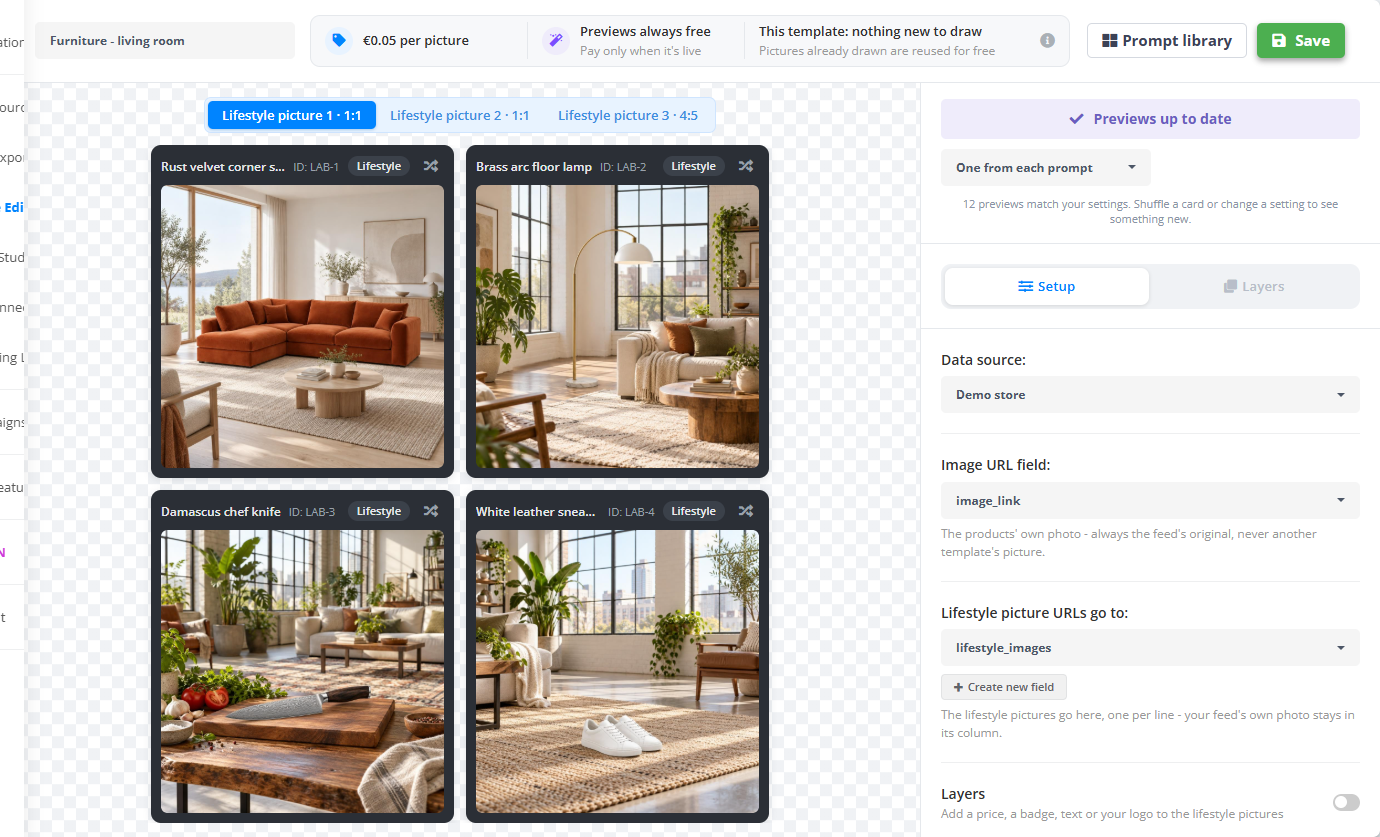
Every picture is checked against the product photo before it reaches the feed. A picture with a different product, changed text or numbers, added writing or a broken shape is drawn again, up to three times; if it still fails, the product simply keeps its own photo. You pay only for the pictures that pass - previews and failed tries cost nothing. The step-by-step setup is in the help article.
Checklist
- The main
image_linkstays the product alone; lifestyle pictures go tolifestyle_image_link. - At least 600 × 600 px, no text, prices, logos, borders or padding in the lifestyle field.
- AI pictures keep their AI metadata - no re-encoding that strips it.
- Every picture is checked against the product photo; a changed product never reaches the feed.
- One scene per category or brand, written as place, camera and light.
- Several shots per product where it helps: close-up, in use, the whole room.
- Prices and badges only on Meta, as a layer that follows the feed.