
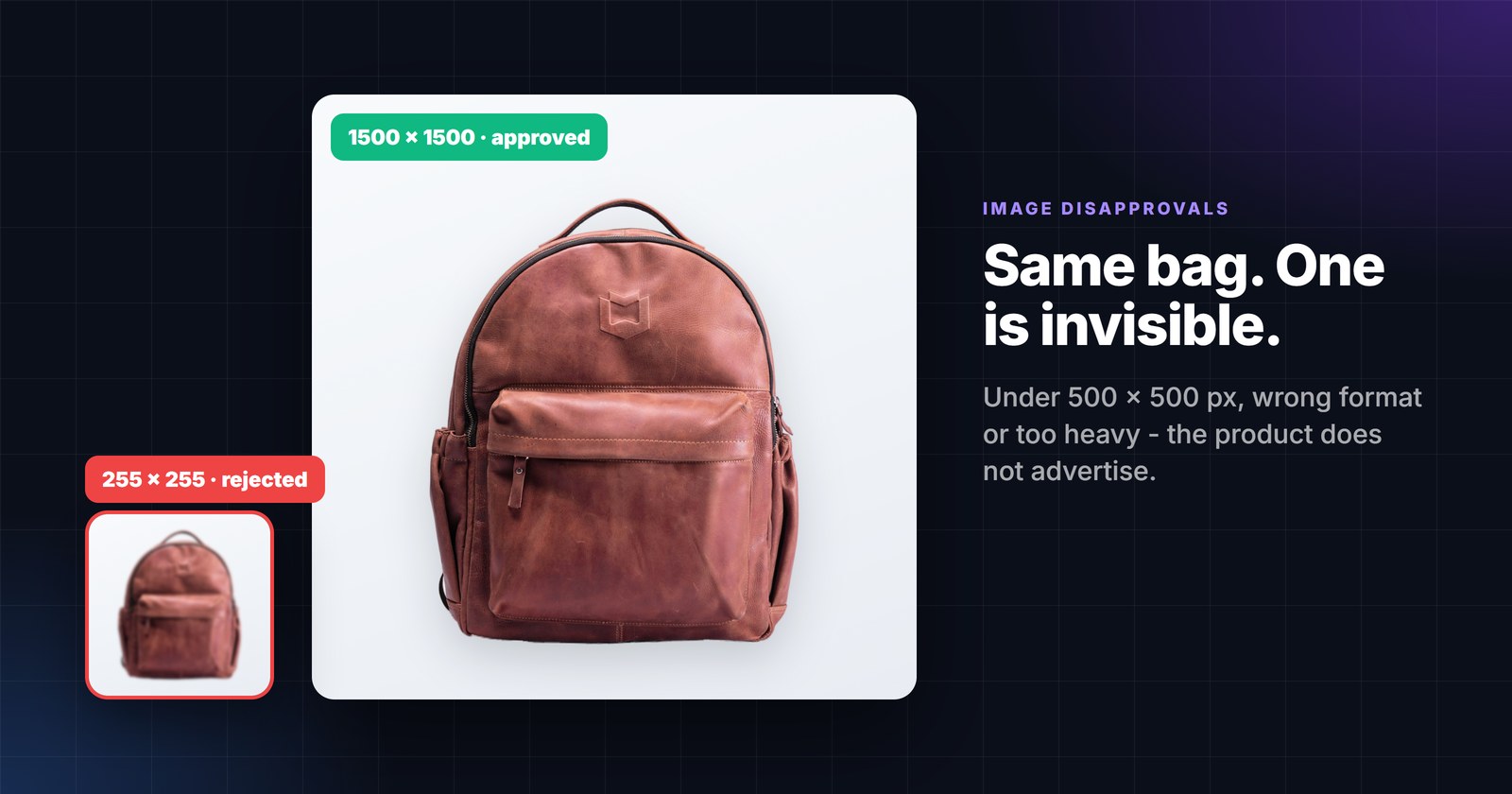
A product with a rejected image is a product that does not advertise. It does not matter how good the title is or how sharp the price - if the image fails the check, the item is disapproved (Google) or dropped from the ad set (Meta). In the catalogs we see, images are the single most common reason a product is not live, and the least visible one: the shop looks fine, the feed validates, and the platform quietly says no.
This article lists the actual rules, the ways real feeds break them, and what "fixing" an image means technically.
The rules, side by side
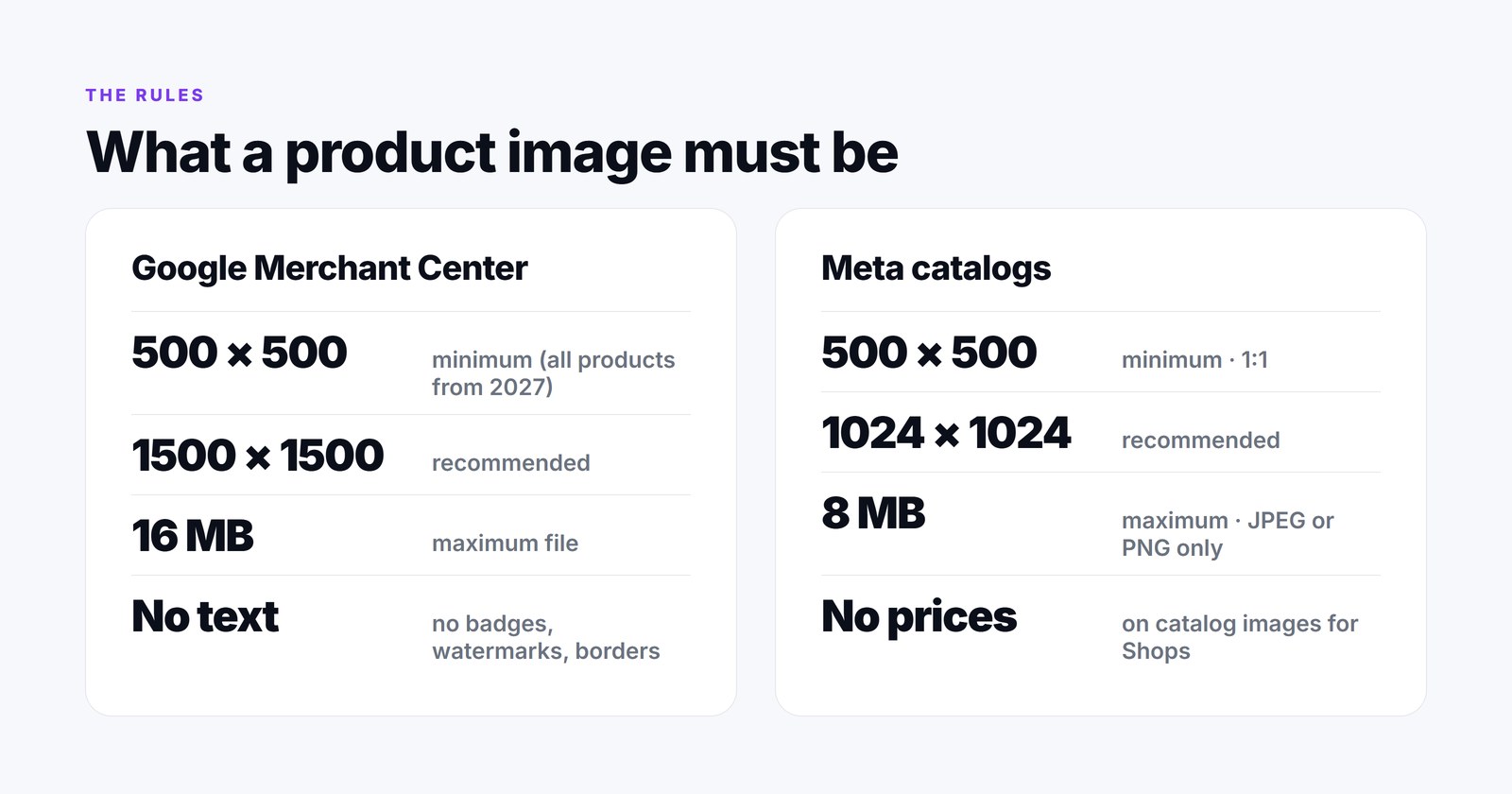
Google Merchant Center - image_link
- Size: at least 500 × 500 px, recommended 1500 × 1500 px or above. Google has announced that the 500 × 500 minimum applies to all products from January 31, 2027 - smaller images that still work today will stop working then.
- Weight: no larger than 64 megapixels and 16 MB.
- Formats: JPEG, WebP, PNG, GIF, BMP, TIFF.
- Content: no promotional elements or content covering the product - no calls to action, watermarks, logos that are not part of the product, barcodes; no borders; no placeholder or generic images (with a few category exceptions).
- Composition: solid white or transparent background recommended; the product should fill roughly 75-90 % of the frame.
- Source: Google Merchant Center image_link specification.
Meta catalogs (Facebook and Instagram ads and Shops)
- Formats: JPEG or PNG only, 8 MB maximum.
- Size: at least 500 × 500 px for Shops, 1024 × 1024 recommended; ads follow the Ads Guide sizes per format. Shops display products in 1:1; mixed aspect ratios get auto-adjusted in carousels, so keep everything 1:1 or 4:5.
- Content: Meta asks you not to include text overlaying the product, calls to action, promo codes, watermarks or time-sensitive information "like temporary price drops", and recommends a white backdrop.
- Refresh quirk: if you replace an image through the feed, "the new image must have a different URL" or Meta will not notice the change.
- Source: Product image specifications for catalogs.
Read the two lists together and a pattern appears: the platforms want a large, square-ish, clean photo of the product on a plain background, delivered as JPEG or PNG under a sane file size. Almost every rejection is a deviation from that one sentence.
Why real feeds break these rules
Shops do not upload bad images on purpose. The problems come from how images travel from a product information system to a feed.
- Thumbnails instead of originals. Many platforms expose several sizes per image, and the feed exporter picks a small one - we regularly see 255 × 255 and 370 × 258 in live feeds. They looked fine on the site; they fail the 500 px minimum.
- Format drift. Modern CMSs serve WebP or AVIF for speed. Google accepts WebP; Meta accepts only JPEG and PNG, so a WebP-only shop loses its whole catalog on Meta. AVIF is accepted by neither list.
- Original files that are far too heavy. Photographers deliver 20-40 MB TIFFs or 6000 px JPEGs; a feed that links to the originals trips the 8 MB and 16 MB limits and slows every crawl.
- Promotional overlays. "-30 %" badges, "Free shipping" ribbons and watermarks baked into the main image by a designer years ago. Great on a banner, disapproved in a feed.
- Borders and frames added by an older theme or a marketplace template.
- Placeholders. "Image coming soon" graphics - explicitly banned by Google and strongly discouraged by Meta.
- Odd aspect ratios. Tall fashion shots (2:3) or wide furniture shots (16:9) that Meta crops in unpredictable ways.
What "fixing" an image actually means
An image cannot be talked into compliance - it has to be re-encoded. These are the operations a fixer applies, in this order, and what each can and cannot rescue:
- Check. Download the file, read its real dimensions, format and weight (not the ones the URL suggests).
- Convert the format when the platform does not accept it - WebP to JPEG for Meta, for example.
- Resize down when the longest side is far above what any platform uses. Google recommends 1500 px; Meta 1024 px. Going smaller than that loses detail for nothing; going larger costs weight.
- Recompress to bring the file under the weight limit at the best quality that fits - quality is reduced gradually, and dimensions are reduced only if compression alone is not enough.
- Pad to square a narrow image by extending its own background - but only when the edges are already one flat colour, otherwise the padding is visible and the result is worse than the original.
- Upscale an image that is below the minimum, within limits. Enlarging invents pixels; up to about 3× the result is acceptable for a 255 px thumbnail, beyond that it is a blur. This is the last resort, after padding has been ruled out.
- Flag what cannot be fixed - a 120 px icon, an unsupported format nobody can convert - so a person replaces the photo instead of the algorithm hiding the problem.
The one thing no fixer can do reliably today is detect promotional text or watermarks inside the picture - that needs a designer’s eye or a model trained for it. Treat overlays as a content problem, not a file problem.
How Image Fix does it for a whole catalog
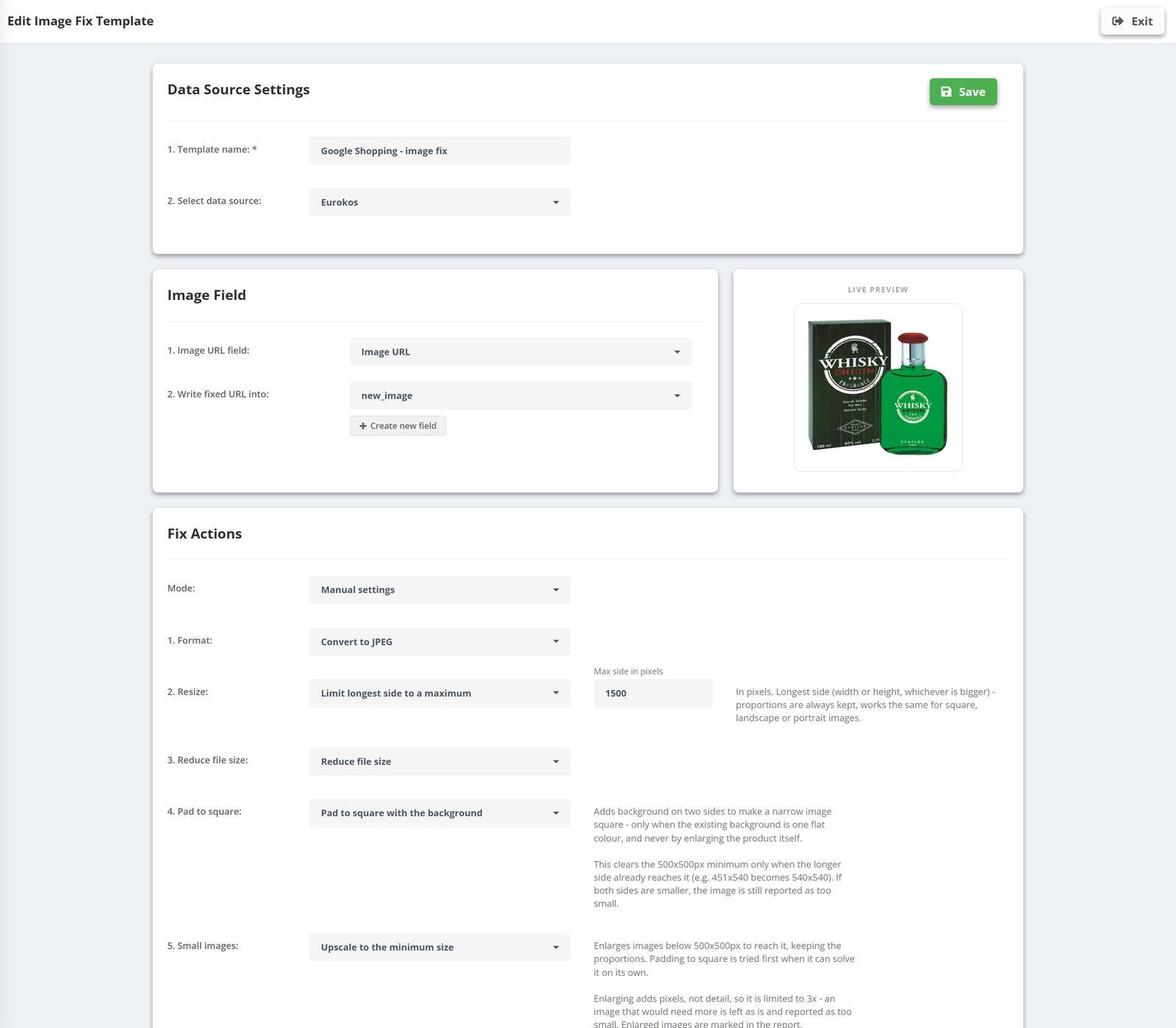
In PPCDATAFEED, Image Fix is a template attached to a data source. It reads the image field you choose, applies the fixes, hosts the corrected file on our image CDN and writes the new URL into a field you choose - the original URL stays untouched, so the shop and other channels are not affected.
- Auto mode with a platform preset. *Google Shopping*: resize the longest side down to 1500 px if larger, reduce file size at the best possible quality, flag anything under 500 × 500 or in an unsupported format; no padding, because Google does not need a fixed shape. *Meta Ads*: resize down to 1440 px, reduce file size, pad non-square images to 1:1 when the background is clean and uniform - otherwise flag for review.
- Manual mode when you know your catalog: format conversion, maximum side in pixels, target quality and an optional maximum size in KB, pad to square, and upscaling of small images up to 3×.
- Live preview on a real product before you save.
- Runs with every feed update - new products are fixed as they arrive; unchanged images are not processed again.
- Changing address on change. The fixed file’s URL contains a fingerprint of its content, so when the photo changes, the URL changes - which is exactly what Meta needs in order to refresh it.
Photos that already pass the check are left alone and keep their original URL. The report shows what was fixed, what was left and what was flagged, per product.
A practical order of work
- Run the free Shopping Ads audit or look at Merchant Center diagnostics - count the image disapprovals.
- Create an Image Fix template on the data source with the Google Shopping preset; map the new field as
image_linkin the Google export. - Create a second template with the Meta Ads preset if you advertise there - or reuse the first if your images are already square - and map it in the Meta export.
- Review the flagged list. Replace placeholders and images with baked-in text at the source; those are the ones the fixer cannot save.
- Leave the templates on. The problem returns with every new product otherwise.
Image rejections are a plumbing problem, not a creative one. Fix the plumbing once, for the whole catalog, and the products come back online - and stay there when the new 500 px rule arrives.