
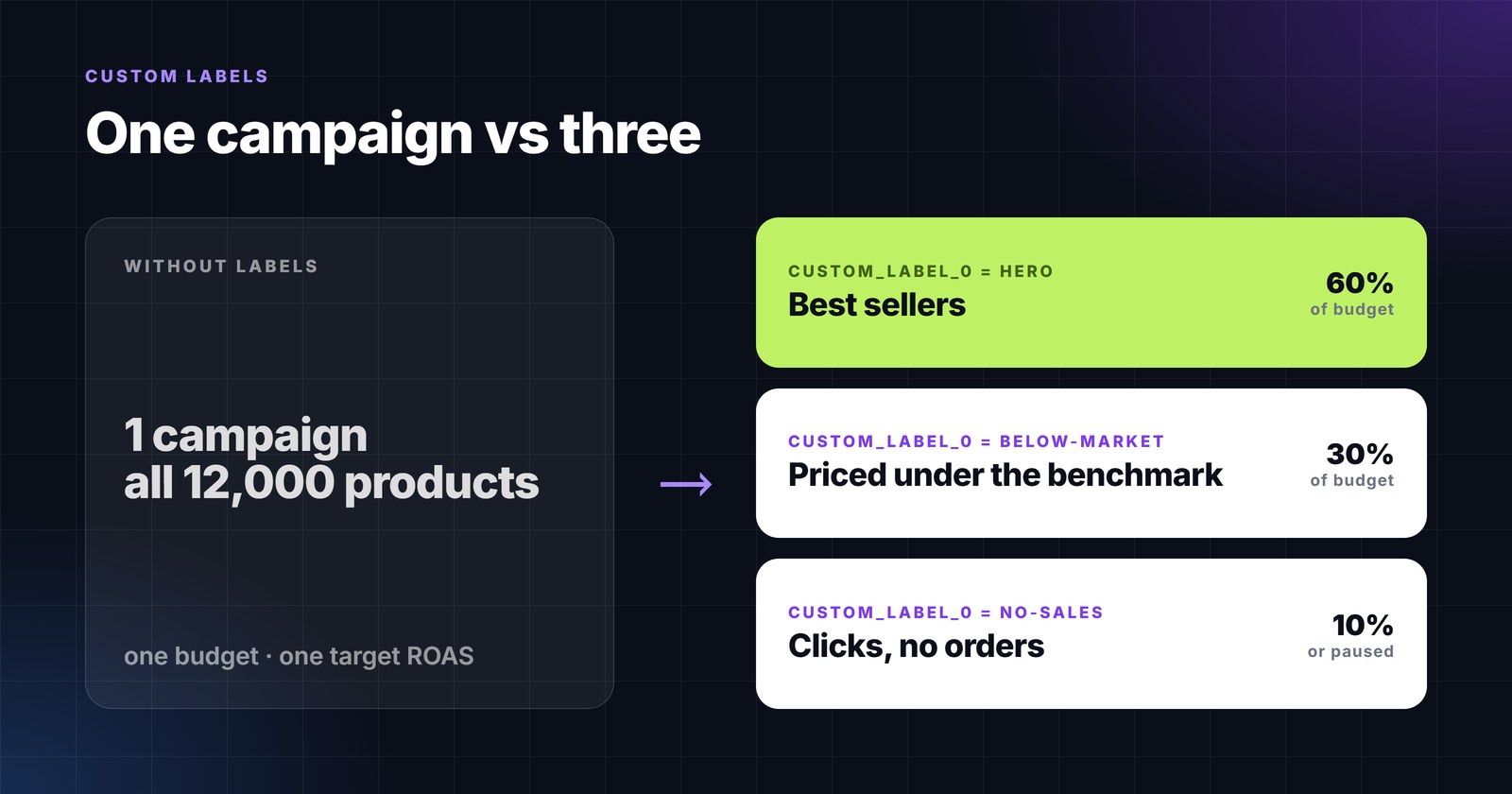
Most Shopping and Performance Max accounts we open have the same shape: one or two campaigns, the whole catalog inside, one budget, one target ROAS. It is simple, and it quietly wastes money. The algorithm spends where clicks are cheapest, the best sellers get starved during peaks, products that never converted keep collecting clicks, and there is no lever to pull because every product sits in the same bucket.
Custom labels are the lever. They cost nothing, they are invisible to shoppers, and they let you run different budgets and targets for different kinds of products without touching the products themselves. This article covers what the labels are, which segmentations pay off, the thresholds we use, and how to keep the labels fresh without anyone editing spreadsheets.
What custom labels are - the facts
- There are five attributes,
custom_label_0tocustom_label_4. Each value is 1-100 characters, one value per label per product. - An account can use up to 1,000 unique values per label (5,000 in total) - more than enough for any scheme, but a reason not to put raw numbers in them.
- They exist for one purpose: to filter products into campaigns, asset groups and reports in Performance Max, Shopping and Demand Gen. Google’s own examples are seasonality, clearance, selling rate and price ranges.
- "The information you include in this attribute won’t be shown to customers." Nothing you write here changes the ad.
- Source: custom_label specification - Google Merchant Center Help.
Because labels are ordinary feed attributes, they can come from your main feed - or from a supplemental feed that only carries id plus the label columns and overrides the values in Merchant Center. That second path is what makes daily, performance-based labels practical: the primary feed stays untouched and a small file rewrites the labels as often as you like (Supplemental feeds - Google developers).
Why one campaign is the expensive option
A single campaign has a single budget and a single target. Smart bidding then optimizes the average - and the average hides three groups that deserve different treatment:
- Products that already sell. They deserve most of the budget and an aggressive target; in one big campaign they compete with everything else for the same daily cap and lose impression share exactly when demand peaks.
- Products that are cheaper than the market. Google shows them more willingly and shoppers click them more; a campaign of their own with a higher target volume tends to scale cleanly.
- Products that spend and never convert. In a blended campaign they are subsidized by the winners. On their own, with a small budget or a stricter target - or simply excluded - they stop bleeding.
The split does not have to be dramatic. Two or three campaigns with different budgets and targets are usually enough; the point is that the budget follows the data instead of the average. We do not quote an average uplift because it depends on how skewed the catalog is - the more the revenue concentrates in a few products, the more there is to gain.
Six segmentations that earn their place
- Performance tiers -
hero,steady,no-sales,no-clicksfrom Google Ads data per product over the last 30-90 days. The most valuable label and the one that must be refreshed automatically. - Price bands -
01 under 25,02 from 25 to 100,03 over 100. Cheap products rarely justify the same CPC as expensive ones; separate targets fix that. The numeric prefix keeps the values sorted in Google Ads. - Margin bands -
high-margin,low-margin, from a cost column or a Google Sheet joined by ID. Target ROAS should follow margin, not revenue. - Price versus market -
below-market,at-market,above-market, from Merchant Center price benchmarks. Google computes the benchmark from all retailers selling the product with the same GTIN in Shopping ads and free listings, so it only exists for products with a valid GTIN (Price competitiveness report). - Availability and age -
new-30-days,last-units,back-in-stock. New arrivals need impressions before they can have a ROAS; last units should not get a big budget they cannot spend. - Season and campaign -
summer,black-friday,clearance, switched on by a date rule so nobody has to remember to turn them off.
Use each of the five labels for one dimension and keep the values stable. A product should not beheroon Monday,steadyon Tuesday andheroagain on Wednesday - every flip moves it between campaigns and restarts the bidding history there.
Thresholds that do not flap
Performance labels fail in one of two ways: too little data, or thresholds that sit exactly where products oscillate. Three habits fix most of it:
- Minimum data before a verdict. Call a product
no-salesonly after it has had real traffic - for example at least 100 clicks or a spend equal to a few times the average order value in the window. With less data the honest label issteady. - A window that fits the buying cycle. 30 days for fast-moving consumer goods, 60-90 for furniture or electronics where a purchase takes weeks. Shorter windows react faster and flap more.
- A gap between the thresholds. Promote to
heroat ROAS above 5, demote only below 3. Products between the two keep their current label. This hysteresis is the single most effective anti-flapping measure.
And keep the exclusions honest: a product with 300 clicks and no orders in 60 days is not going to convert because you lowered its bid. Pause it, fix the page or the price, and let the label bring it back when the data changes.
Doing it in PPCDATAFEED
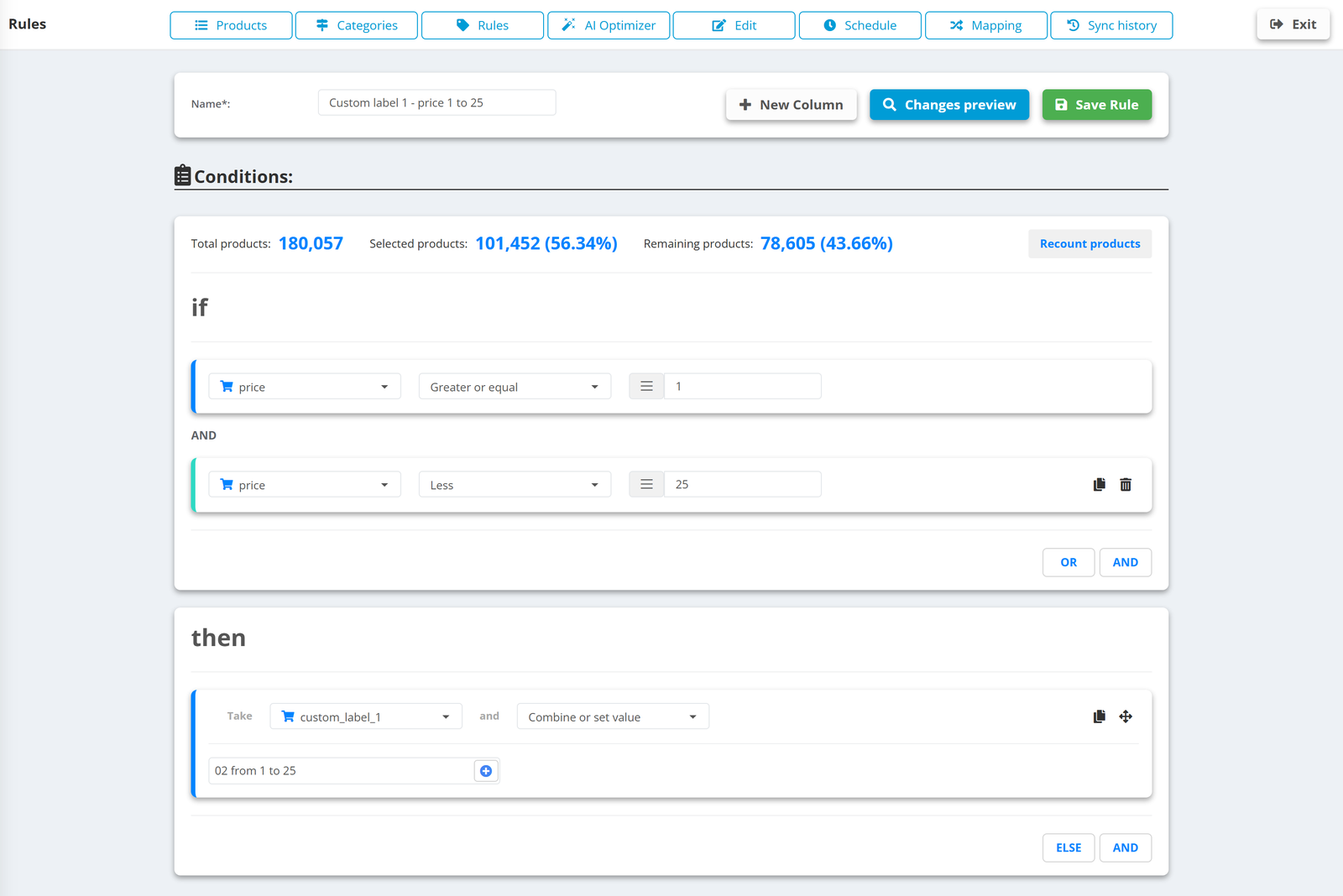
Labels that depend only on product data - price bands, margins, season, age - are ordinary rules on the data source. The rule below sets custom_label_1 for every product priced between 1 and 25; the counter shows it touches 101,452 of the 180,057 products, and Changes preview lists them before the rule is saved.
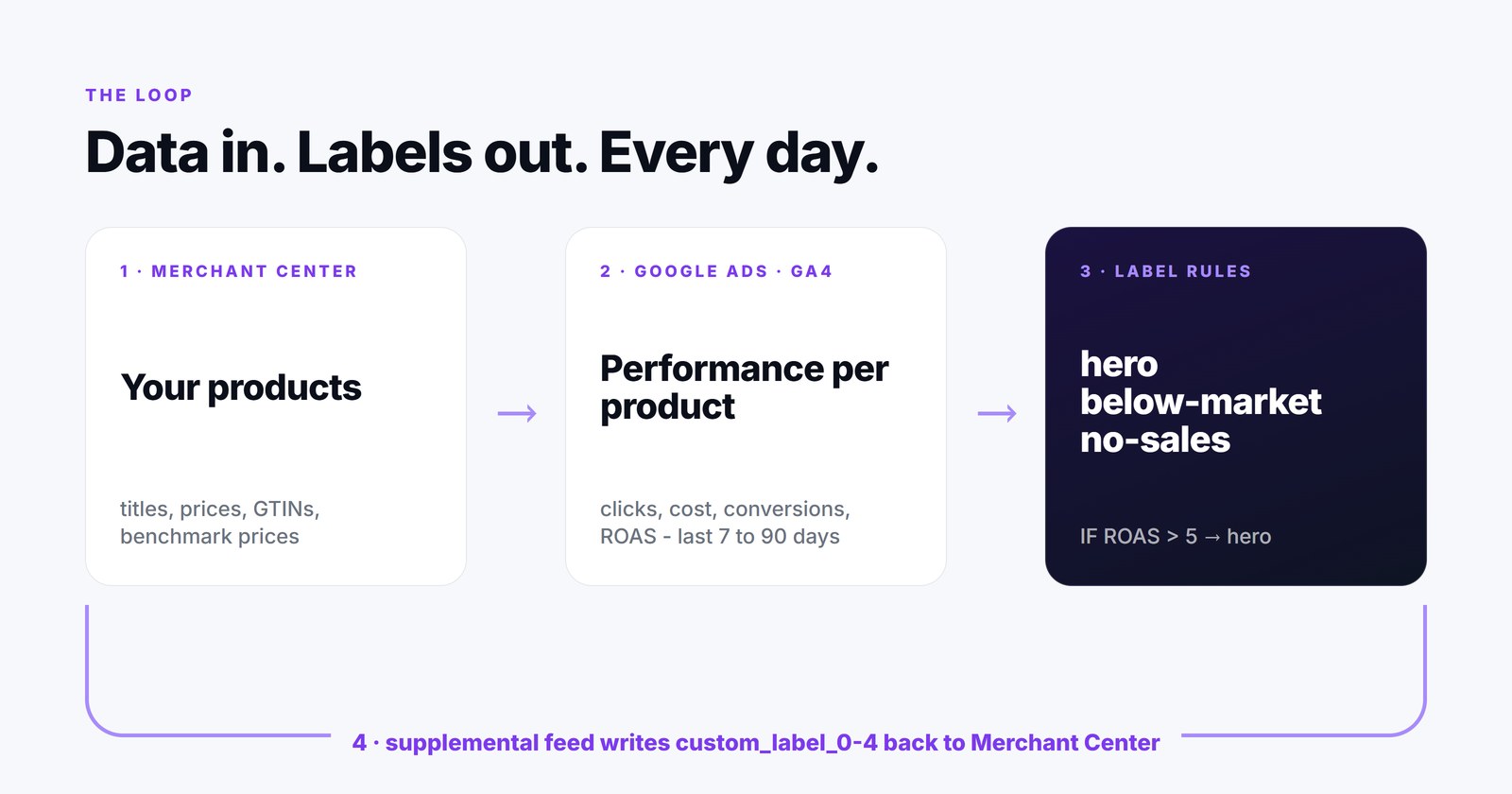
Labels that depend on performance are what the Shopping Labels module does. It reads the products from Merchant Center, joins Google Ads (clicks, cost, conversions, conversion value, ROAS), GA4 and, if you want, a Google Sheet with margins by item ID, applies your label rules and writes custom_label_0-4 back through a supplemental feed - the primary feed is never touched. Runs are scheduled from every hour to once a day.
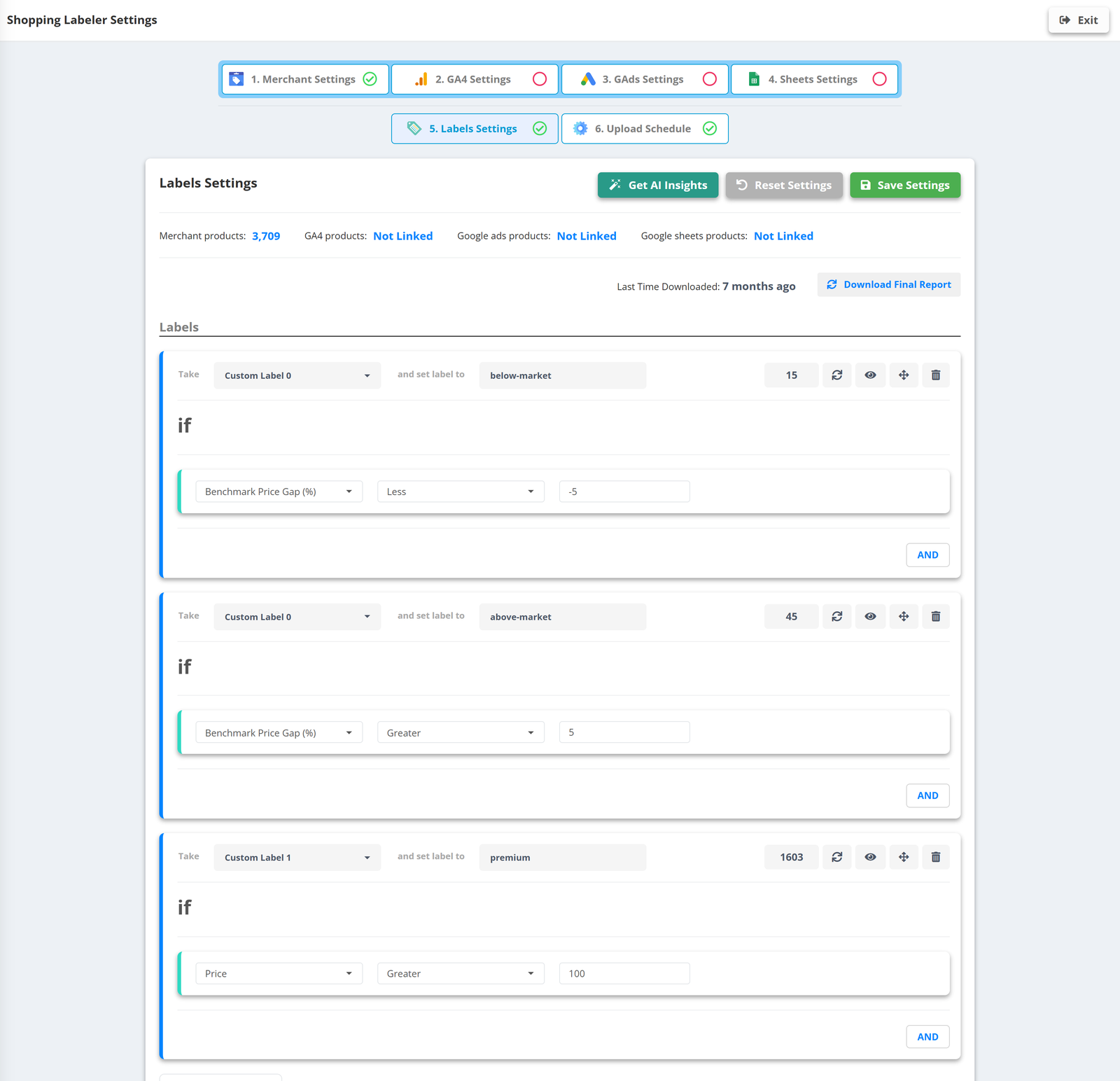
The rules use the same IF / THEN form as everything else in the app. The screen below has three of them on a real Merchant Center account with 3,709 products: two price-competitiveness labels from the benchmark gap and one price band. The number next to each rule is how many products match right now - counted before anything is uploaded.
- Fields available in the rules: item ID, title, brand, product type levels, price, availability, condition, channel, language, benchmark price, benchmark price difference and benchmark price gap in percent - plus the Google Ads and GA4 metrics once those accounts are linked.
- Conditions: contains, does not contain, exact match, contains any, is empty, is not empty, greater, greater or equal, less, less or equal.
- Get AI Insights looks at the joined data and proposes labels and thresholds; you decide what to keep.
- Every run is logged with its result.
Then build the campaigns
- In Google Ads create one Shopping or Performance Max campaign per label value you want to fund differently - typically two or three, not ten.
- In each campaign’s listing groups (Shopping) or asset group listing groups (PMax) subdivide by custom label and keep only the matching value; exclude “everything else”.
- Give each campaign its own budget and target ROAS. Best sellers: most of the budget, a target you can defend. Below-market: room to scale. No-sales: a small budget or nothing.
- Leave the structure alone for a few weeks. The labels will move products between campaigns as the data changes - that is the whole point - but the campaigns themselves should not be rebuilt every time.
A catalog is not one product with one performance; it is thousands of small decisions. Custom labels are the cheapest way to let those decisions reach the bidding - and, kept fresh automatically, the only way that scales past the first spreadsheet.